|
|
Manage User Roles and Permissions |
Manage User Roles and Permissions
For organization administrators.
Each person in your organization has one or more roles. Roles decide what they see in Classwork.com, including what’s under Administration in the left menu.
Give someone a role
A User Administrator assigns roles. Classwork.com sets up your first User Administrator; email support@classwork.com if you need one.
- Go to Administration > Users.
- Search for the person and click their name.
- Under Roles, check each role they need.
- Click Save.
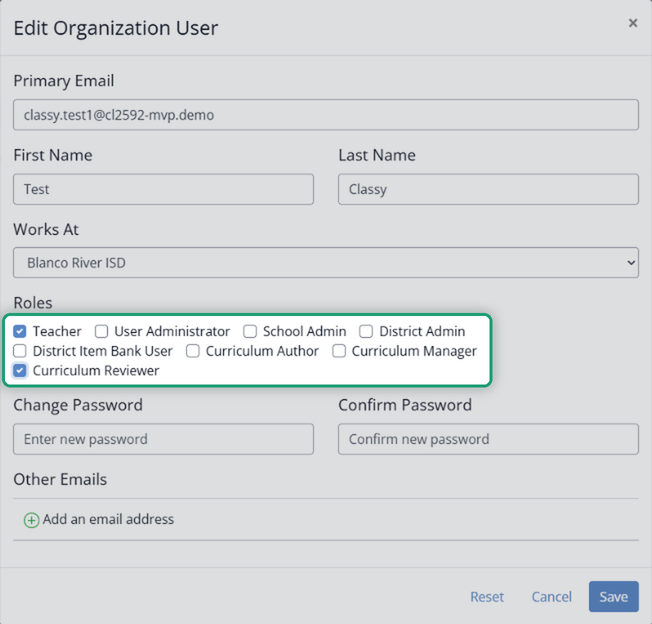
You pick roles the same way when you add someone (see Manage Users in Administration), or with role codes when you import a file (see How to Import a List of Users).
Roles add up. An admin role doesn’t include the others. Someone who needs to teach and manage users needs both Teacher and User Administrator. Someone with only an admin role sees just Administration, with no Activities, Classes or Library.
The roles
Teacher
The role most people have. Teachers make Activities, give Assignments, manage Classes and review student work. Their left menu shows Activities, Students, Classes, Notifications and Library (plus Lesson Log in Texas OER Companion districts). Teacher alone has no Administration menu.
User Administrator
Adds, edits and deactivates users, assigns roles, builds Review Teams and PLCs, and connects rostering.
Administration shows: Users (with Add User, Import Users and Manage Teams), SIS Setup, Ed-Fi Setup and Organization Info. A User Administrator for one school manages that school’s users.
School Admin
Sees data for their school.
Administration shows: School Dashboard (Headline Metrics and Key Performance Indicator cards for your campus; see District and School Dashboards), School Reports, and Pacing in Texas OER Companion districts. Coaching appears in the left menu in Companion districts, with your campus’s teachers as your Coaching Partners. See Coaching: Get Started and Set Up Coaching.
District Admin
Sees data across the district.
Administration shows: District Dashboard (the same cards, district-wide, with a School filter), District Reports, Pacing in Texas OER Companion districts, and Organization Info. Coaching appears in the left menu in Companion districts; you choose your Coaching Partners in Set Up Coaching (see Coaching: Get Started and Set Up Coaching).
Give an admin School Admin or District Admin, not both.
Curriculum Author
Builds and updates the district’s curriculum in District Resources. Administration shows: Curriculum Authoring and Organization Info (view only). See Curriculum Authoring Overview.
Curriculum Reviewer
Approves or declines Activities that teachers submit for review. Administration shows: Curriculum Review and Organization Info.
The role alone isn’t enough: submissions only show up once the reviewer is on a Review Team. See Create and Manage Teams and Curriculum Review - Administration Page.
Curriculum Manager
Sets up the organization-wide settings that shape reporting and the Texas OER curriculum, and has full Curriculum Authoring rights. Administration shows: Curriculum Authoring and Organization Info, where only a Curriculum Manager gets the setup buttons:
- Score Bands: Manage Score Bands
- School Calendars (the school year calendar): Manage the School Year Calendar
- Activity Types: Manage Activity Types
- Curriculum Pacing (Texas OER Companion districts): Curriculum Pacing for Curriculum Managers
- Item Bank Release Settings (Texas OER Companion districts): the Texas OER Item Banks start locked to Curriculum Authors and Managers until a Curriculum Manager releases them to teachers.
Changes here affect everyone’s reports. Curriculum Pacing also updates the Texas OER Pacing report and teachers’ Lesson Logs. See Manage Organization Settings.
District Item Bank User
This role doesn’t add an Administration menu. Ask support@classwork.com before you assign it.
At a glance: what’s under Administration
| Role | Administration shows |
| User Administrator | Users, SIS Setup, Ed-Fi Setup, Organization Info |
| School Admin | School Dashboard, School Reports, Pacing* |
| District Admin | District Dashboard, District Reports, Pacing*, Organization Info |
| Curriculum Author | Curriculum Authoring, Organization Info |
| Curriculum Reviewer | Curriculum Review, Organization Info |
| Curriculum Manager | Curriculum Authoring, Organization Info (with the setup buttons) |
| Teacher, District Item Bank User | No Administration menu |
*Texas OER Companion districts. Someone with several roles sees all of their menus together.
Not seeing a menu you expect? Check the person’s roles on the Users page.
Was this article helpful?
That’s Great!
Thank you for your feedback
Sorry! We couldn't be helpful
Thank you for your feedback
Feedback sent
We appreciate your effort and will try to fix the article