|
|
Administration - Manage Organization Settings |
Manage Organization Settings
For Curriculum Managers.
Organization settings shape reporting and the Texas OER (Bluebonnet Learning) curriculum for your whole school or district: how scores are grouped, which days are teaching days, how activities are tagged, how lessons are paced, and when teachers get the item banks.
Open the settings
Go to Administration > Organization Info. The setting buttons are at the bottom of the card.
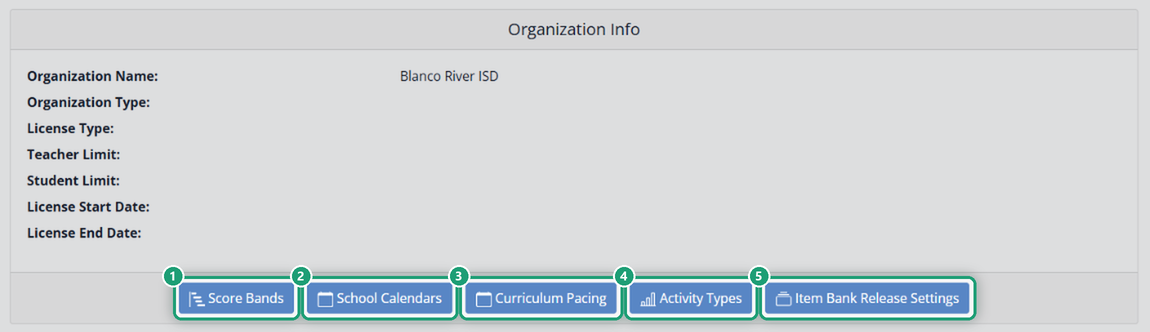
Only Curriculum Managers see the buttons. Other admins can open Organization Info to see your license details (organization type, license type, teacher and student limits, start and end dates), but not change these settings. See Manage User Roles and Permissions.
The settings
- Score Bands: the score ranges, names and colors reports use to group student results. See Manage Score Bands.
- School Calendars: your teaching days, days off, notes and grading periods. Only a published calendar is used in reports. See Manage the School Year Calendar.
- Curriculum Pacing (Texas OER Companion districts): adjust the Texas OER lesson schedule for each course on your calendar. See Curriculum Pacing for Curriculum Managers.
- Activity Types: categories and types for tagging activities, which drive report filters. See Manage Activity Types.
- Item Bank Release Settings (Texas OER Companion districts): described below.
Release the Texas OER item banks to teachers
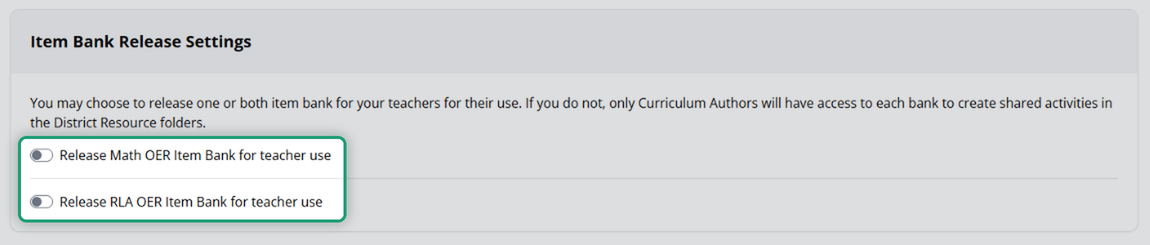
The Texas OER Math and RLA item banks start out available only to Curriculum Authors, who use them to build shared activities in District Resources. When you’re ready for teachers to use a bank themselves:
- Click Item Bank Release Settings.
- Turn on Release Math OER Item Bank for teacher use, Release RLA OER Item Bank for teacher use, or both.
Before you change anything
These settings affect what every teacher and administrator sees in reports. Changing them doesn’t change student work or scores, only how results are grouped, counted and shown. Set them up early in the school year if you can.
Was this article helpful?
That’s Great!
Thank you for your feedback
Sorry! We couldn't be helpful
Thank you for your feedback
Feedback sent
We appreciate your effort and will try to fix the article