|
|
District and School Dashboards |
District and School Dashboards
Your dashboard is your at-a-glance home base in Administration. It brings the numbers you care about most into one place, built the way you want them.
Which dashboard you see depends on your role. District Administrators see the District Dashboard, covering the whole district. School Administrators see the School Dashboard, focused on their campus. Both work the same way, and both start out mostly blank, ready for you to set up. This article shows you how.
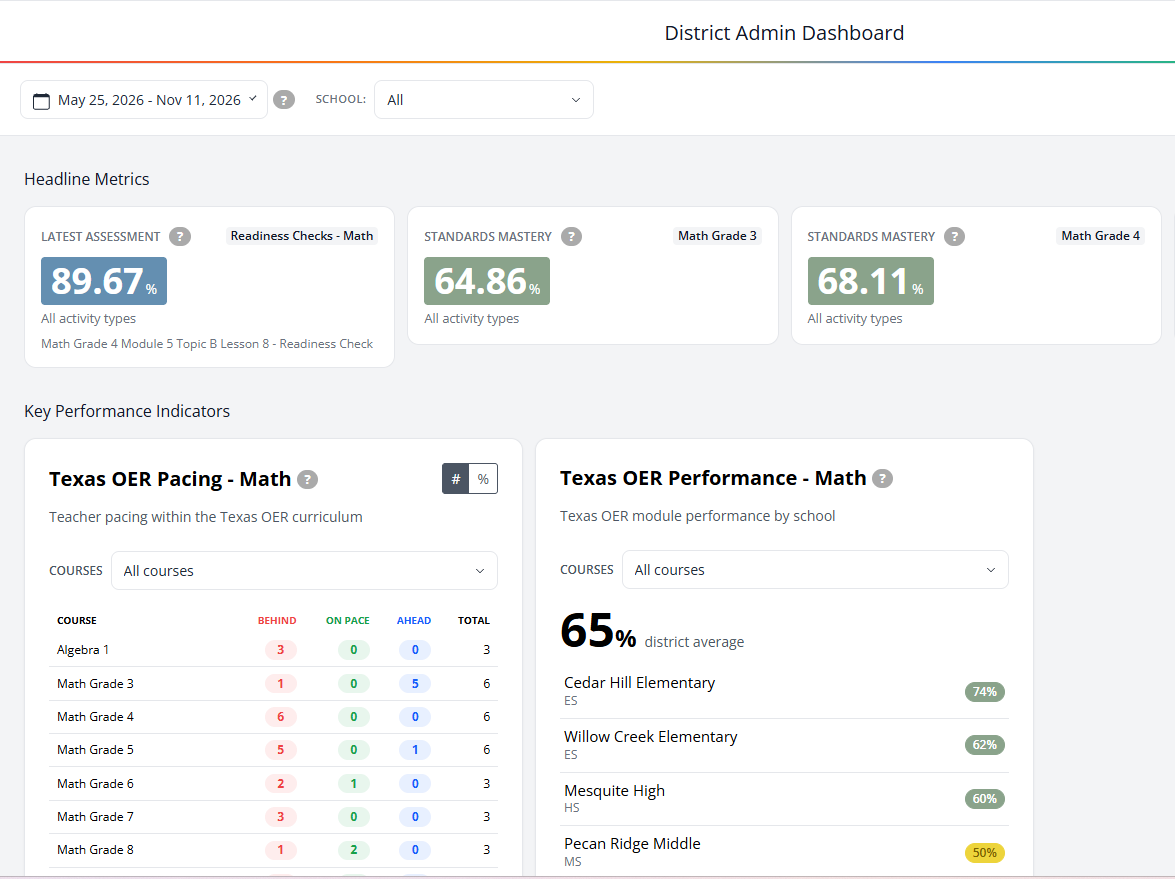
Dashboard Controls
A few controls at the top of the dashboard shape everything below them:
- Date Range: Sets the time window used by every card on the dashboard.
- School: On the District Dashboard, view all schools together or focus on a single school. (The School Dashboard is already scoped to your campus.)
Two Sections to Build
Your dashboard is organized into two sections, and you build each one separately:
- Headline Metrics: A row of quick summary cards at the top, such as the latest assessment score for a course.
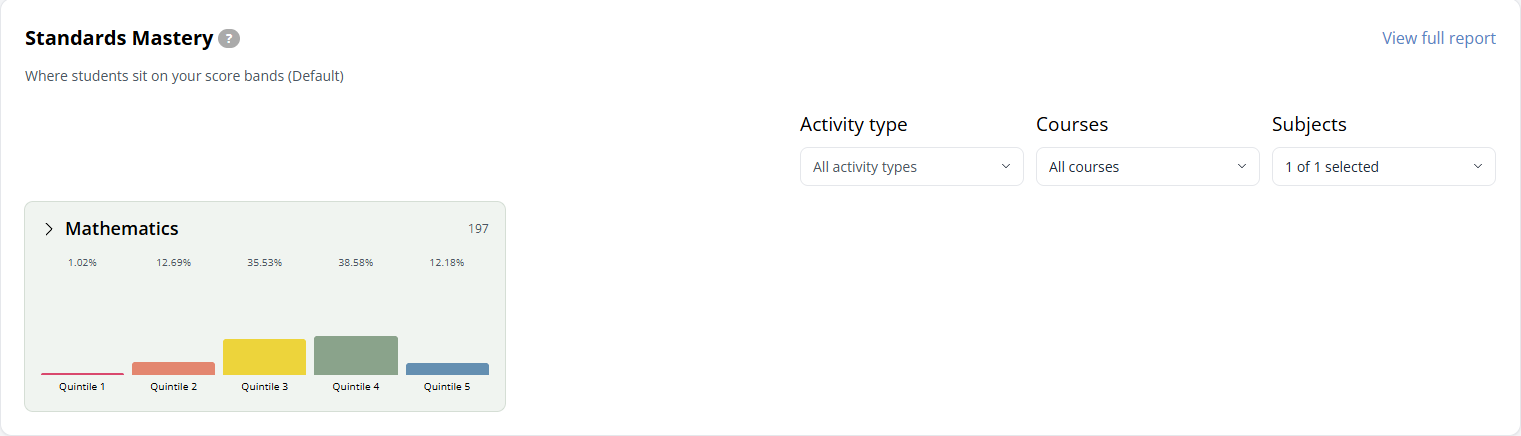
- Key Performance Indicators: Larger cards with charts, such as Standards Mastery, that give you a fuller picture.
When a section is empty, it simply reads Add cards from settings. That is your cue to start building.
Add Cards to a Section
Each section has its own settings (gear) icon. Click the gear next to the section you want to build to open its customize window.
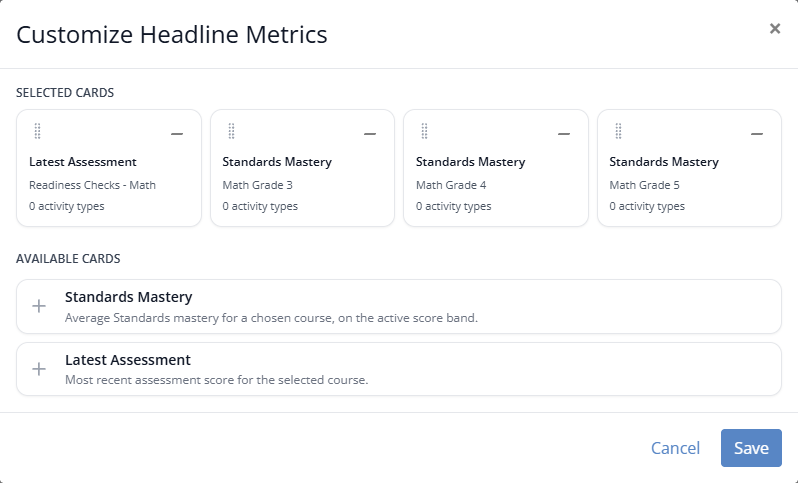
Inside the window you will see two areas:
- Selected Cards: The cards already on your dashboard.
- Available Cards: The cards you can add.
To add a card:
- Click an available card, for example Standards Mastery or Latest Assessment.
- Choose its options. For example, Standards Mastery asks you to pick the course (each course you select becomes its own card) and, optionally, one or more activity types.
- Click Add card.
- When you have added everything you want, click Save.
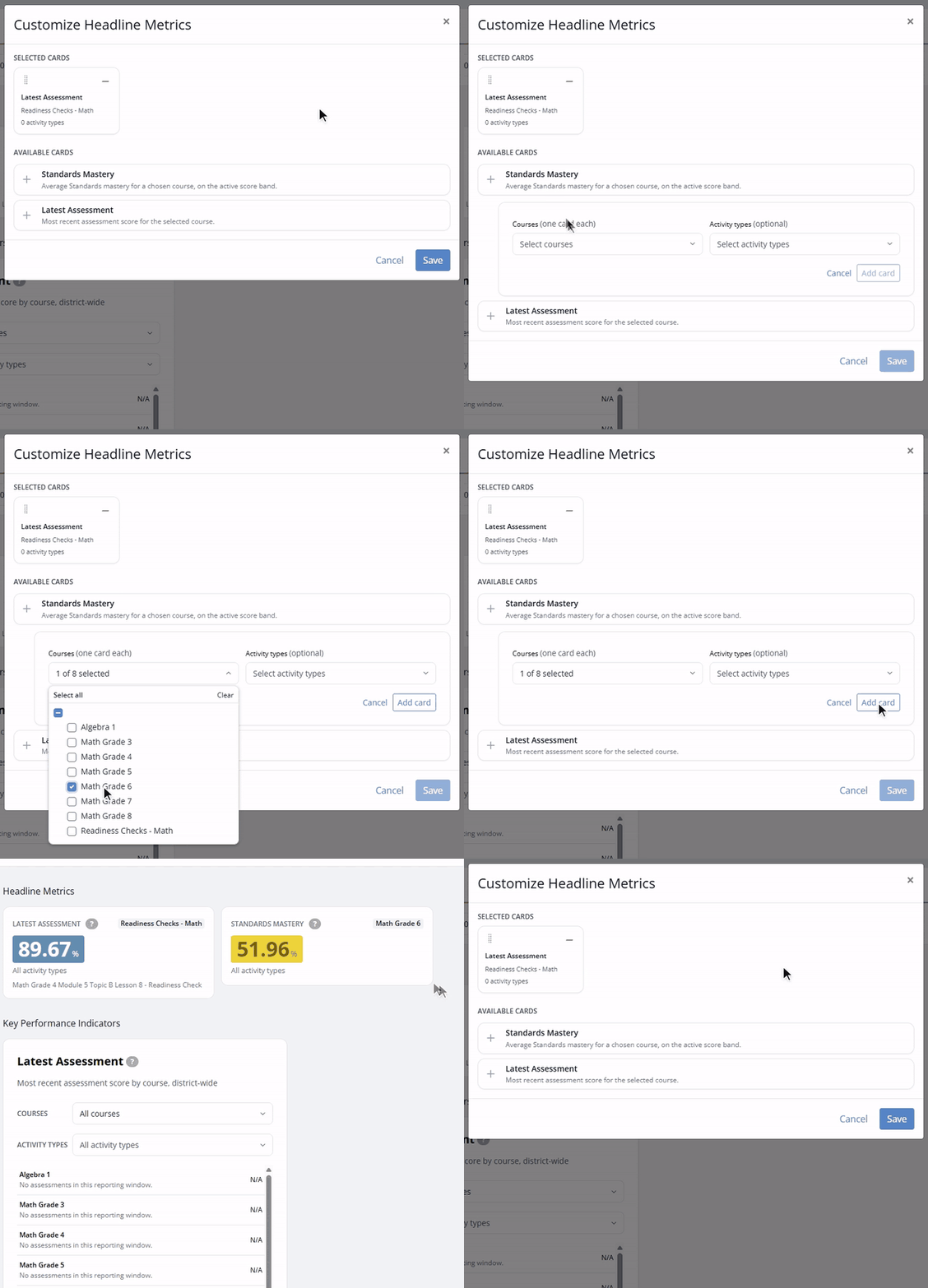
Arrange and Remove Cards
In the customize window, you can fine-tune your Selected Cards:
- Reorder a card by dragging the handle on its left.
- Remove a card by clicking the minus button in its corner.
Click Save to apply your changes.
Card Types
The two sections offer different cards.
Headline Metric cards
- Latest Assessment: The most recent assessment score for the selected course.
- Standards Mastery: Average standards mastery for a chosen course, on your active score band.
Key Performance Indicator cards
The available Key Performance Indicators are grouped into categories. The current set is focused on Texas OER programs, and more are on the way, both additional Texas cards and national cards for all administrators.
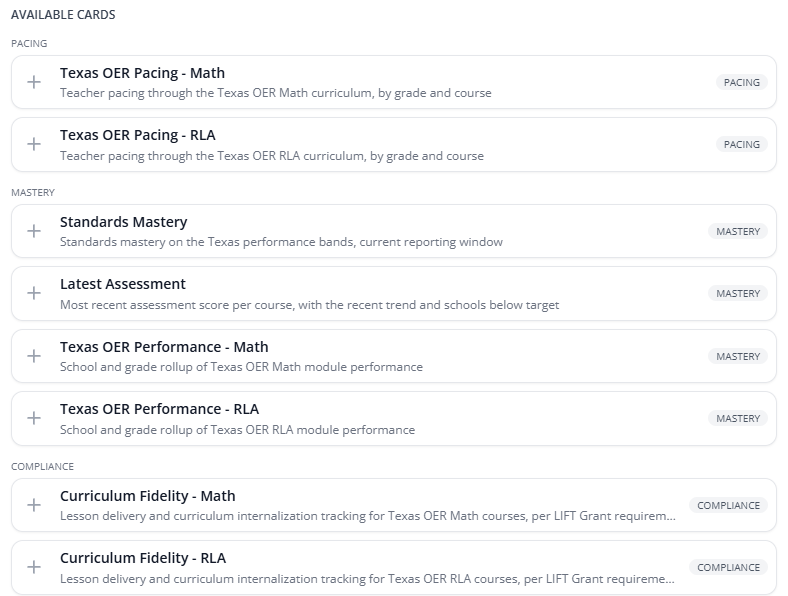
Pacing
- Texas OER Pacing - Math: Teacher pacing through the Texas OER Math curriculum, by grade and course.
- Texas OER Pacing - RLA: Teacher pacing through the Texas OER RLA curriculum, by grade and course.
Mastery
- Standards Mastery: Where students sit on your score bands, for the current reporting window. Filter the card by Activity type, Courses and Subjects.
- Latest Assessment: Most recent assessment score per course, with the recent trend and schools below target.
- Texas OER Performance - Math: School and grade rollup of Texas OER Math module performance.
- Texas OER Performance - RLA: School and grade rollup of Texas OER RLA module performance.
Compliance
- Curriculum Fidelity - Math: Lesson delivery and curriculum internalization tracking for Texas OER Math courses, per LIFT Grant requirements.
- Curriculum Fidelity - RLA: Lesson delivery and curriculum internalization tracking for Texas OER RLA courses, per LIFT Grant requirements.
Key Performance Indicator cards also include a View full report link, which opens the complete report behind that card so you can dig deeper.
Putting It All Together
Your dashboard starts blank on purpose. Take a few minutes to add the Headline Metrics and Key Performance Indicators that matter most to your role, and you will have a clear, focused view every time you open Administration.
Was this article helpful?
That’s Great!
Thank you for your feedback
Sorry! We couldn't be helpful
Thank you for your feedback
Feedback sent
We appreciate your effort and will try to fix the article