|
|
How to Import a List of Users |
Import Users with a CSV File
For User Administrators.
Import a spreadsheet of your staff to set up your whole license at once. The import:
- creates accounts for people who don’t have one,
- adds people who already have a Classwork.com account to your license,
- updates roles and schools, and
- removes anyone who isn’t in the file from your license.
New users get a welcome email with sign-in instructions and a temporary password.
Make the CSV file
Start from the template attached to this article. The first row must be these six column names, in this order, spelled exactly like this:
Last Name,First Name,Email Address,Second Email,School,User Roles
Include everyone, even people you imported before. Anyone left out of the file is removed from your license and from reports.
School column
- District license: use the school name exactly as Classwork.com has it. To see the names, open any user on the Users page and look at the Works At list. Missing a school? Email support@classwork.com.
- School license: leave it blank.
- District staff (not at one school): leave it blank.
User Roles column
Leave it blank for teachers. For anyone else, use one or more of these codes, separated by commas:
teacher | Teacher. Add it when someone with another role also teaches (for example, curriculum_author, teacher). |
user_admin | User Administrator: adds and removes users, manages teams. You have this role if you’re importing. |
school_admin | School Admin: school dashboard and reports. |
district_admin | District Admin: district dashboard and reports. |
curriculum_author | Curriculum Author: builds District Resources. |
curriculum_reviewer | Curriculum Reviewer: reviews submitted Activities (also needs a Review Team). |
curriculum_manager | Curriculum Manager: organization settings plus full authoring. |
district_item_bank_user | District Item Bank User. |
What each role sees: Manage User Roles and Permissions.
Import the file
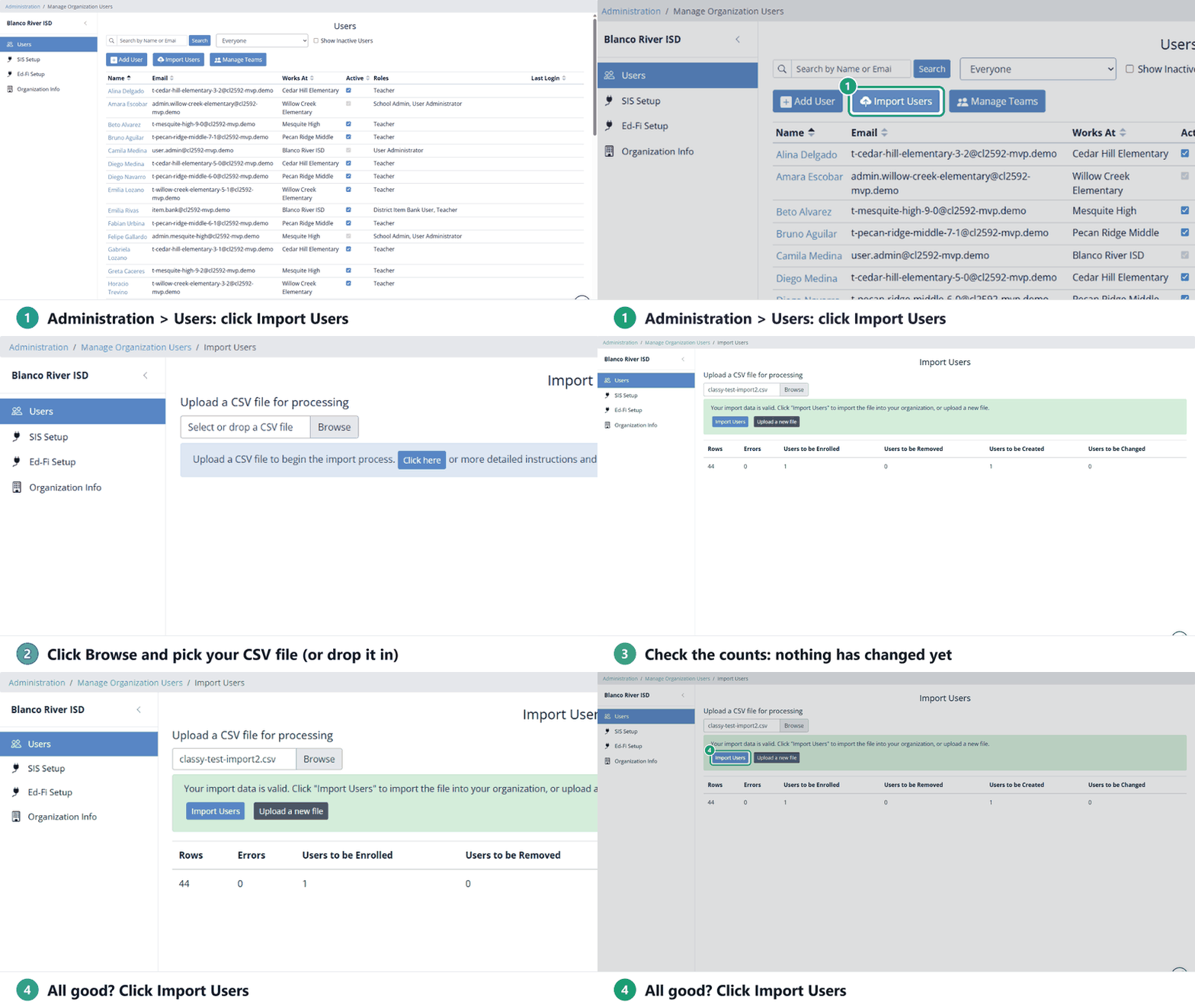
- Go to Administration > Users and click Import Users.
- Click Browse and pick your CSV file, or drop it on the box.
- Classwork.com checks the file first and shows what would happen: Rows, Errors, Users to be Enrolled, Users to be Removed, Users to be Created and Users to be Changed. Nothing has changed yet.
- Check the numbers, especially Users to be Removed. If they look right, click Import Users.
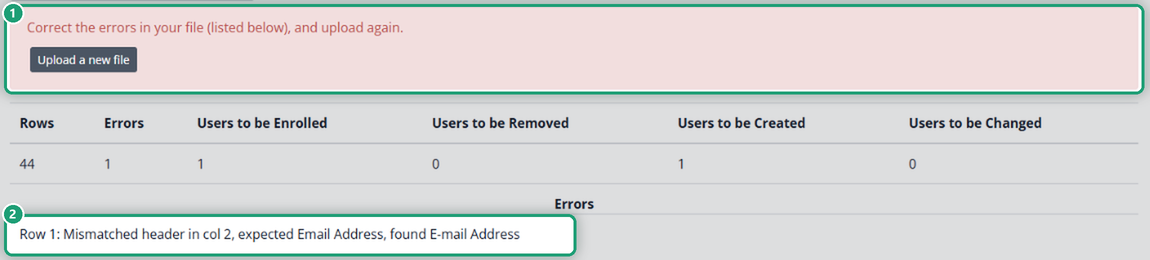
If the file has a problem, you’ll see Correct the errors in your file (listed below), and upload again, with each error by row. Fix the file and click Upload a new file.
Warnings you might see
| Would cancel personal subscription for… | The person pays for their own subscription. It will be canceled; an annual subscription is refunded for the time left, a monthly one isn’t. |
| Removing from license… | The person is on your license but not in the file. They’ll be removed. Their last sign-in date is shown. |
| Two different users already exist for… | The person has two accounts under different emails. Both will be added, which may go over your license count. Email support@classwork.com to merge them. |
| License teacher limit exceeded during import. | The file has more teachers than your license allows. Email support@classwork.com. |
If Clever or ClassLink rosters your district
There’s no Import Users button. Your users come from your SIS. To add one person by hand, see Manage Users in Administration.
Was this article helpful?
That’s Great!
Thank you for your feedback
Sorry! We couldn't be helpful
Thank you for your feedback
Feedback sent
We appreciate your effort and will try to fix the article