|
|
Administration - Managing School Year Calendar |
Manage the School Year Calendar
For Curriculum Managers.
Your school year calendar tells Classwork.com which days are teaching days, what your grading periods are, and when the year starts and ends. Reports and Texas OER Curriculum Pacing use your published calendar.
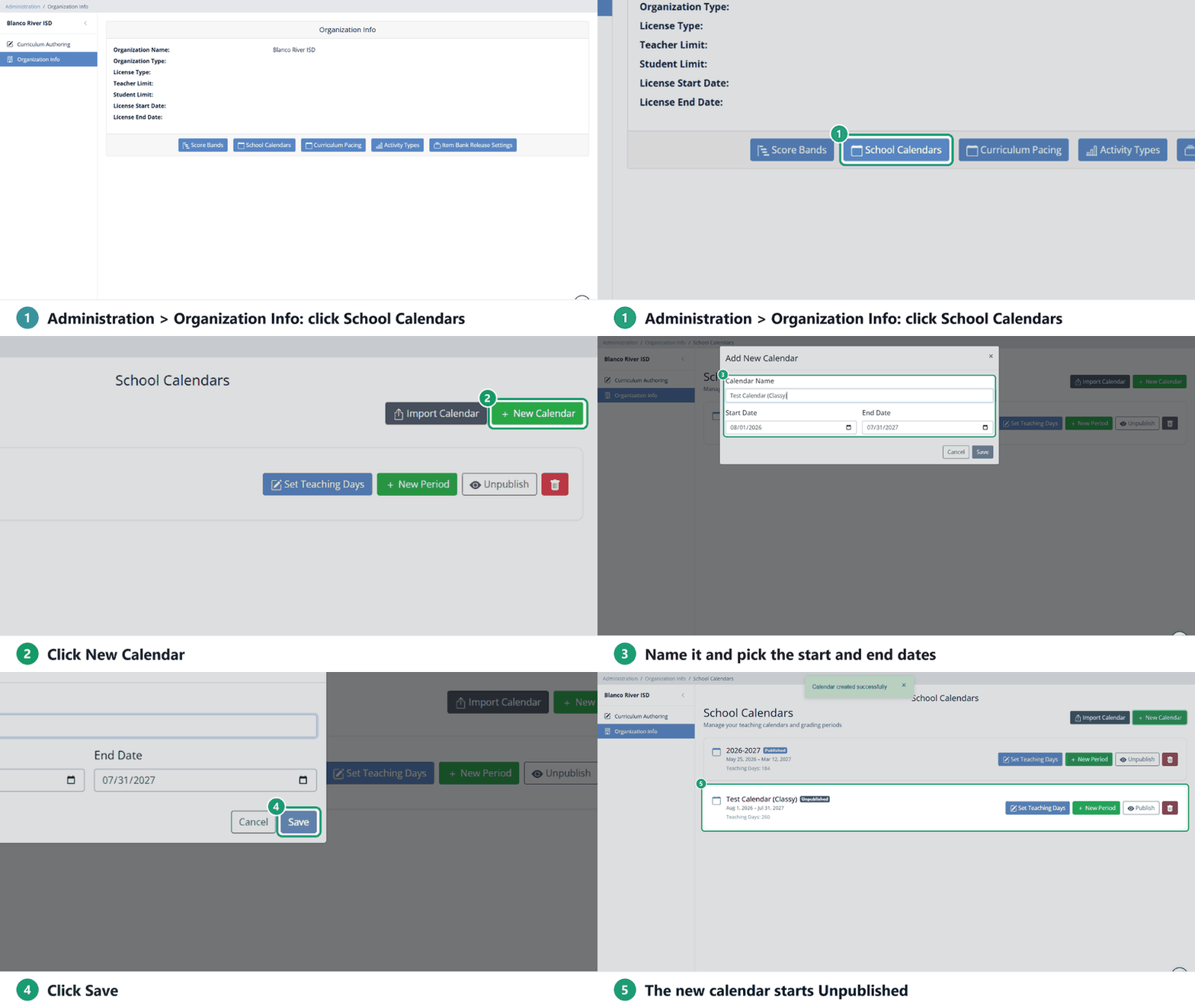
Open School Calendars
Go to Administration > Organization Info and click School Calendars. Each calendar shows whether it’s Published or Unpublished, its dates, and its number of teaching days.
Create a calendar
- Click New Calendar.
- Type a Calendar Name, such as 2026–2027 School Year.
- Pick the Start Date and End Date.
- Click Save.
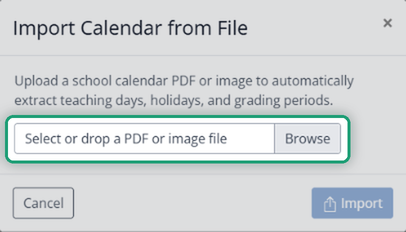
Or import your district’s calendar
Click Import Calendar and choose a PDF or image of your school calendar. Classwork.com reads the teaching days, holidays and grading periods from it. Check the result in Set Teaching Days before you publish it.
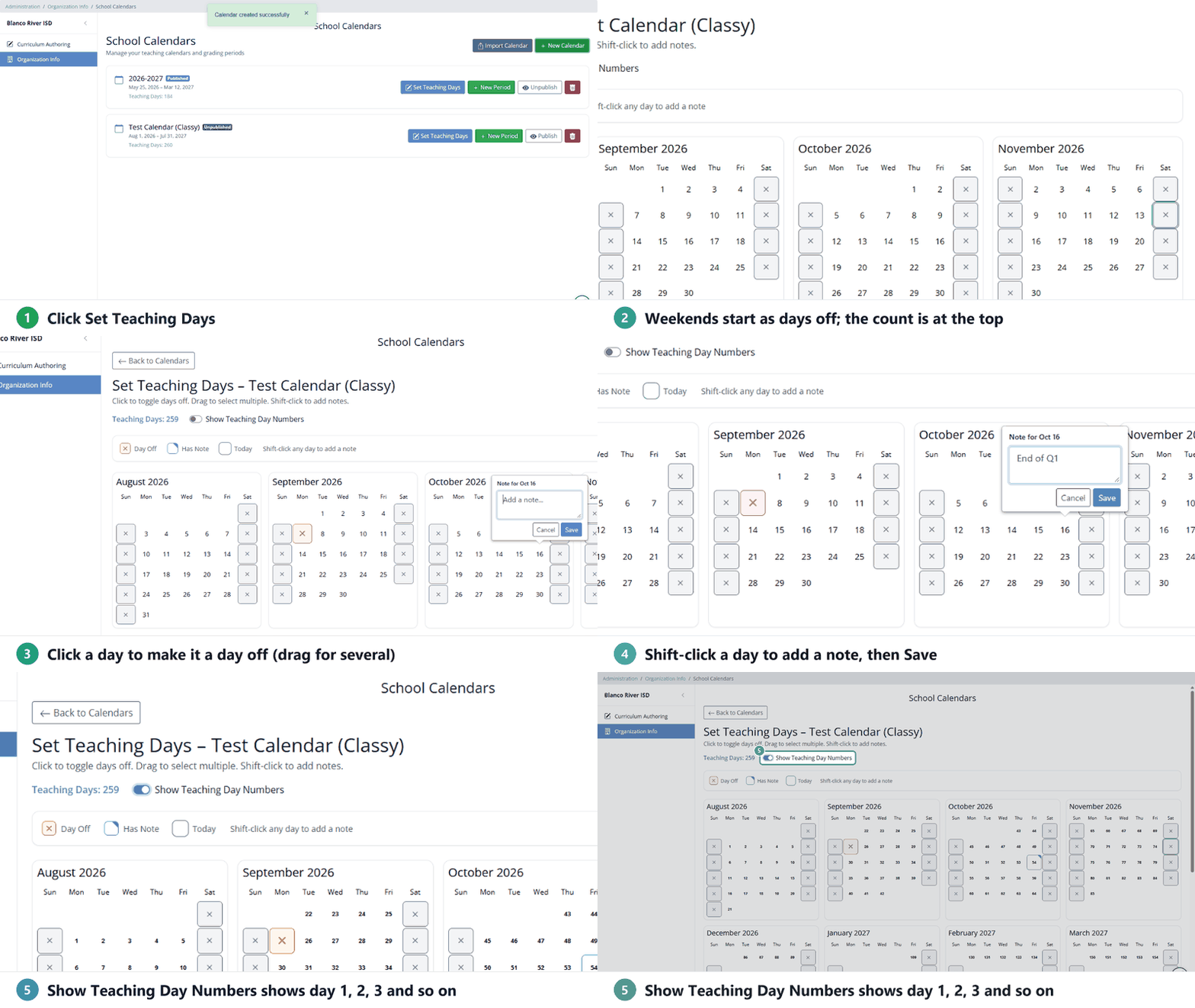
Set teaching days and notes
Click Set Teaching Days on the calendar. Monday through Friday start as teaching days and weekends as days off.
- Click a day to make it a day off; click it again to make it a teaching day. Drag across several days to change them all.
- Shift-click a day to add a note, such as End of Q1, and click Save. Days with a note are marked in the corner.
- Turn on Show Teaching Day Numbers to see each teaching day’s number (1, 2, 3…) instead of the date.
Changes save as you make them, and Teaching Days at the top updates. Click Back to Calendars when you’re done.
Add grading periods
- Click New Period on the calendar.
- Type a Period Name (such as Quarter 1 or Fall Semester) and pick its start and end dates.
- Click Save.
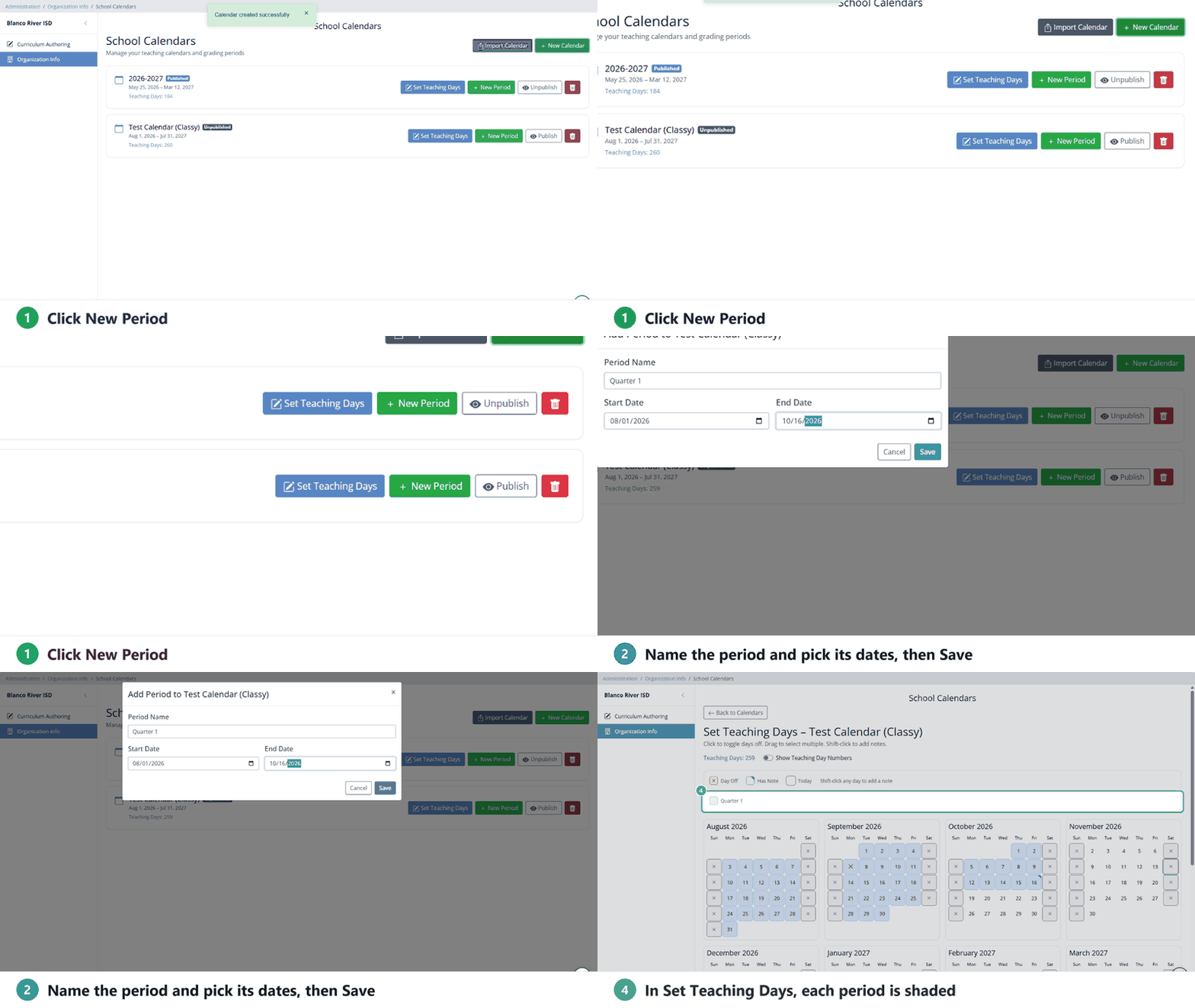
Periods are listed under the calendar with their teaching-day counts. Drag the handle to reorder them, or click the trash can to delete one. In Set Teaching Days, each period is shaded so you can see where it falls.
Publish the calendar
New and imported calendars start Unpublished. Only a published calendar is used in reports and Curriculum Pacing. When teaching days and periods are right, click Publish. Click Unpublish to take it back out of use.

Changing a published calendar changes reports for teachers and administrators, so double-check days off and grading periods first.
Delete a calendar
Click the red trash can on the calendar, then Continue, then Delete Permanently. This can’t be undone.
Related
- Manage Organization Settings
- Curriculum Pacing for Curriculum Managers: needs a published calendar.
- Manage Score Bands
Was this article helpful?
That’s Great!
Thank you for your feedback
Sorry! We couldn't be helpful
Thank you for your feedback
Feedback sent
We appreciate your effort and will try to fix the article