|
|
Administration - Manage Score Bands |
Manage Score Bands
For Curriculum Managers.
Score bands decide how reports group and color student scores. Set them up to match how your district talks about performance: state performance levels, quintiles or quartiles, or letter grades.
If you don’t create any, reports use five bands of 20% each. Once you create your own, the 20% bands aren’t assumed any more, so if you still want them, create them as a set too.
Create a score band set
- Go to Administration > Organization Info and click Score Bands.
- Click Create Score Band.
- Type a Name for the set, such as STAAR Performance Levels.
- Edit the Bands. A new set starts with five (0–20, 21–40, 41–60, 61–80, 81–100):
- Type a name for each band.
- Type the score where each band ends. The next band starts right after it, and the last band always ends at 100.
- Click a band’s colored dot to pick its color.
- Click Add Band to add one, or the trash can to remove one.
- Click Save.
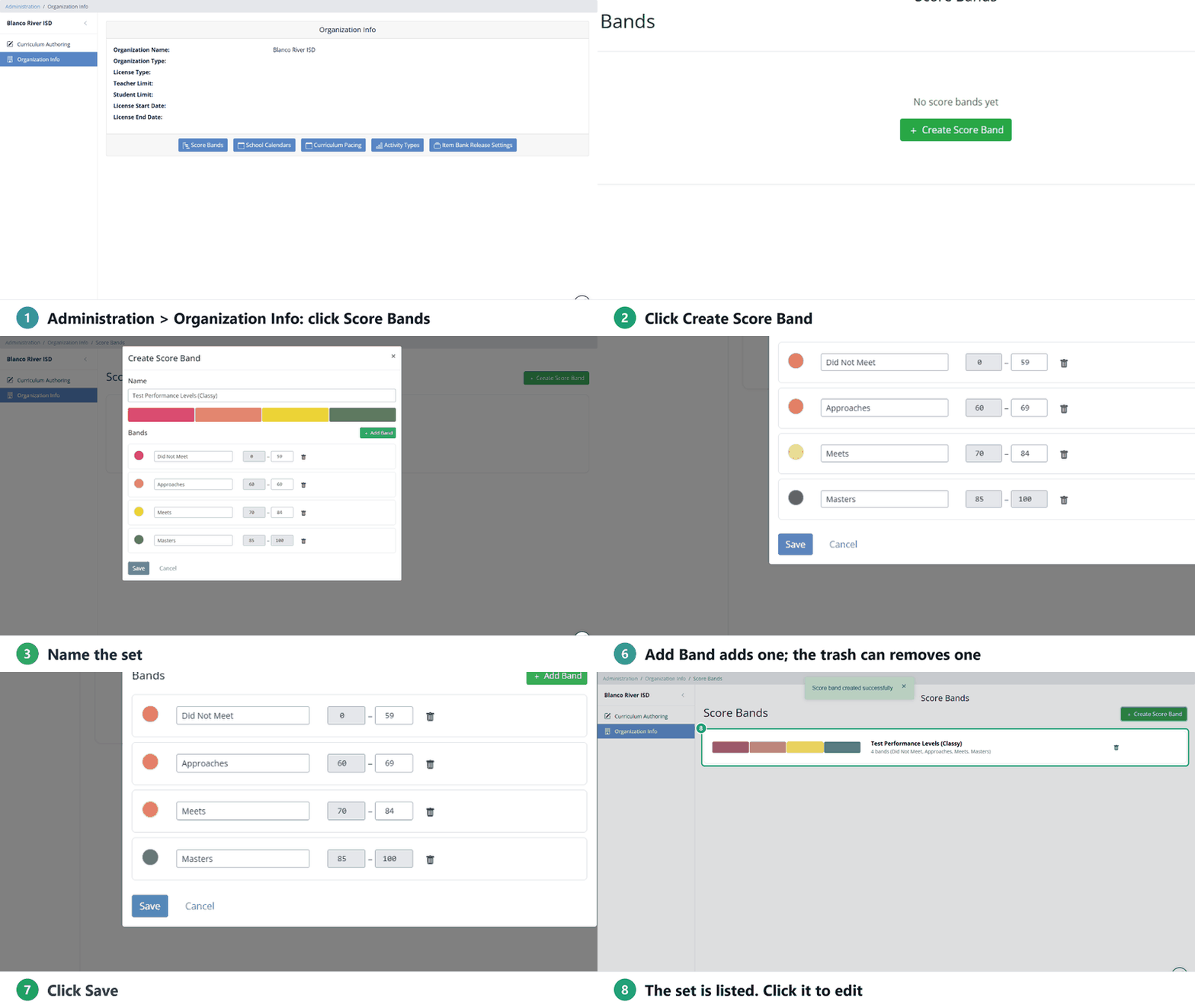
The bar at the top of the window previews your colors as you go.
Use more than one set
You can create as many sets as you like. When there’s more than one, reports with score bands show a menu so teachers and administrators can pick which set to view the same results with.
Edit or delete a set
- Edit: click the set’s name, make your changes, and click Save.
- Delete: click the trash can at the end of its row, then Delete. This can’t be undone.
Changing score bands doesn’t change any student’s score. It only changes how scores are grouped and colored in reports, for everyone in your organization.
Related
Was this article helpful?
That’s Great!
Thank you for your feedback
Sorry! We couldn't be helpful
Thank you for your feedback
Feedback sent
We appreciate your effort and will try to fix the article