|
|
Administration - Managing Users |
Manage Users in Administration
For User Administrators.
User Administrators add people to your Classwork.com license, give them roles, and take them off when they leave. Everything happens on one page: Administration > Users.
If you’re a User Administrator for one school, Administration opens on your school and you manage that school’s users. If you’re an administrator in more than one organization, pick the organization first.
Find a user
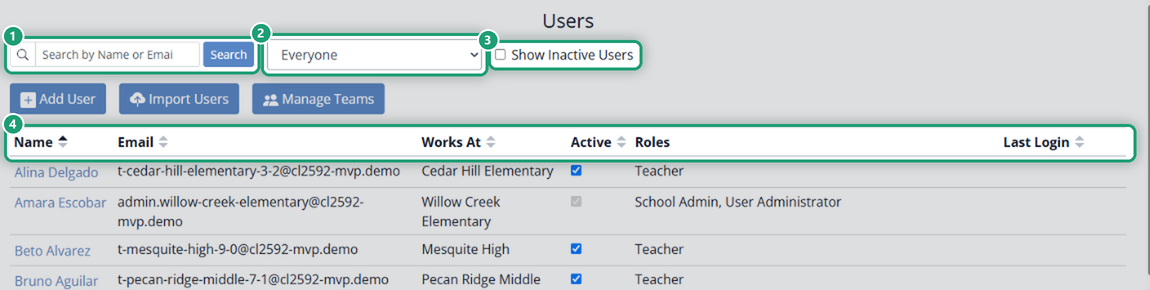
- Search: type part of a name or email and click Search.
- School filter: the menu next to Search shows Everyone, or just the people at one school (with a count).
- Show Inactive Users: check it to include people you’ve deactivated.
- Sort: click the arrows next to a column name (Name, Email, Works At, Active, Last Login).
Add a user
- Click Add User.
- Type their email in Primary Email and click Find user.
- If they’re new to Classwork.com, enter their First Name and Last Name, choose where they work in Works At, and check their Roles (Teacher is checked to start).
- Optional: under Other Emails, click Add an email address. Useful if your district has two email domains (such as @mydistrict.org and @students.mydistrict.org).
- Click Save.
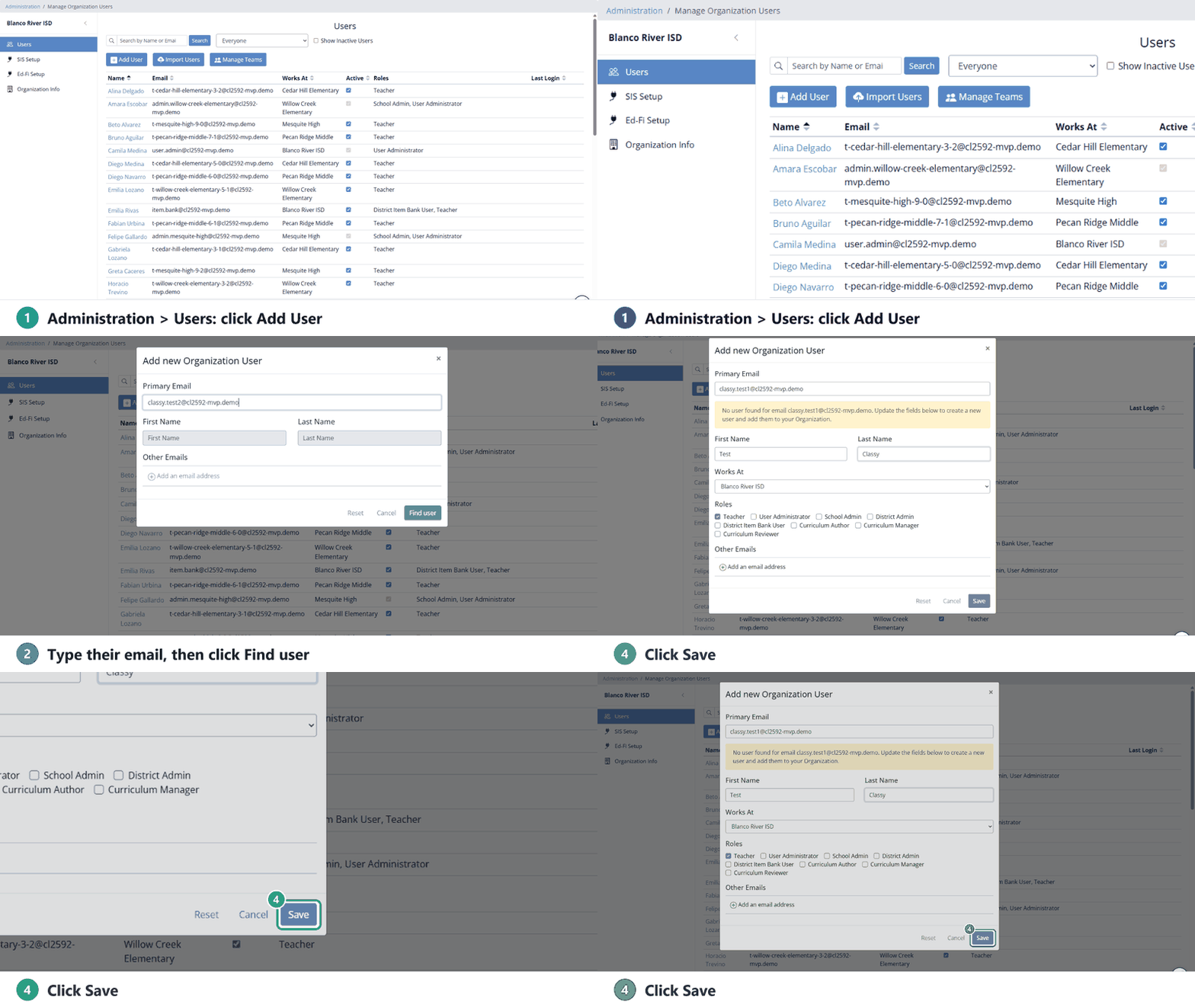
You’ll see User saved. Type another email to add the next person, or click Cancel to close.
If the person already has a Classwork.com account, it’s added to your organization. If they’re already in your organization, you’ll see their details to update instead.
Adding a lot of people? See How to Import a List of Users.
Change a user’s details or roles
Click the person’s name. In Edit Organization User you can change their email, name, Works At and Roles, set a new password (Change Password and Confirm Password), and add other emails. Click Save.
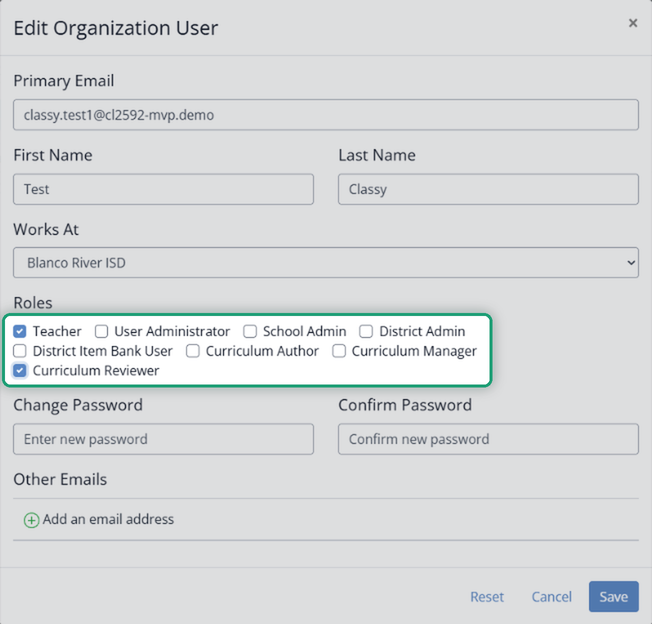
What each role can do: Manage User Roles and Permissions.
Deactivate or reactivate a user
When someone leaves, uncheck the Active box next to their name. It saves right away. They’re taken off your license and drop off the list; their account isn’t deleted. To find them again, check Show Inactive Users. To bring them back, check Active again.
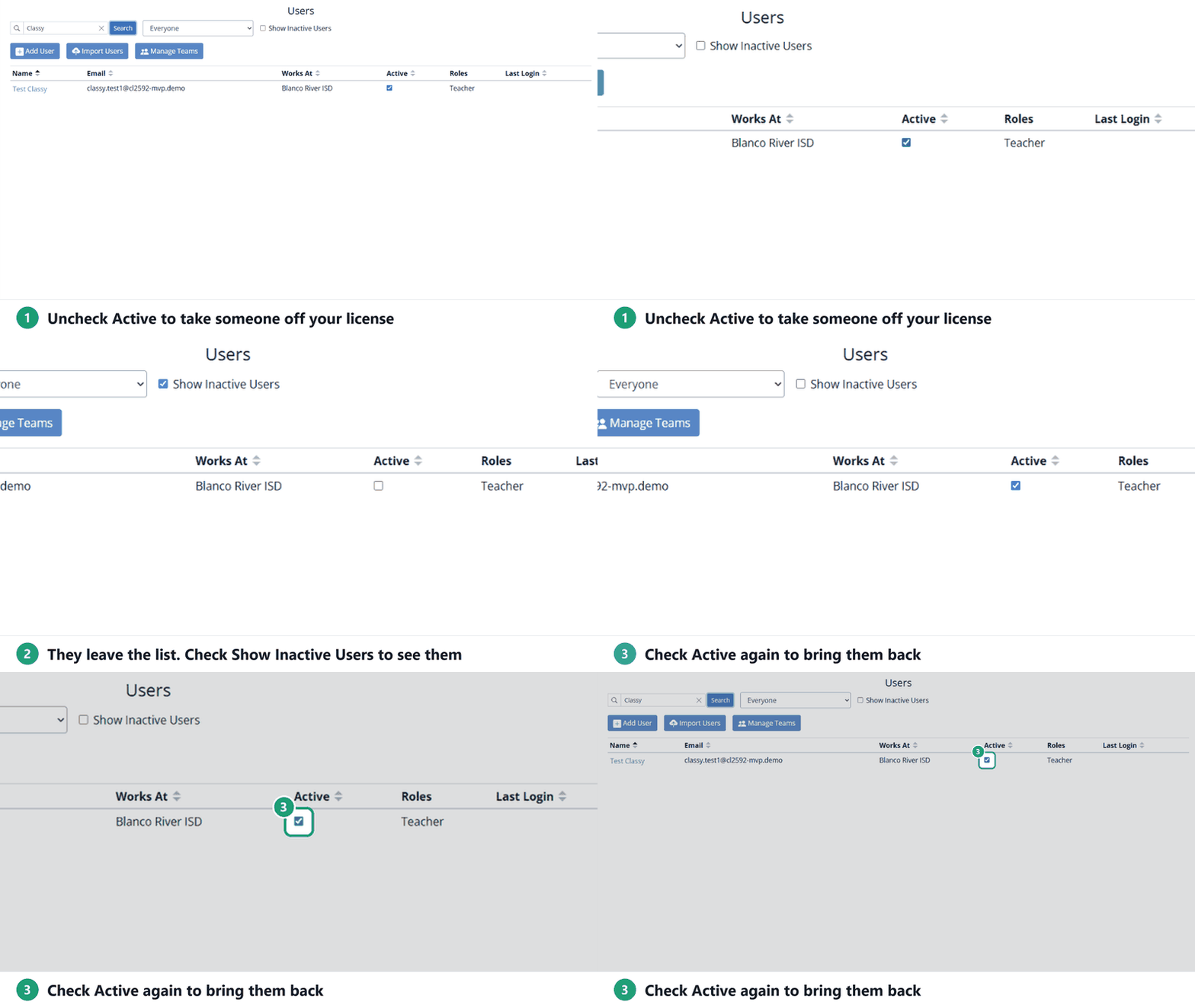
The Active box is greyed out for anyone with the User Administrator role. To deactivate one, first open their name, uncheck User Administrator and save.
If Clever or ClassLink rosters your district
The Users page says Your users are managed by Clever (or ClassLink). There’s no Add User or Import Users button: people come from your SIS. You can still change emails, passwords and roles, and manage teams. To deactivate someone, remove them in your SIS.
Your first User Administrator
Classwork.com sets up your organization’s first User Administrator. Need one? Email support@classwork.com.
Was this article helpful?
That’s Great!
Thank you for your feedback
Sorry! We couldn't be helpful
Thank you for your feedback
Feedback sent
We appreciate your effort and will try to fix the article