|
|
Manage Review Teams – Administration Page |
Create and Manage Teams
For User Administrators.
Teams group people for two jobs:
- Curriculum Review teams review the Activities teachers submit for approval. Teachers pick a Review Team when they submit, and only that team’s reviewers see it.
- PLC teams are your professional learning communities. Coaches pick the PLCs they support in Coaching (Texas OER Companion districts), and can create PLCs there too. See Coaching: Set Up and Log PLC Meetings.
Create a team
- Go to Administration > Users and click Manage Teams.
- Click Add Review Team.
- Type a Team name that says who it’s for (for example, Elementary Math Review).
- Pick the Team type: Curriculum Review or PLC. For a PLC, also pick its Campus (or leave All schools). You can’t change the type later.
- Search for each member and check Active next to their name.
- Click Create.
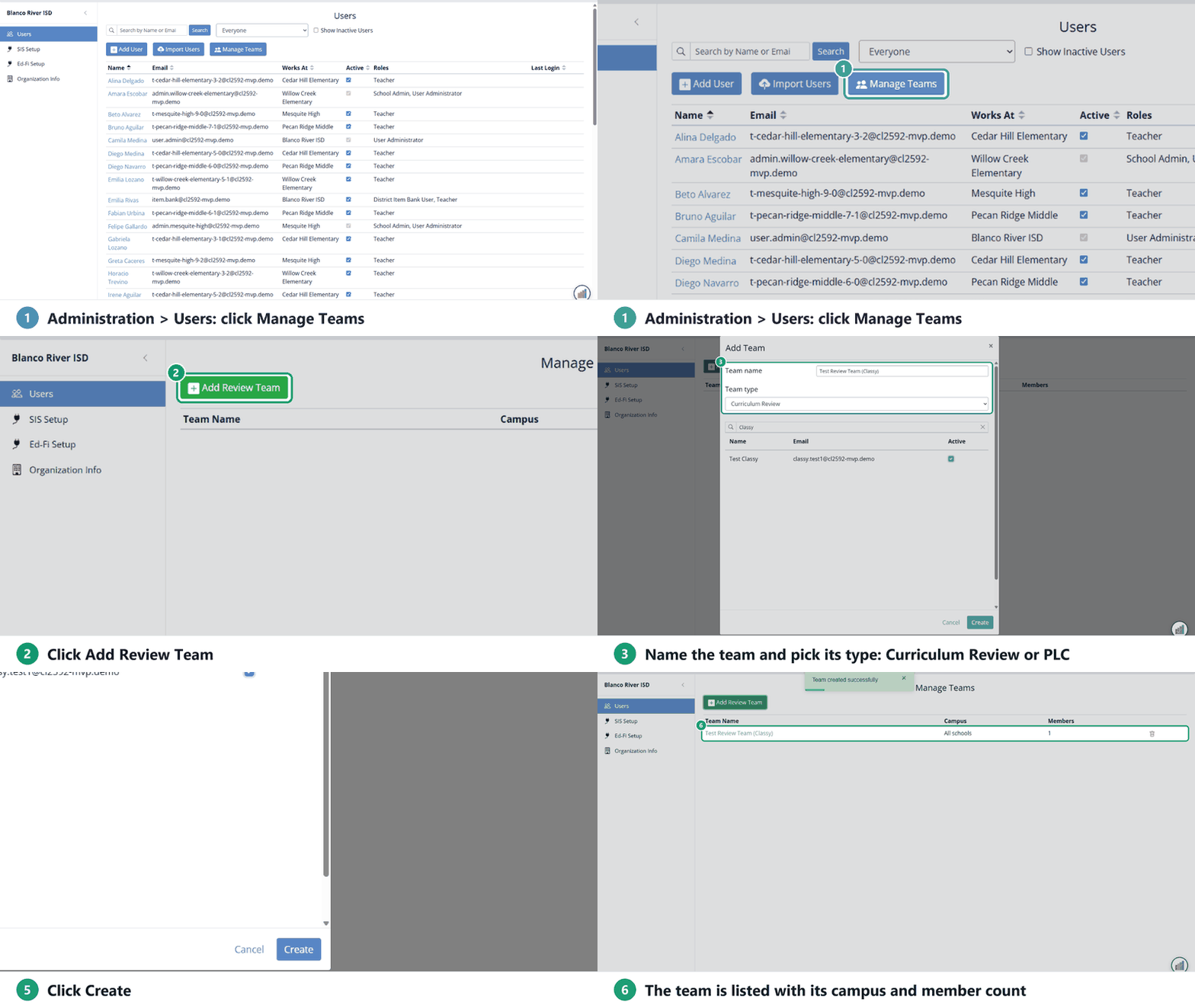
The team shows in the list with its Campus and number of Members.
Who can review
To see submissions, a reviewer needs both:
- the Curriculum Reviewer role (see Manage User Roles and Permissions), and
- a spot on at least one Curriculum Review team.
With the role but no team, they see the Curriculum Review page with nothing to review. See Curriculum Review - Administration Page.
Change a team
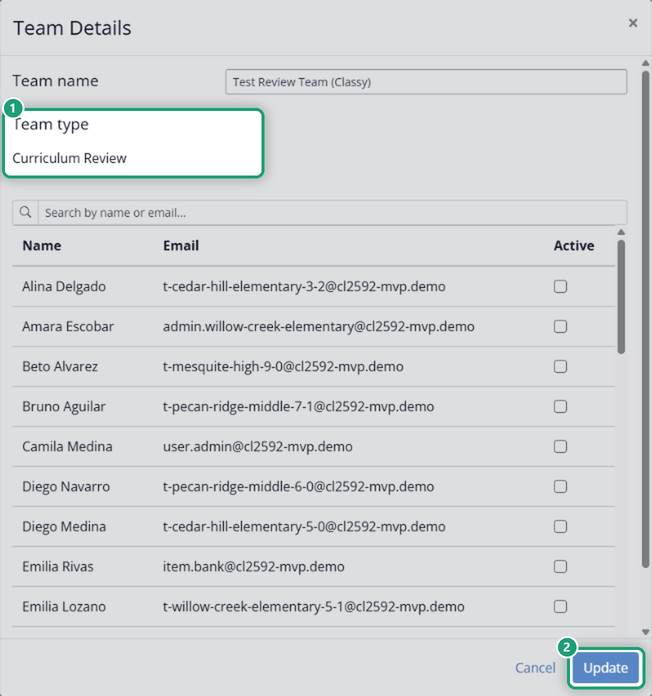
Click the team’s name. In Team Details, rename it or check and uncheck Active to add or remove members, then click Update. The team type is shown but can’t be changed.
Delete a team
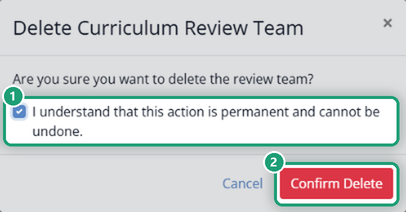
Click the red trash can at the end of the team’s row. Check the box to confirm, then click Confirm Delete. Deleting a Review Team is permanent. Deleting a PLC removes it from Coaching, but the PLC meetings already logged with it are kept.
Tips
- Put the grade, subject or program in the name (HS English Review).
- Update teams when staff change, so submissions reach someone.
Was this article helpful?
That’s Great!
Thank you for your feedback
Sorry! We couldn't be helpful
Thank you for your feedback
Feedback sent
We appreciate your effort and will try to fix the article