|
|
Curriculum Authoring Overview |
Curriculum Authoring Overview
For Curriculum Authors and Curriculum Managers.
Curriculum Authoring is where your district builds its own ready-to-use materials. You create folders of activities once; teachers add the folders they need and assign straight from them. Published materials show up for teachers as District Resources, kept separate from their own activities.
Before you start
- Classwork.com sets up your District Resources. Email support@classwork.com to get started or to change how your resources are organized.
- You need the Curriculum Author or Curriculum Manager role. Ask your User Administrator. See Manage User Roles and Permissions.
Open Curriculum Authoring
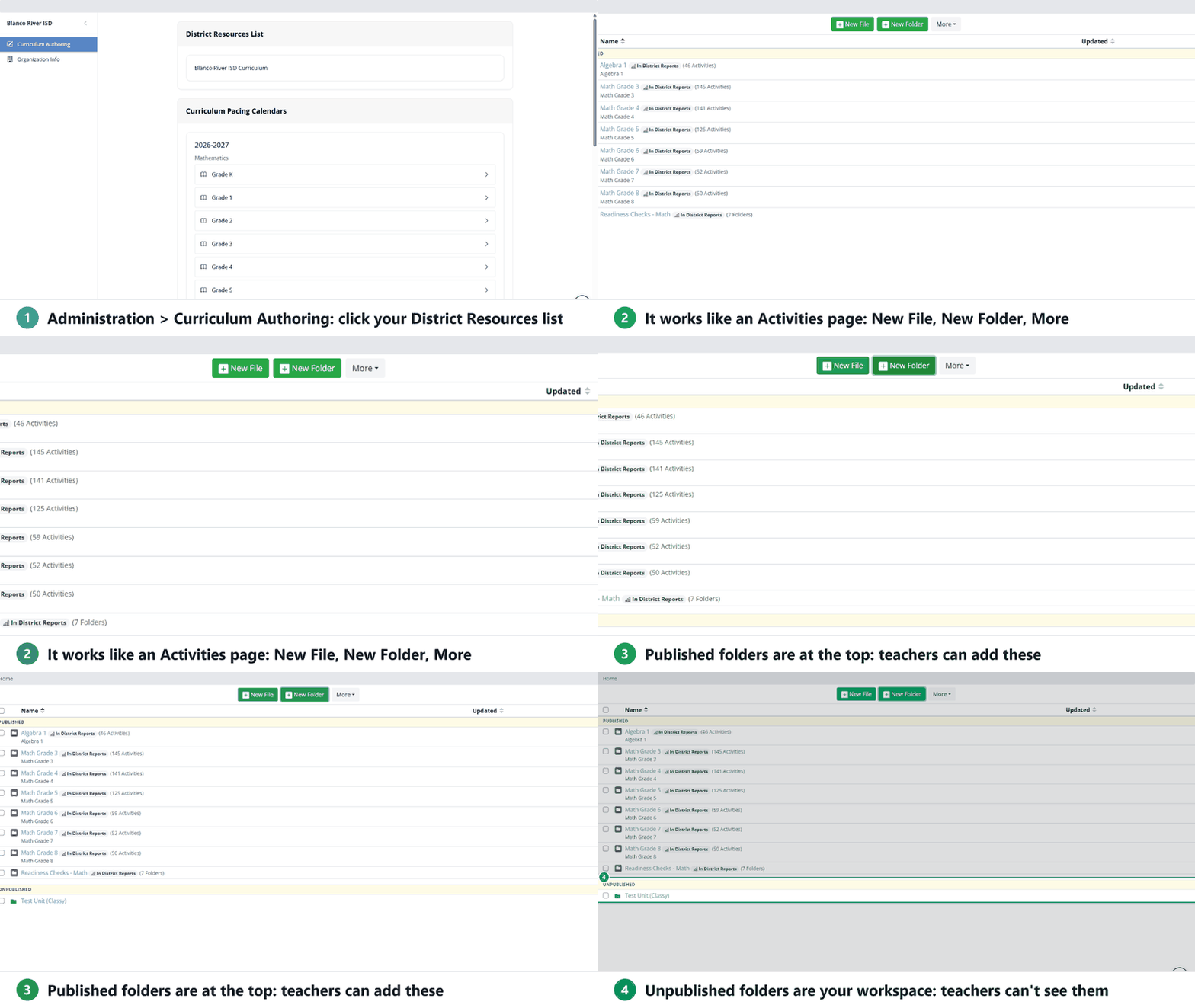
- Go to Administration > Curriculum Authoring.
- Under District Resources List, click the list you want to work on.
The list opens like an Activities page, with New File, New Folder and More. Folders are grouped into two sections:
- Published: folders teachers can add to their accounts.
- Unpublished: your workspace. Teachers can’t see anything here.
While you’re authoring, you’re working in your district’s shared curriculum account, so your menu shows Co-Teacher. To get back to your own account, click Co-Teacher > Back to My Account.
In Texas OER Companion districts, the Curriculum Authoring page also lists the Curriculum Pacing Calendars by course, to view. See Curriculum Pacing for Curriculum Managers.
Build and publish
- Create a folder for each group of materials, such as a grade, a course or a set of unit tests. New folders start under Unpublished.
- Add activities with New File, and subfolders with New Folder.
- When a folder is ready, publish it. Everything inside goes with it.
Step-by-step: Create and Publish Curriculum Folders.
What teachers see
Publishing makes a folder available; each teacher then adds the folders they want (so they only see their own subjects and grades). The folders appear under District Resources at the top of their Activities page. Teachers assign activities right from the folder; they don’t need to copy them first. See District and School Folders (Teacher Guide).
You can’t assign activities yourself while authoring. You decide, per activity, when teachers can assign it, whether they can copy it, and what Activity Type it counts as. See Manage Teacher Access and Security for District Resources.
Editing after you publish
Changes to a published activity reach teachers right away. Once a teacher has assigned an activity, it opens in Answer Key Mode: you can add text, images and Content Tools, but not add or delete questions. See Manage Curriculum Content and Published Updates.
Was this article helpful?
That’s Great!
Thank you for your feedback
Sorry! We couldn't be helpful
Thank you for your feedback
Feedback sent
We appreciate your effort and will try to fix the article