|
|
Use AI to Generate Content |
Use AI to Generate Content
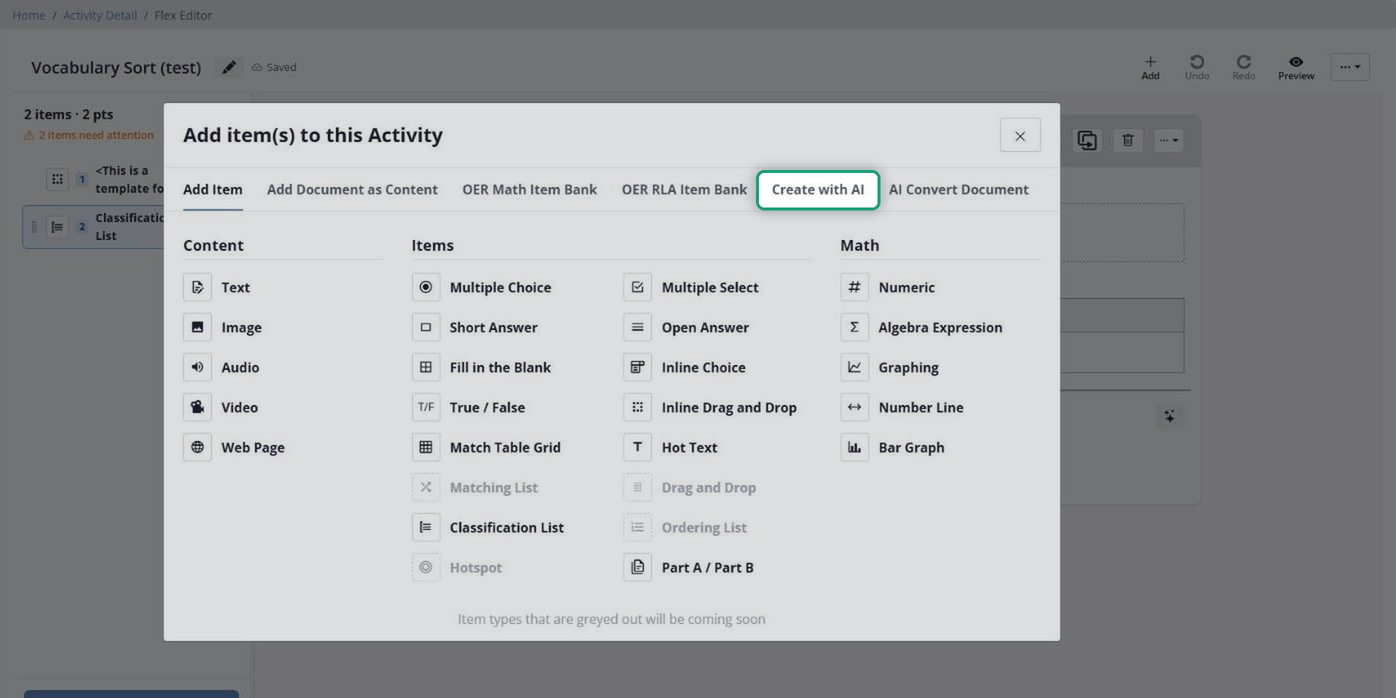
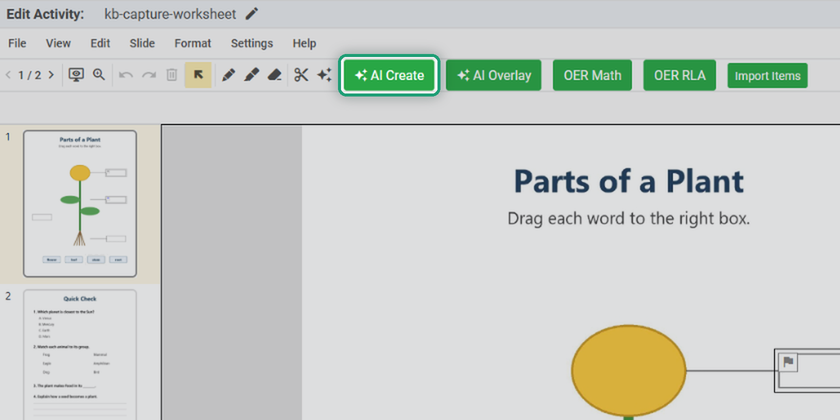
Classwork.com’s AI can write reading passages and questions for you, right inside the editor. In the Flex Editor it’s the Create with AI tab; in the Slide Editor it’s the AI Create button. Both open the same AI Create window.
Open it in the Flex Editor
- Open your Activity in the Flex Editor and click + Add.
- Click the Create with AI tab.
Open it in the Slide Editor
Open your Activity in the Slide Editor and click the green AI Create button in the toolbar. (It’s also on the File menu.)
Choose what to create
The AI Create window has two sides. Under Generate Content, AI writes something new. Under Import Content, you bring in questions you already made with another AI tool.
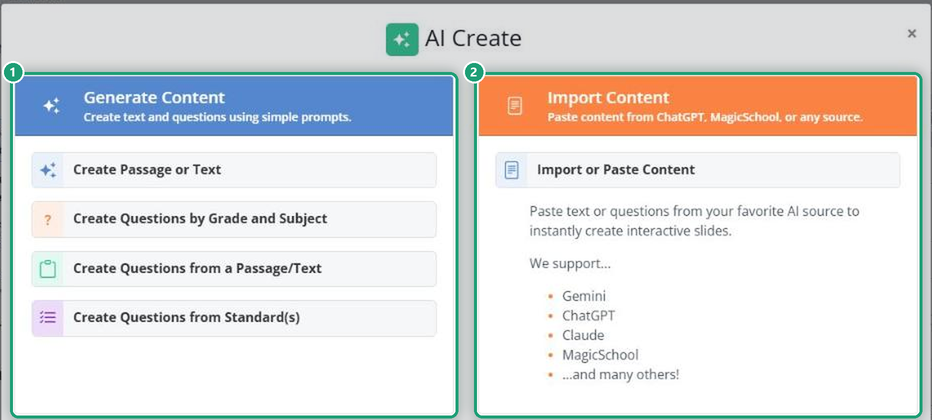
- Create Passage or Text: an original reading passage for your grade, subject, genre and topic. See Create Passage or Text.
- Create Questions by Grade and Subject: practice questions on a topic you describe, no standard needed. See Create Questions by Grade Level and Subject.
- Create Questions from a Passage/Text: questions about a passage you paste in. See Create Questions from a Passage/Text.
- Create Questions from Standard(s): questions aligned to the standards you pick. See Create Questions from Standard(s).
- Import or Paste Content: paste questions from ChatGPT, Gemini, Claude, MagicSchool or another AI tool, and Classwork.com turns them into auto-scored questions. See How Do I Import or Paste Content with AI Create?
A passage and its questions, side by side (Flex Editor)
In the Flex Editor, when you generate a reading passage, Classwork.com offers to write questions for it. Say yes and it groups the passage with its questions and turns on Split Screen, so students see the passage beside the questions. No manual grouping needed. See Split Screen in the Flex Editor.
Review before you assign
Always check AI-made content before students see it. AI can make mistakes. Read the passage, check every question and its answer key, then use Preview to try the Activity as a student.
Related articles
Was this article helpful?
That’s Great!
Thank you for your feedback
Sorry! We couldn't be helpful
Thank you for your feedback
Feedback sent
We appreciate your effort and will try to fix the article