|
|
Split Screen in the Flex Editor |
Split Screen in the Flex Editor
Split Screen keeps a passage, image or map on the left of the screen while students answer its questions on the right. It works on grouped items: group the stimulus with its questions, and Split Screen (on by default) does the rest.
Grouping and Split Screen are Flex Editor features. The Slide Editor doesn’t have them.
Step 1: Group the stimulus with its questions
- In the item list on the left, click the … on the stimulus (the passage, image or map).
- Click Start a new Group.
- Move the stimulus’s questions into the group: drag them by their handles, or use … → Move up / Move down.
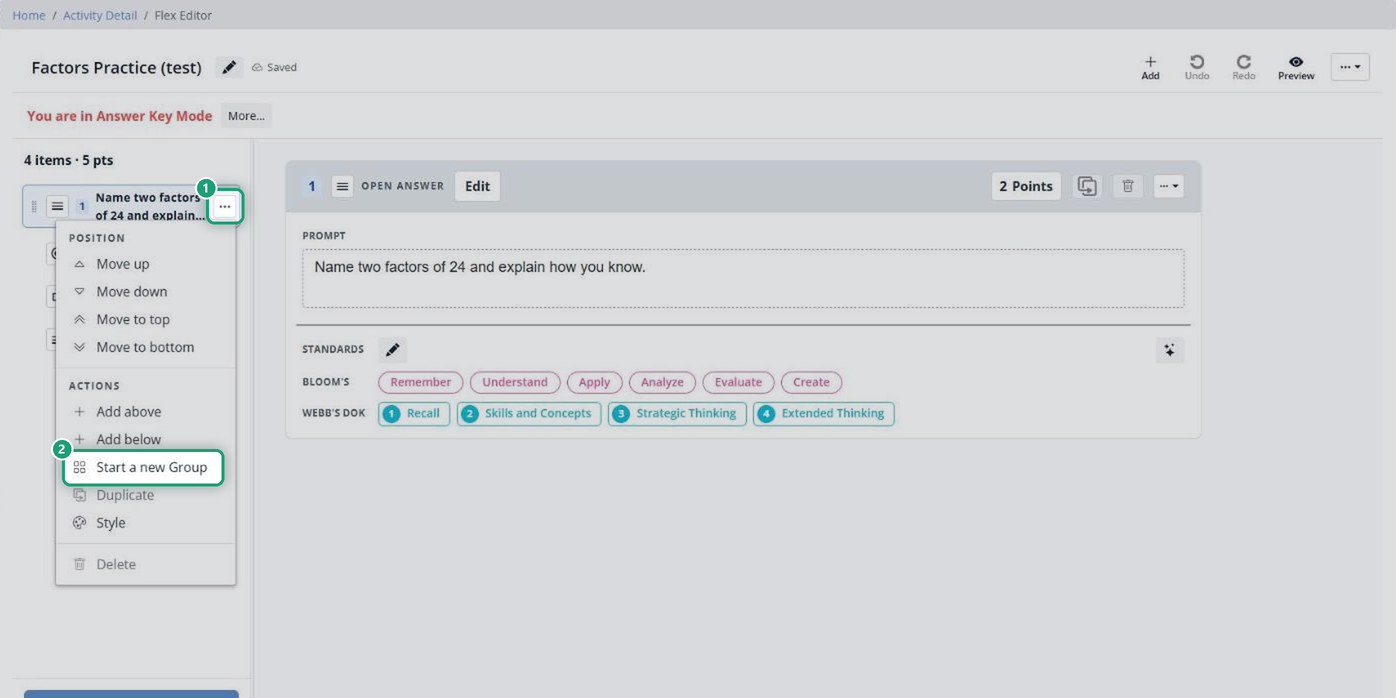
Shortcut: hold Shift, click the stimulus and each of its questions, then click Group in the panel that appears.
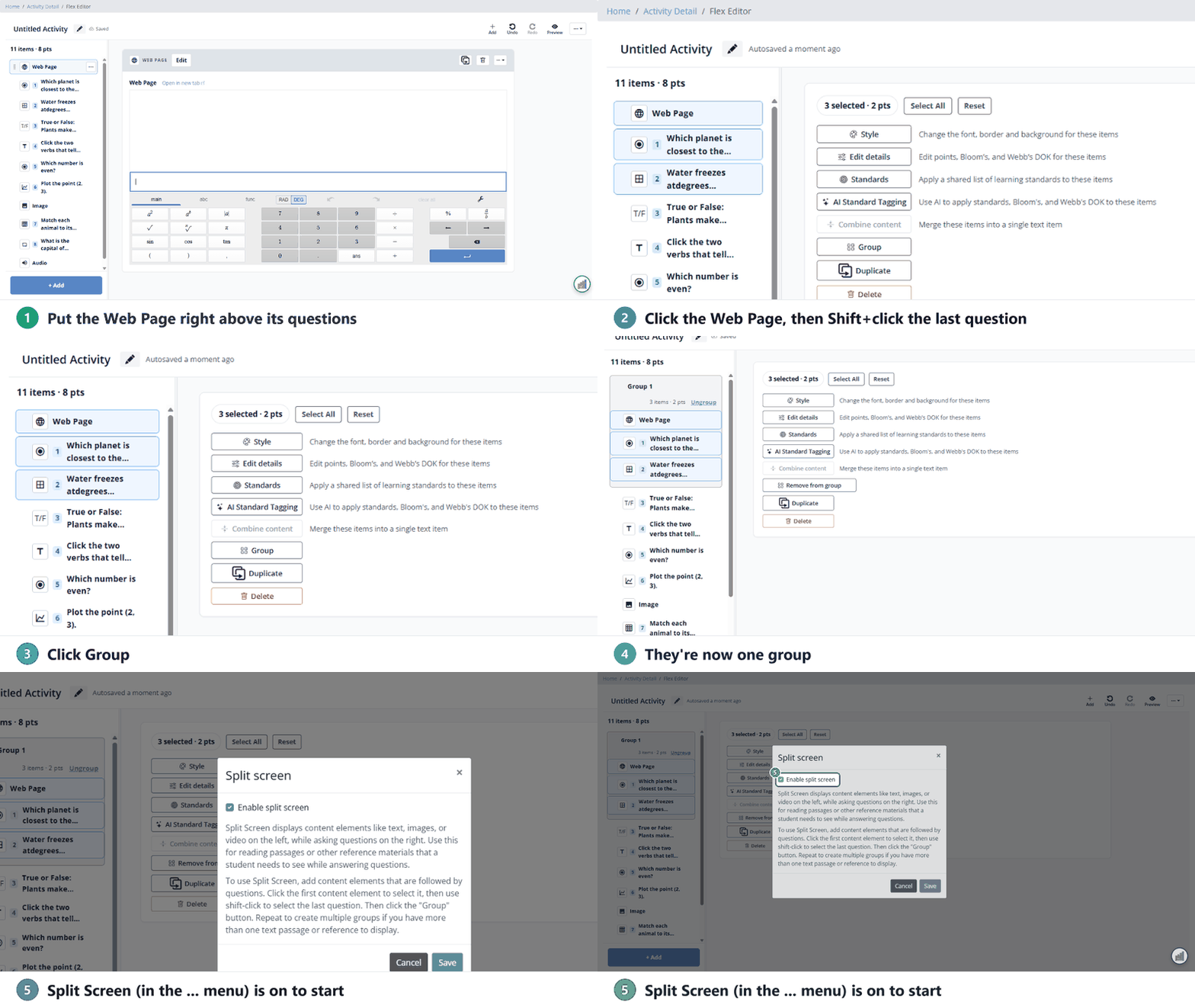
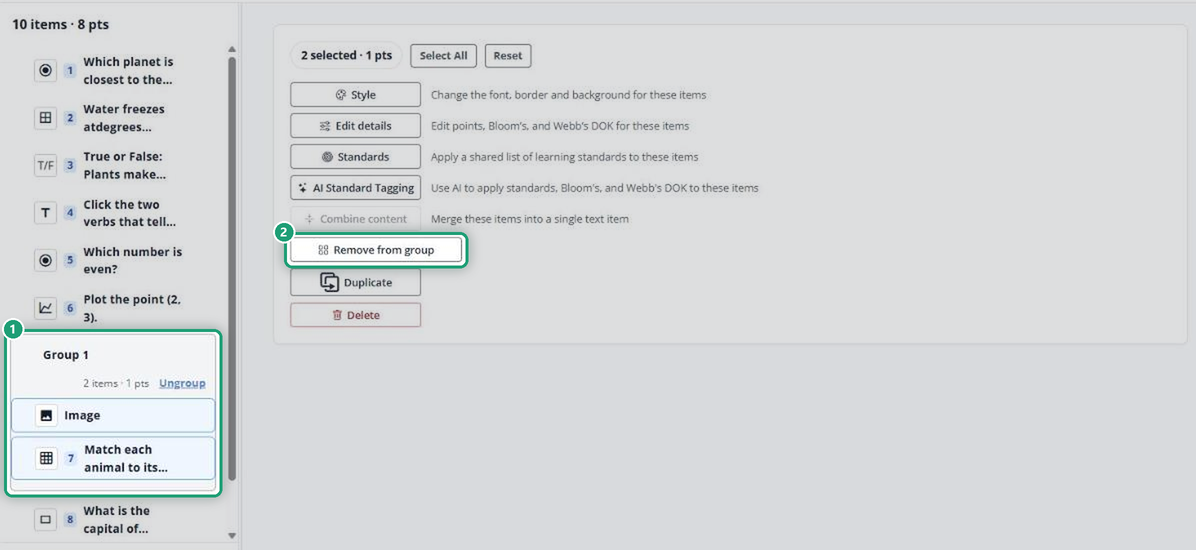
In the item list, a group shows its name, its item and point count, and an Ungroup link. Click Ungroup to break it apart.
Step 2: Check that Split Screen is on
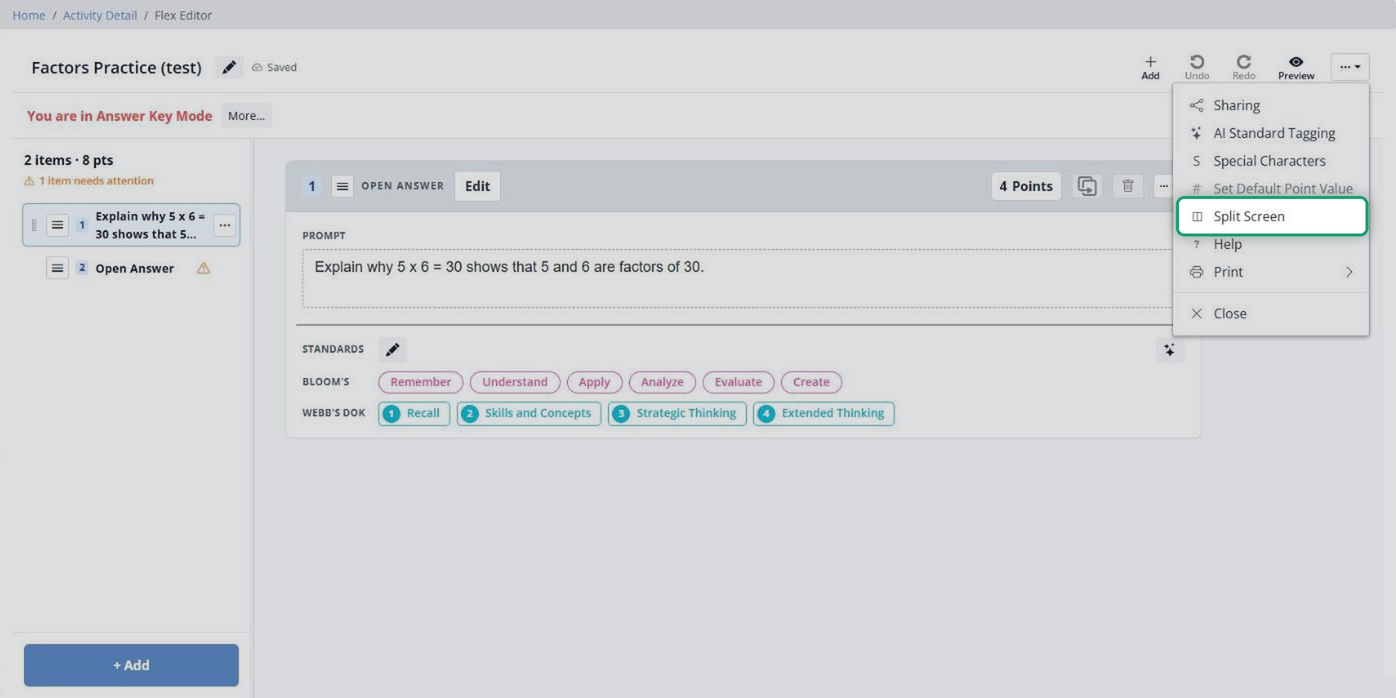
Split Screen is on by default. To check it or turn it off:
- Click the … (More options) menu at the top right.
- Click Split Screen.
- Check Enable split screen to turn it on, or uncheck it to turn it off.
- Click Save.
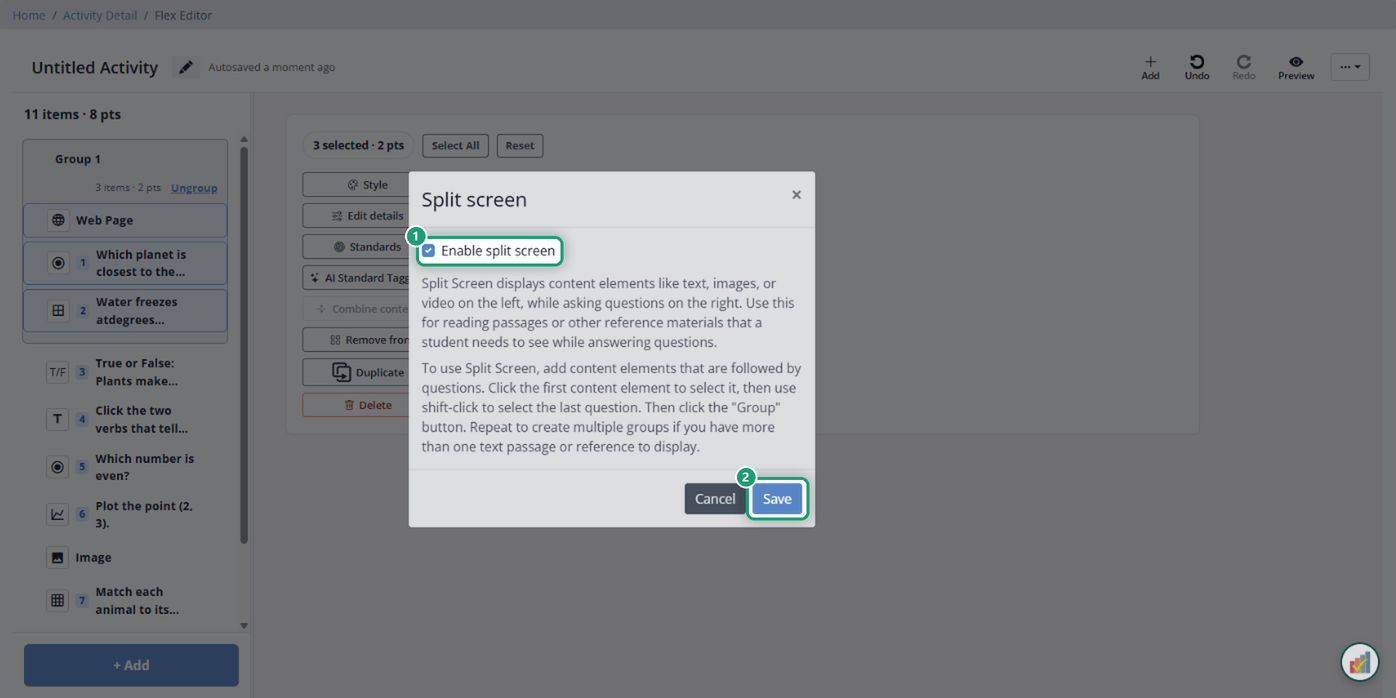
- On: each group shows side by side, stimulus on the left and questions on the right.
- Off: grouped items stack in one box, with no side-by-side view.
Items that aren’t in a group never show in Split Screen.
Let AI build a Split Screen set for you
The fastest way to build a passage set is Create with AI:
- Click + Add and open the Create with AI tab.
- Click Create Passage or Text, describe the passage, and generate it.
- When Classwork asks whether to generate questions for the passage, say yes.
Classwork writes the questions, groups them with the passage, and turns on Split Screen. No manual grouping needed. More in Use AI to Generate Content.
IMG-split-screen-ai-passage
What students see
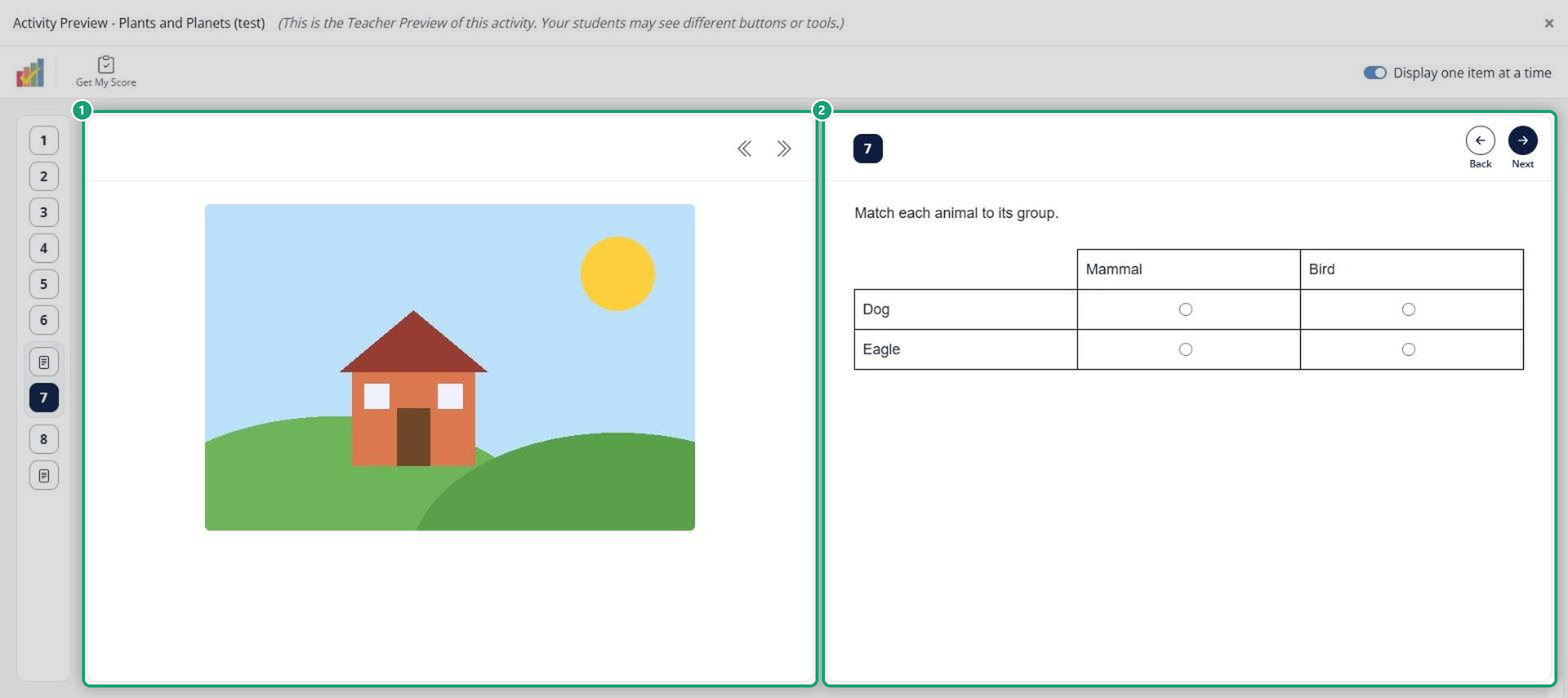
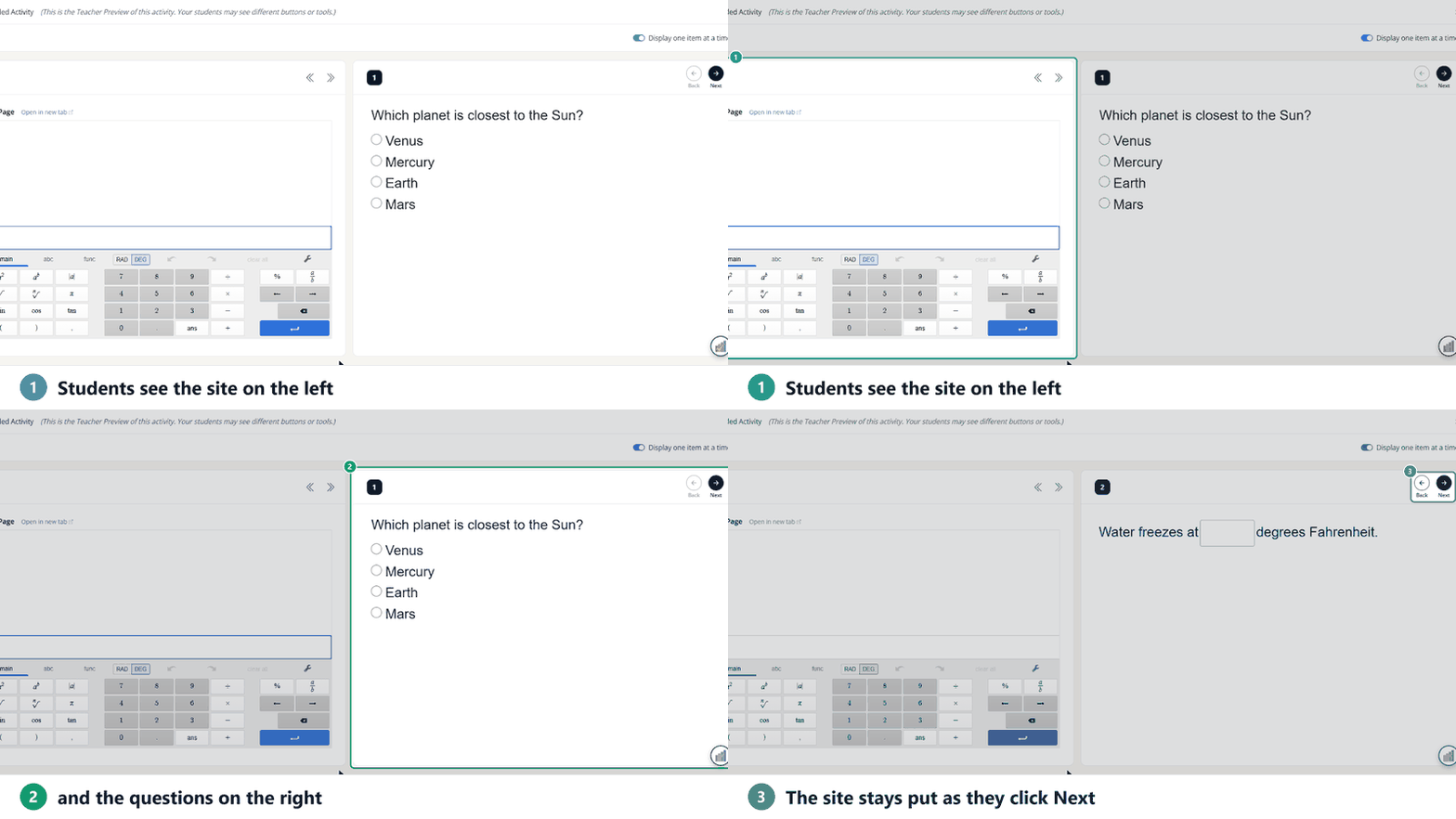
Students see the stimulus on the left (they can scroll it and collapse or expand it) and one question at a time on the right, moving with Back and Next. Click Preview to try it before you assign.
Related articles
Was this article helpful?
That’s Great!
Thank you for your feedback
Sorry! We couldn't be helpful
Thank you for your feedback
Feedback sent
We appreciate your effort and will try to fix the article