|
|
Create Passage or Text |
Create Passage or Text
Applies to: Flex Editor & Slide Editor
Classwork.com’s AI can write an original reading passage for your grade level, subject, genre and topic. You can edit it before you add it to your Activity.
Open it
- Flex Editor: click + Add, then the Create with AI tab.
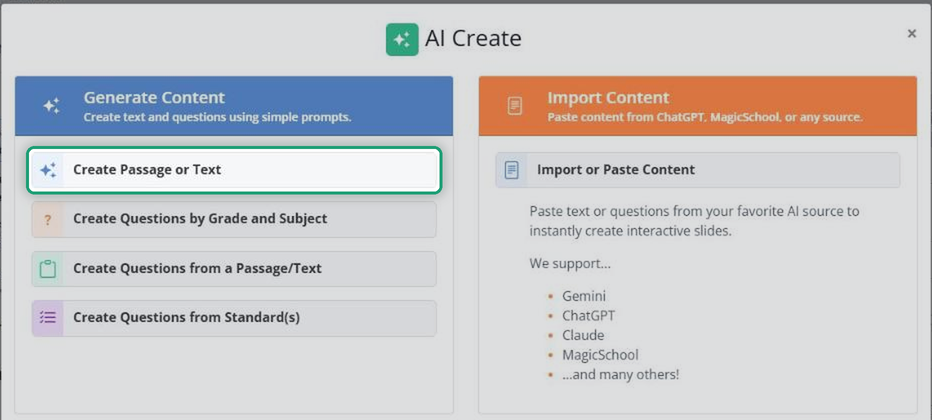
- Slide Editor: click the green AI Create button in the toolbar.
Then click Create Passage or Text.
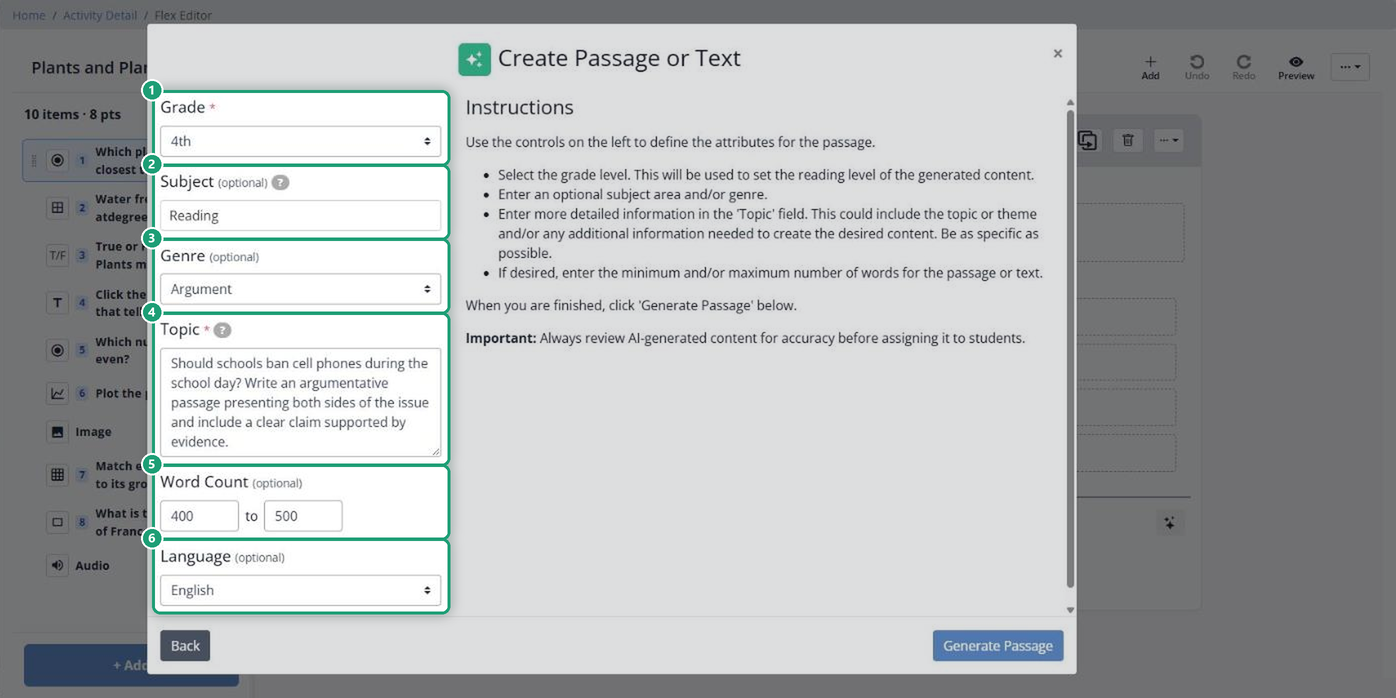
Generate the passage
- Choose the Grade. It sets the reading level.
- Type a Subject and choose a Genre, if you like (both optional).
- In Topic, describe what the passage should be about. The more detail, the better the passage.
- Set a Word Count range, if you want one (optional).
- Choose the Language: English or Spanish (optional; English is the default).
- Click Generate Passage.
Review and add it
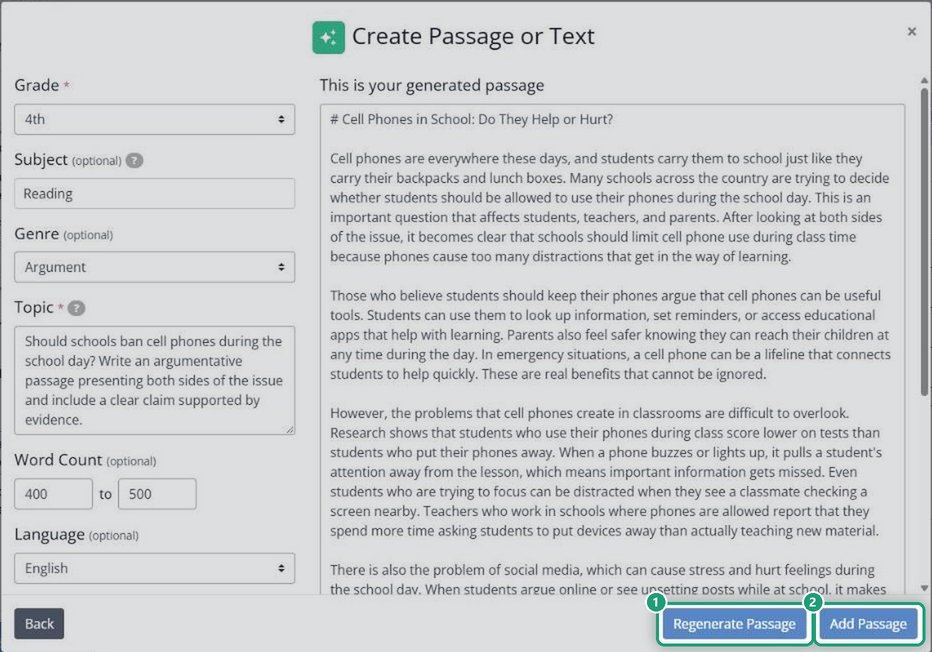
The passage appears for you to read and edit.
- Regenerate Passage writes a new version. Use it after you change the settings.
- Add Passage puts it in your Activity.
In the Flex Editor, Classwork.com then offers to write questions for the passage. Say yes and it groups the passage with its questions and turns on Split Screen, so students see them side by side. See Split Screen in the Flex Editor.
Always read an AI-made passage before you assign it. Check that it’s accurate and right for your students.
Related articles
Are you new to Classwork.com? Welcome!
Click here to start your 30 day risk-free PRO trial today.
Was this article helpful?
That’s Great!
Thank you for your feedback
Sorry! We couldn't be helpful
Thank you for your feedback
Feedback sent
We appreciate your effort and will try to fix the article