|
|
Coaching: Get Started and Set Up Coaching |
Coaching: Get Started and Set Up Coaching
Coaching is available only if your district has purchased the Texas OER Math or RLA Companion.
Coaching is where instructional coaches and campus leaders keep a record of their work with teachers: classroom observations, coaching meetings and PLC meetings. Everything you log also shows in the Lesson Log Report.
Who sees Coaching
Coaching appears in the left menu for anyone with the District Admin or School Admin role. A User Administrator gives these roles on the Users page (see Manage User Roles and Permissions).
- School Admin: your campus’s teachers are your Coaching Partners automatically.
- District Admin: you choose your Coaching Partners, at any campus, in Set Up Coaching.
The Coaching page
Click Coaching in the left menu.
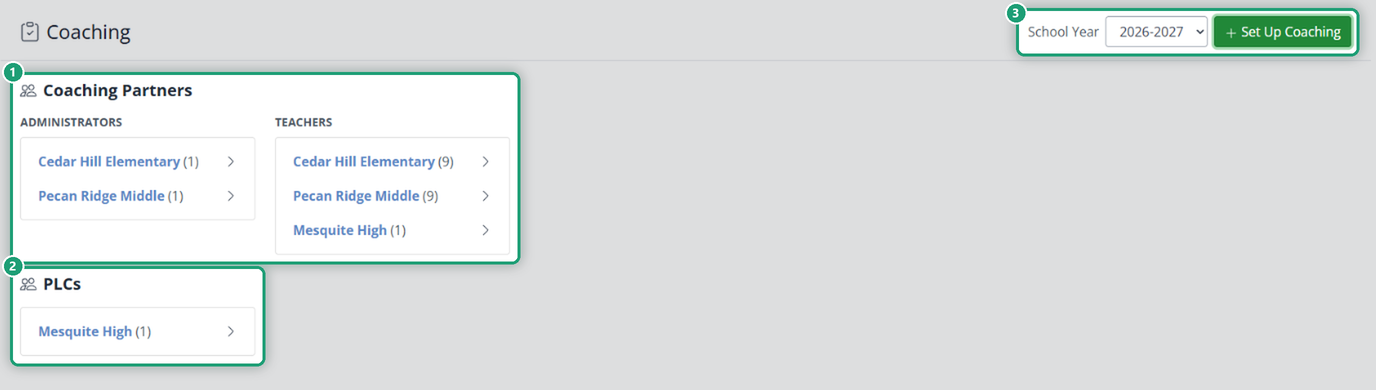
- Coaching Partners lists the people you coach, by campus: Administrators on the left and Teachers on the right. Click a campus to open it, then click a person to see their coaching log.
- PLCs lists the PLCs you support, by campus.
- School Year switches which year’s records you see.
Choose your Coaching Partners (District Admins)
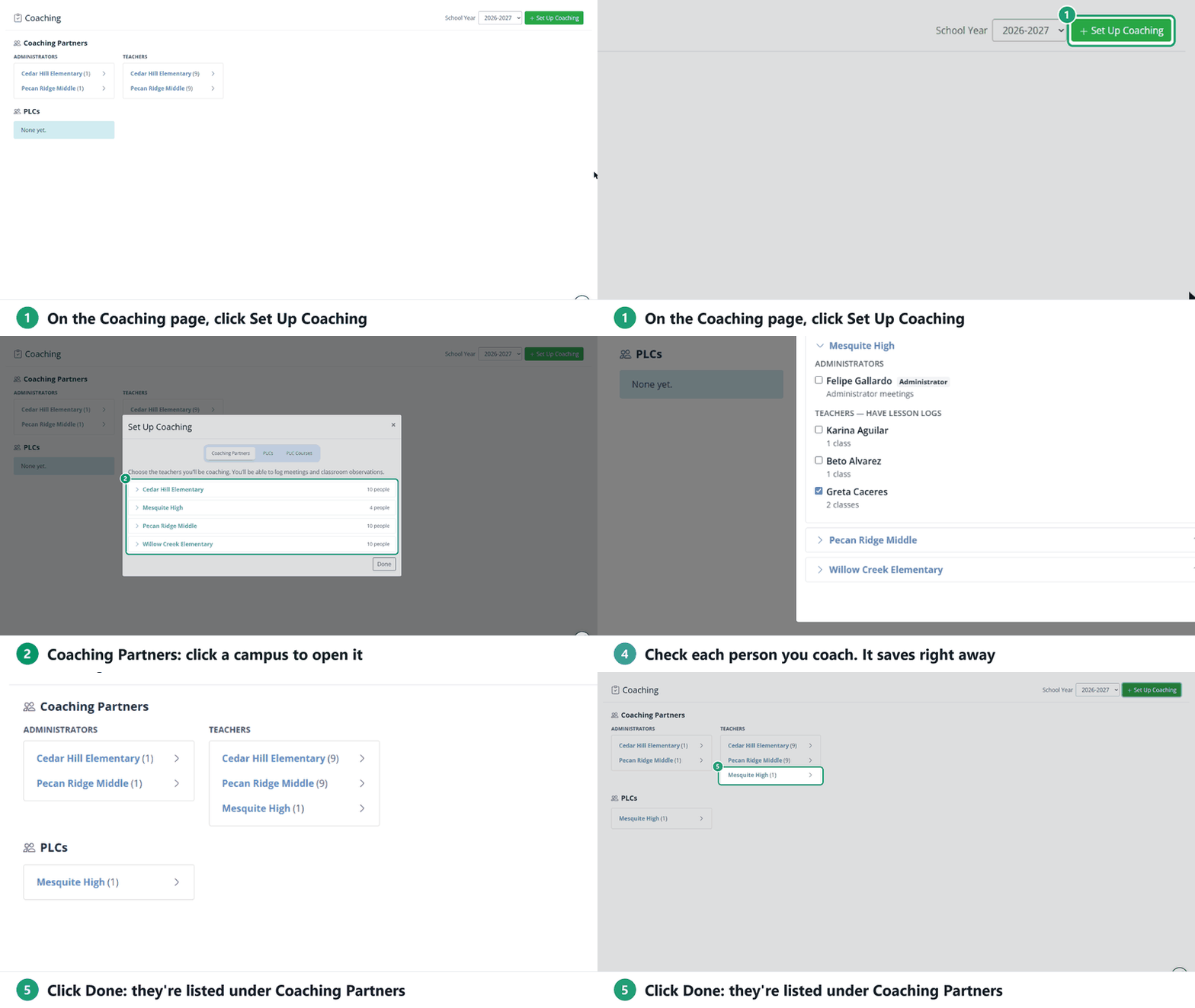
- Click Set Up Coaching. It opens on the Coaching Partners tab.
- Click a campus to open it. You’ll see its Administrators (for administrator meetings) and its Teachers, with how many classes each teaches.
- Check each person you’ll coach. Each check saves right away; uncheck someone to remove them.
- Click Done.
PLCs
The other two tabs in Set Up Coaching are for PLCs: PLCs (choose the PLCs you support, or set up a new one) and PLC Courses (add the courses each PLC works on). See Coaching: Set Up and Log PLC Meetings.
School Admins see only these two tabs, since their Coaching Partners are set for them.
What to do next
- Coaching: Log a Classroom Observation
- Coaching: Log a Coaching Meeting
- Coaching: Set Up and Log PLC Meetings
- Coaching: Use the Lesson Log Report
Teachers see their observations and action steps in their own Lesson Log: Viewing Your Observations and Action Steps.
Was this article helpful?
That’s Great!
Thank you for your feedback
Sorry! We couldn't be helpful
Thank you for your feedback
Feedback sent
We appreciate your effort and will try to fix the article