|
|
Coaching: Set Up and Log PLC Meetings |
Coaching: Set Up and Log PLC Meetings
Coaching is available only if your district has purchased the Texas OER Math or RLA Companion.
Support your professional learning communities (PLCs) in Coaching: choose the PLCs you work with, add the courses they plan, and log each PLC meeting by module.
New to Coaching? Start with Coaching: Get Started and Set Up Coaching.
Create a PLC
If the PLC already exists, skip to Choose the PLCs you support.
- On the Coaching page, click Set Up Coaching, then the PLCs tab.
- Click Set Up PLCs.
- Type a Team name and, under Assign to, pick the campus (or District-wide).
- Under Members, check the teachers in the PLC. Use the search box to find someone.
- Click Create PLC.
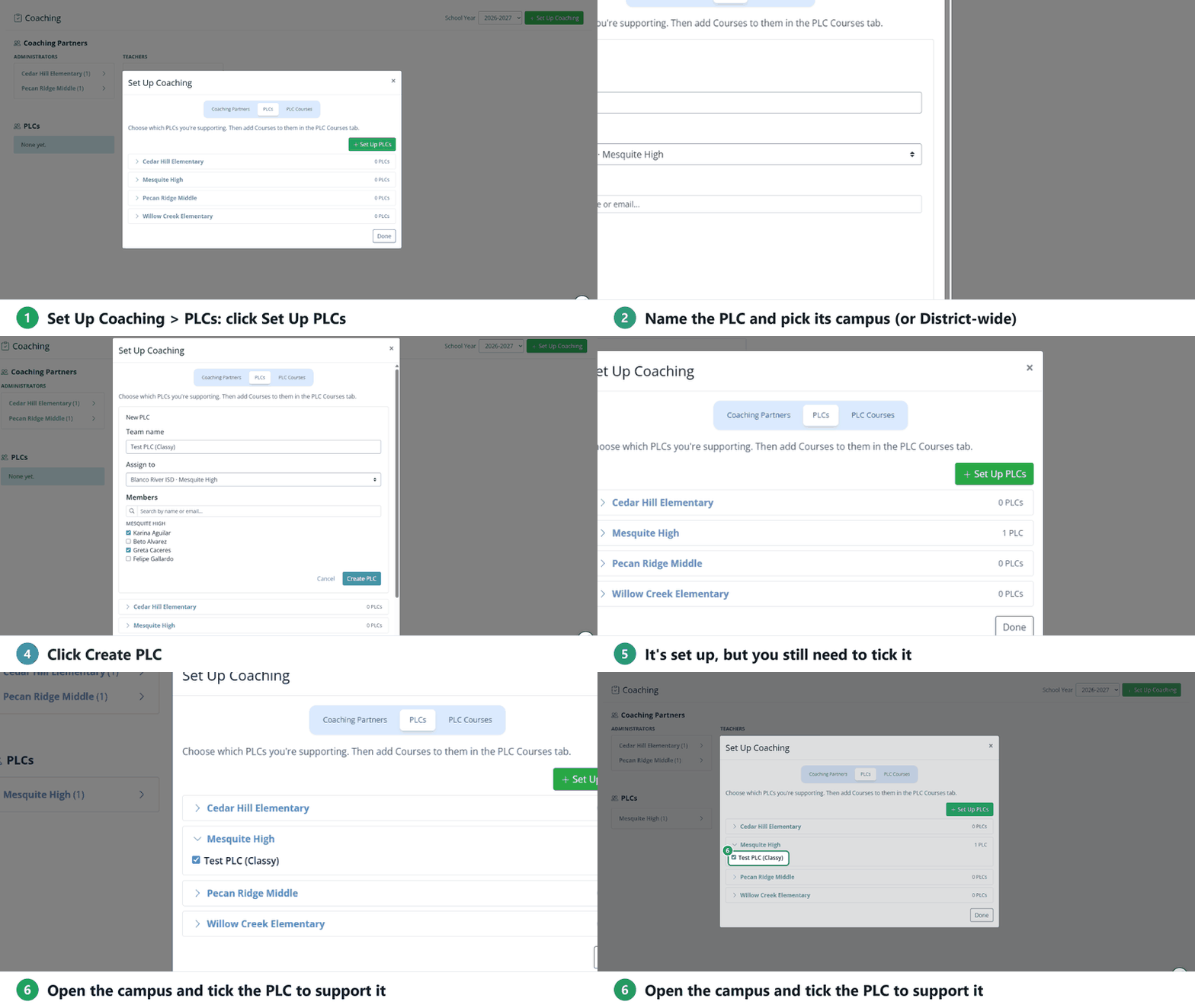
You’ll see PLC set up. Tick it below to start supporting it. Creating a PLC doesn’t add it to your Coaching page yet: tick it as in the next step.
PLCs are also teams. A User Administrator can see, edit and delete them in Administration > Users > Manage Teams (see Create and Manage Teams).
Choose the PLCs you support
On the PLCs tab, open a campus and tick each PLC you support. Each tick saves right away.
Careful: unticking a PLC also clears the courses you added to it. If you tick it again, add its courses again.
Add the PLC’s courses
You can log PLC meetings only for courses you’ve added.
- Open the PLC Courses tab.
- Pick the PLC.
- Click each course it works on: Mathematics (Grade K–8, Algebra I, Algebra II, Geometry) or RLA (Grade K–5). Click a course again to remove it.
- Click Done.
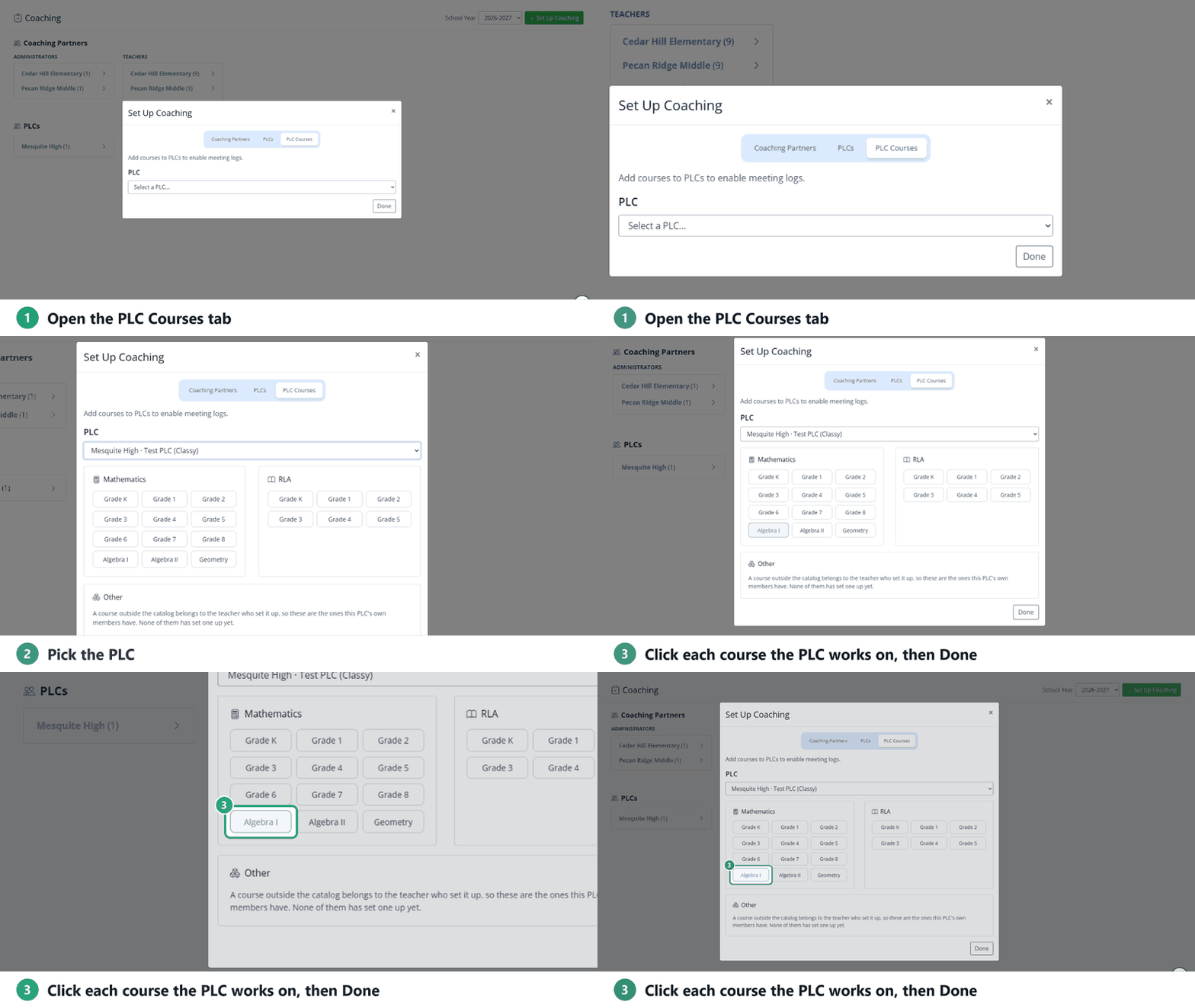
Under Other you’ll see any courses the PLC’s own members set up themselves.
Log a PLC meeting
- On the Coaching page, under PLCs, open the campus and click the PLC.
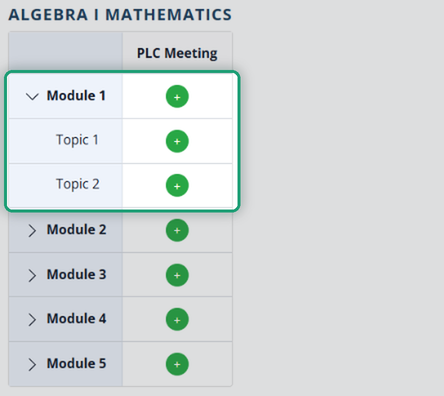
- Each course shows its modules. Click + next to the module you met about. To log a meeting for one topic, click the module name to show its topics first.
- PLC Focus: pick the main focus: Pre-Unit Internalization, Co-Planning / Scripting, Data Analysis / Looking at Student Work, Calibration / Norming or Lesson Study.
- Fidelity Check: check what the team reviewed: Pacing, Cognitive Lift, Fidelity or Accommodations.
- Team Action Step: one short, doable next step. The PLC’s teachers see it on their dashboards.
- Coach’s Private Notes: hidden from teachers; only coaches and district administrators see them.
- Click Submit Coaching Log, then Submit.
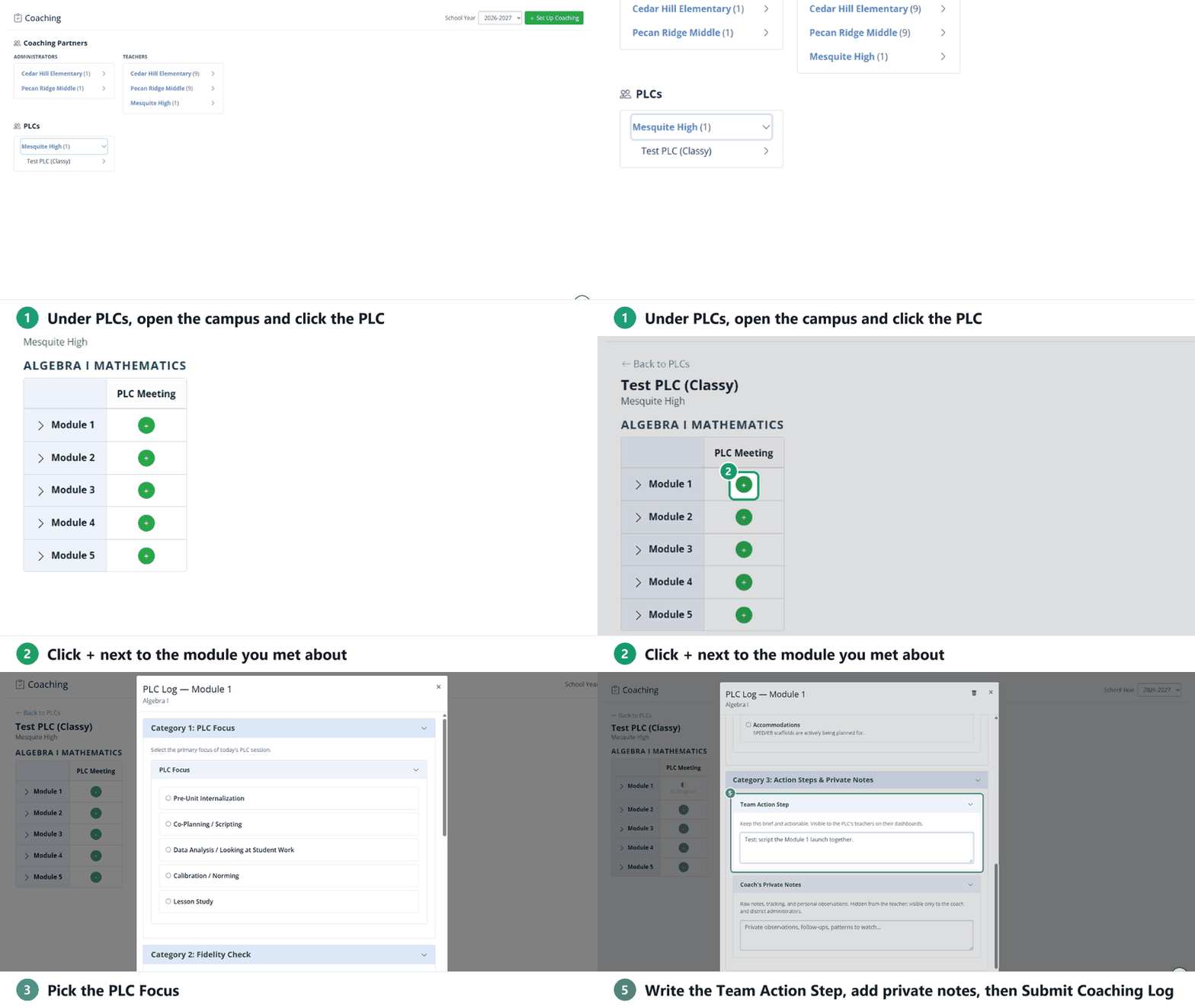
Like other coaching logs, a PLC log saves as you work (In Progress), can be deleted with the trash can until you submit it, and can’t be edited after you submit.
Related
- Coaching: Log a Coaching Meeting
- Coaching: Use the Lesson Log Report: PLC meetings show there as Coach–PLC Meetings.
Was this article helpful?
That’s Great!
Thank you for your feedback
Sorry! We couldn't be helpful
Thank you for your feedback
Feedback sent
We appreciate your effort and will try to fix the article