|
|
Coaching: Log a Classroom Observation |
Coaching: Log a Classroom Observation
Coaching is available only if your district has purchased the Texas OER Math or RLA Companion.
Log what you saw in a teacher’s classroom, rate the look-fors, and give the teacher their next action step. The teacher sees the action step in their Lesson Log; your private notes stay private.
New to Coaching? Start with Coaching: Get Started and Set Up Coaching.
Open a teacher’s coaching log
On the Coaching page, open the teacher’s campus under Coaching Partners and click their name. Their coaching log lists every observation and meeting by month, with the date, type, subject and title. Below it are the teacher’s own Teacher Lesson Logs, by course.
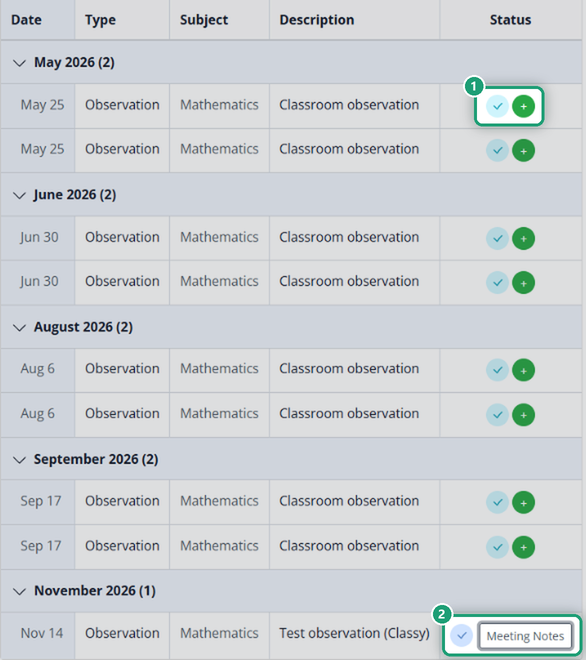
The Status column tells you where each one stands:
- A check and Add Meeting: you submitted this observation and haven’t logged a follow-up meeting yet.
- A check and Meeting Notes: the observation and its follow-up meeting are both logged.
- In Progress: you started it but haven’t submitted it. Click it to finish.
- A light check and a green +: another coach observed this teacher. Click the check to read their observation.
Log an observation
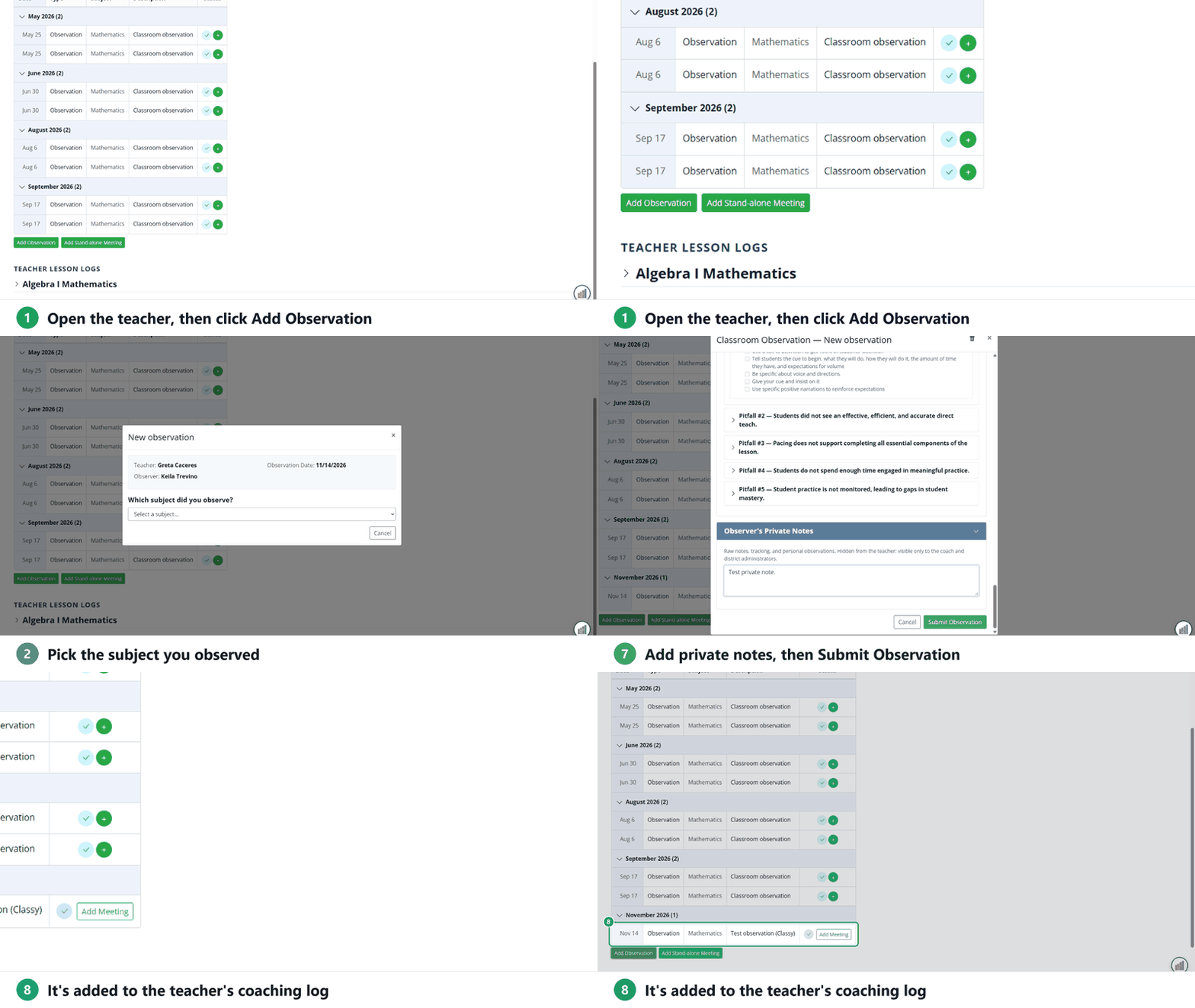
- Click Add Observation. The teacher, today’s date and your name fill in.
- Under Which subject did you observe?, pick the subject.
- Observation: type a short title, such as Small-group phonics rotation. It’s how the observation is listed.
- Rate each look-for: 4 Always, 3 Frequently, 2 Sometimes, 1 Rarely, or N/A. The look-fors are grouped as Learning Environment (aligned to T-TESS Domain 3), Instructional Delivery and Monitoring and Responding to Student Learning (both T-TESS Domain 2).
- Previous Action Step: mark each step from the last observation Completed or Still Progressing.
- Add Observation Notes, then the Post-Observation Debrief: Praise (what’s working) and Area of Growth (the highest-leverage next step).
- Next Action Step: pick one from Power Action Steps or the full Action Step Bank (grouped by Pitfall), then check the parts you want the teacher to focus on. Or choose None.
- Observer’s Private Notes: anything just for you. They’re hidden from the teacher; only coaches and district administrators see them.
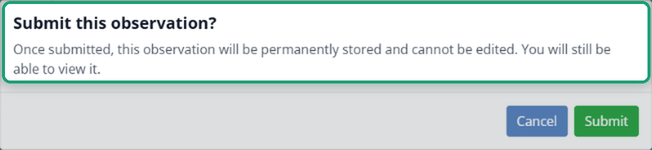
- Click Submit Observation, then Submit to confirm.
Saving and submitting
Your observation saves as you work: it shows as In Progress in the coaching log until you submit it, so you can close it and finish later.
Once you submit, it can’t be edited. You can still open it to read it.
To throw away an observation you haven’t submitted, open it and click the trash can at the top.
After you submit
- Log your follow-up conversation with Add Meeting. See Coaching: Log a Coaching Meeting.
- The teacher sees the observation and their action step in their Lesson Log. See Viewing Your Observations and Action Steps.
- At the next observation, the action step comes back under Previous Action Step.
Was this article helpful?
That’s Great!
Thank you for your feedback
Sorry! We couldn't be helpful
Thank you for your feedback
Feedback sent
We appreciate your effort and will try to fix the article