|
|
Curriculum Authoring - Teacher Access and Security |
Manage Teacher Access and Security for District Resources
This article applies to users with the Curriculum Author role.
Curriculum Authors can control how teachers access published content in District Resources.
These settings help districts protect secure assessments while still making instructional materials easy to assign.
Activity-Level Settings
On the activity detail screen, published curriculum content includes additional controls.
These settings determine whether teachers can:
- Assign content immediately
- Preview content
- Make copies into My Activities
Tag the Activity Type
The activity detail screen is also where you tag the activity with its Activity Type. Activity Types are the categories and types your organization uses to describe its work, for example Readiness Checks or Exit Tickets under a category like Assessments. Your Curriculum Manager sets these up for your district.
Applying the right type matters for reporting. Types your district has flagged for reporting are counted in District Performance Reports automatically, and any type can be pulled into a report on demand using the Select Activity Types filter.
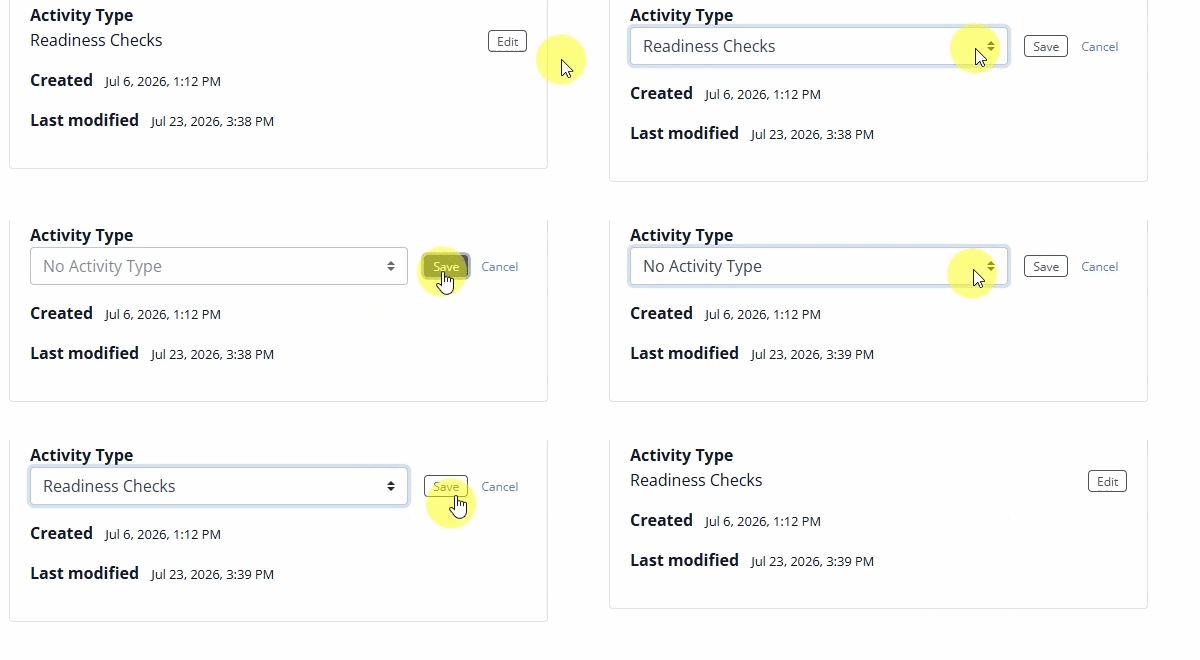
Only Curriculum Authors and Curriculum Managers can tag activities. Teachers do not tag their own work, which keeps tagging consistent across the district and your reporting data clean.
To learn how Activity Types are created and configured, see Manage Activity Types.
Available to Teachers
The Available to Teachers setting allows authors to define a date range when teachers are allowed to assign the activity.
If a date range is set:
- Teachers will still see the file in District Resources
- A lock icon will appear on the file
- Teachers can click into the file
- Teachers will see a warning message explaining the available assignment window
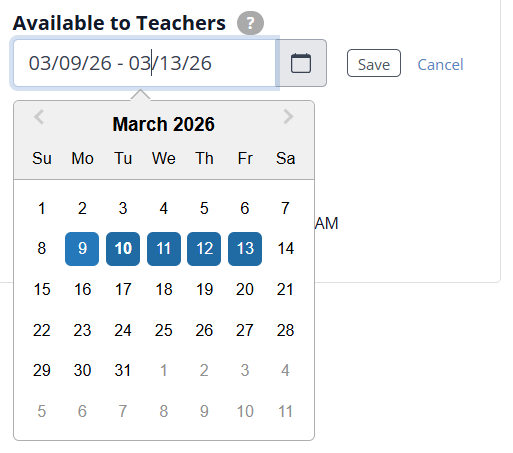
Before the window opens, teachers cannot:
- Assign the activity
- Preview the activity
Once the date window is active, teachers can preview and assign the activity.
Never Allow Copy
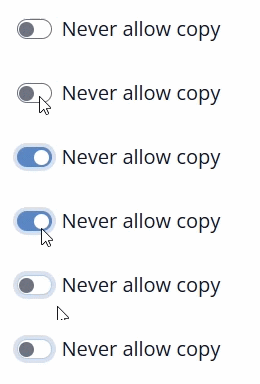
The Never allow copy toggle determines whether teachers can copy the content into their personal Activities area.
- If this setting is off, teachers can make a copy and then edit that copy.
- If this setting is on, teachers can assign directly but cannot copy the activity into My Activities.
This is especially useful for secure tests and common assessments.
Date Ranges Automatically Disable Copying
If an activity has an assignment date range, Never allow copy automatically turns on.
When this happens, it cannot be turned off unless the date restriction is removed.
This protects the content while the controlled assignment window is in effect.
Teacher Editing Limits
Teachers cannot edit content directly inside District Resources.
Only authors can edit the original curriculum content.
If teachers need to customize a resource, such as for SPED or 504 accommodations, then:
- Never allow copy must be turned off
- The teacher must make a copy into My Activities
- The teacher can then edit their copy
Recommended Use Cases
- Secure assessments: Use a date range and keep copying disabled.
- Common district lessons: Allow direct assignment and optionally allow copying.
- Editable accommodations: Turn off Never allow copy so teachers can personalize a copied version.
Related Articles
Was this article helpful?
That’s Great!
Thank you for your feedback
Sorry! We couldn't be helpful
Thank you for your feedback
Feedback sent
We appreciate your effort and will try to fix the article