|
|
District and School Folders |
District and School Folders (Teacher Guide)
District and School Folders allow teachers to access activities, assessments, and instructional resources published by their school or district administrators.
These folders appear at the top of the Activities page and contain materials that have been approved or distributed by your administration.
Teachers cannot add or edit content inside these folders. Only administrators can publish materials to them.
Add District Resources to Your Account
Teachers can choose which district folders appear in their account. This allows you to load only the resources you actually need.
To add district resources:
- Click Add District Resources in the left navigation menu.
- A list of available root folders will appear.
- Check the folders you want to add to your account.
- Click Save.
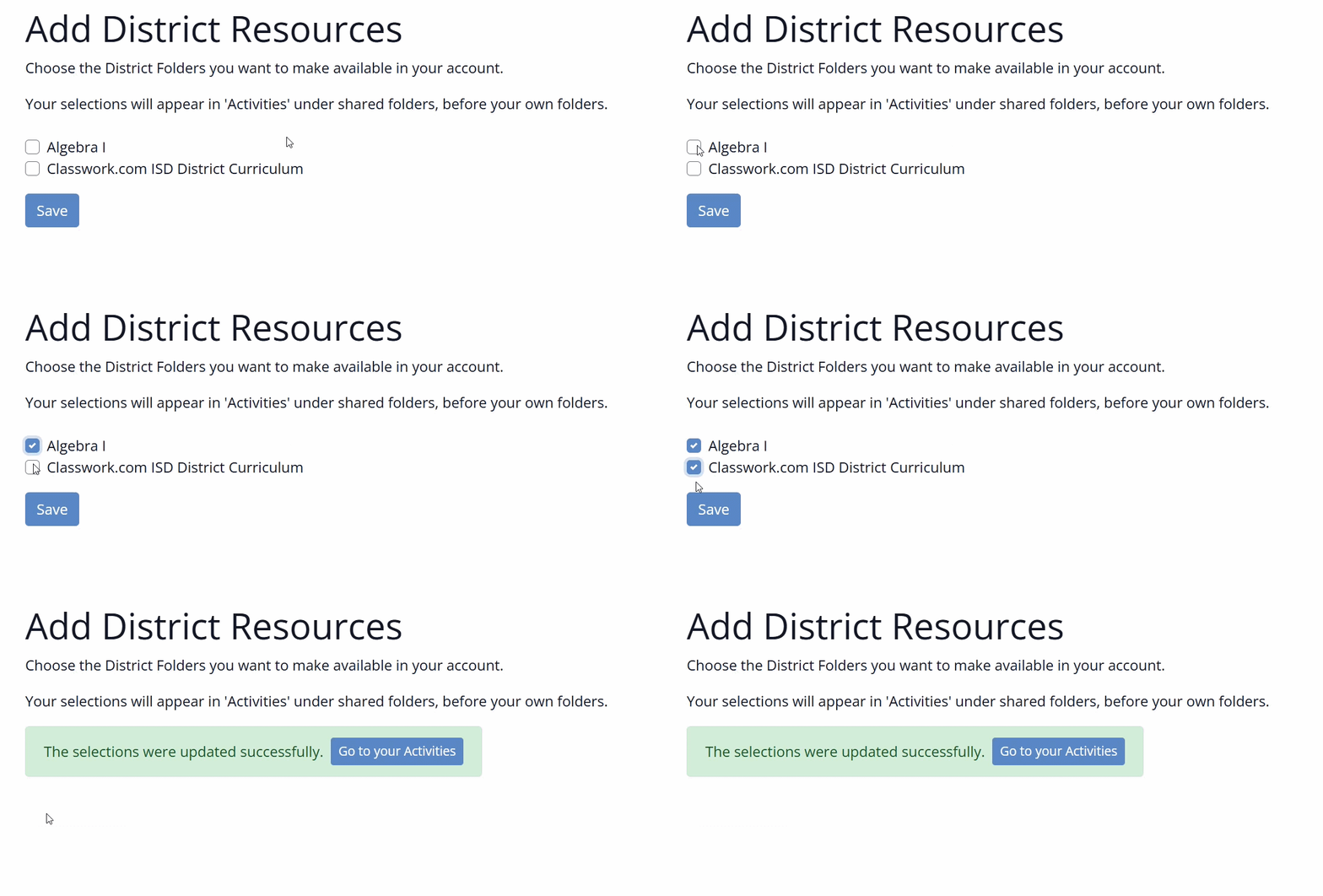
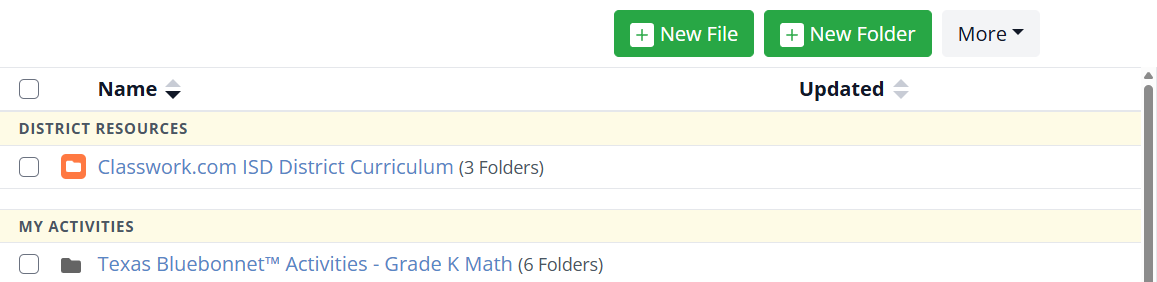
After saving, a new section called District Resources will appear at the top of your Activities page.
The folders you selected will appear inside that section.
Your personal My Activities folder will appear below the District Resources section.
View District and School Folders
Open your Activities page.
At the top of the page you will see the District Resources section containing the folders you selected.
These folders contain activities that have been shared with teachers by your administrators.
Assign Activities Directly
Teachers do not need to make a copy of activities from District or School folders.
You can assign these activities directly to your classes.
This allows districts and schools to distribute consistent instructional materials while saving teachers time.
Copy Permissions
For some resources, administrators may allow teachers to create their own copies.
If copying is allowed, you will see the option to copy the activity into your personal Activities area.
If copying is disabled, the activity can only be assigned directly from the district or school folder.
Preview Restrictions
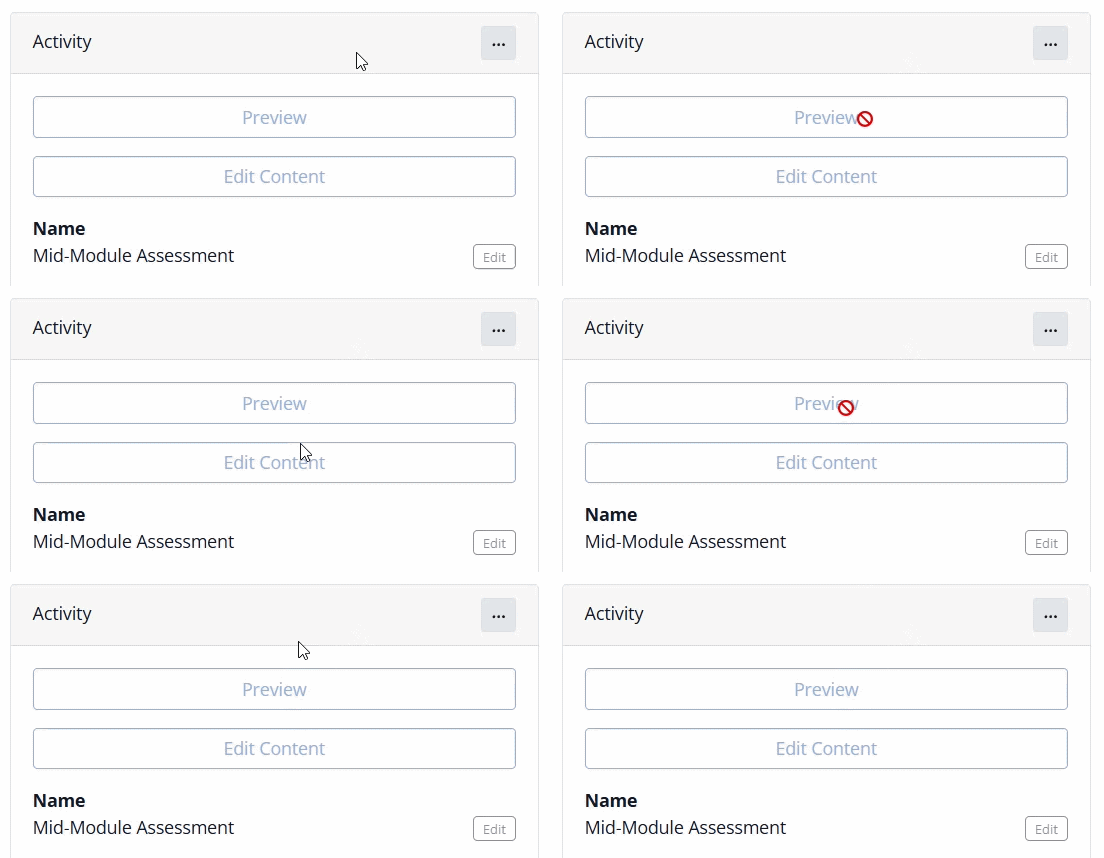
Some activities, particularly high-stakes assessments, may have preview restrictions.
- Teachers may be able to assign the activity to students
- But they may not be able to open or preview the activity
This helps protect secure testing materials while still allowing teachers to distribute them to students.
Assignment Windows
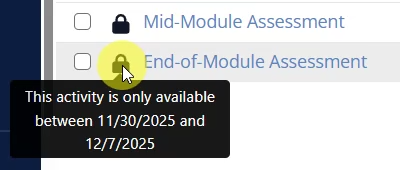
Administrators can define a time window during which an activity can be assigned.
When an assignment window is in place, a lock icon will appear on the activity.
This indicates that the activity can only be assigned during a specific date range.
For example:
- A Module Test might only be assignable between October 15 and October 22
Outside of that window, the activity cannot be assigned.
Why District and School Folders Exist
District and School Folders help ensure that teachers have easy access to approved instructional materials.
They also allow administrators to:
- Distribute common assessments
- Provide aligned instructional activities
- Protect secure testing materials
- Maintain consistent curriculum implementation
Why You Might Not See District Folders Yet
If you do not see any District Resources folders, one of the following may be true:
- Your administrator has not created district folders yet.
- Your administrator has not shared any resources with teachers yet.
- You have not added available folders using the Add District Resources button.
If you believe resources should already be available, contact your school or district administrator.
Was this article helpful?
That’s Great!
Thank you for your feedback
Sorry! We couldn't be helpful
Thank you for your feedback
Feedback sent
We appreciate your effort and will try to fix the article