|
|
Administration - Manage Activity Types |
Manage Activity Types
Activity Types let you create your own categories and types to tag the activities used across your organization. Tagging activities this way makes it easy to filter and group your data in reporting, so you can look at assessments separately from daily practice or instruction.
These settings are available from the Organization Info area on the Administration page.
Who Can Manage Activity Types
Only users with the Curriculum Manager role can create and manage Activity Types.
Once they exist, Curriculum Authors and Curriculum Managers are the ones who apply those types to activities. Teachers do not tag their own activities.
Other administrative roles may still see the Organization Info page, but the settings buttons will not appear.
Open Activity Types
- Click Administration.

- Click Organization Info.
- At the bottom of the page, click Activity Types, next to the Score Bands and School Calendars buttons.
Categories and Types
Activity Types are organized into two levels:
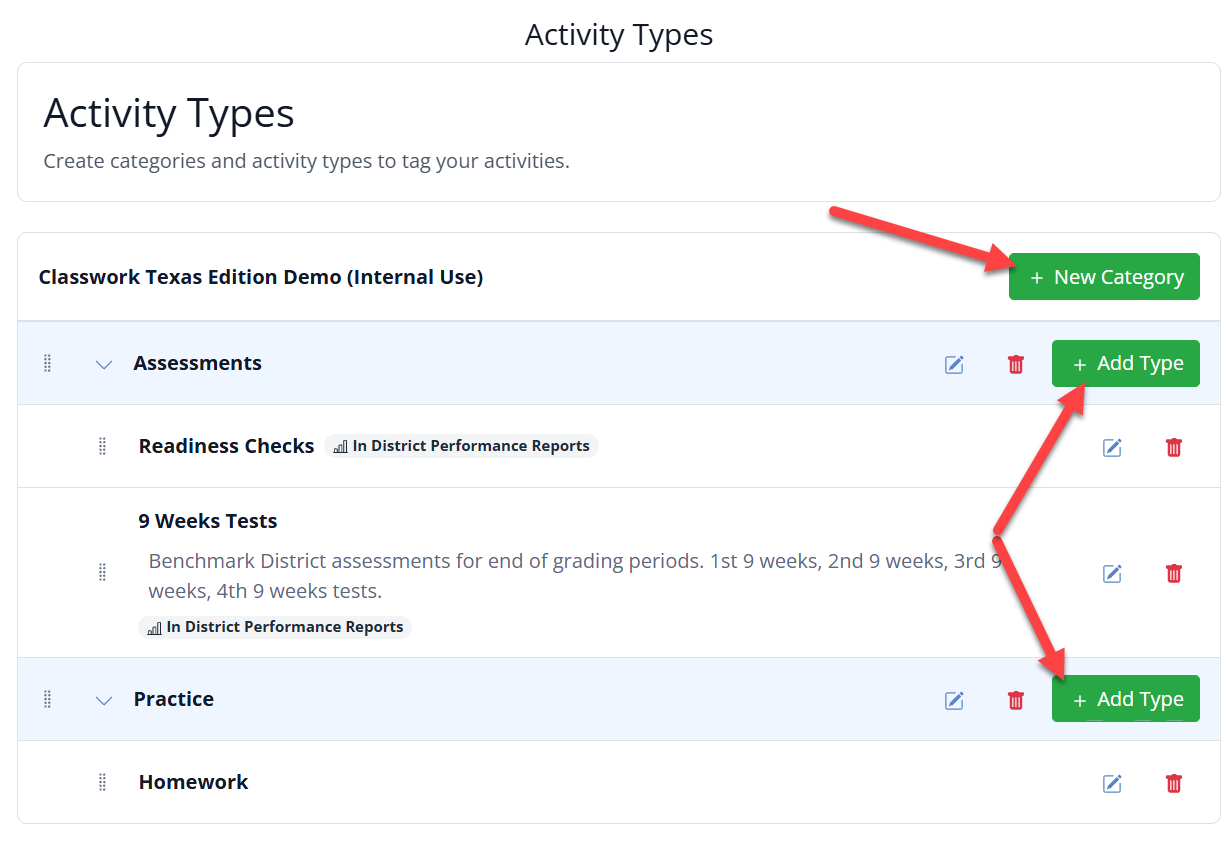
- Categories are the umbrella. For example, Assessments.
- Types live inside a category. Under Assessments, you might create Readiness Checks, Exit Tickets, or Unit Tests.
Build the structure that matches how your district already talks about its work, then your Curriculum Authors can tag activities accordingly.
Create a Category
Click + New Category, type a name, and save. Your new category will appear in the list, ready for you to add types to it.
Add a Type
Find the category you want to add to and click + Add Type. You will be asked for:
- Name: What the type is called, for example "Readiness Checks."
- Description: Optional, and visible only here. When a type is applied on the activity detail screen, only the name appears. Use the description as a reference for yourself and any other Curriculum Managers in your organization, so everyone knows what the type is meant for.
- Include in District Performance Reports: Controls whether work tagged with this type is counted in District Performance Report data by default. Turning it off does not hide the type. It still appears in the Select Activity Types filter, so anyone running a report can deliberately choose to include it. Think of this toggle as deciding what counts automatically, not what is available.
Types that are included will display an In District Performance Reports label next to their name in the list, so you can tell at a glance which types are being reported on.
Edit, Reorder, and Delete
Both categories and types can be adjusted at any time:
- Click the edit icon to rename a category, or to change a type's name, description, or reporting toggle.
- Click the delete icon to remove a category or type you no longer need.
- Use the drag handle to the left of a category or type to reorder the list.
How Activity Types Are Used
Once your categories and types are set up, Curriculum Authors and Curriculum Managers apply them to activities from the activity detail screen. Because tagging stays in their hands rather than being left to individual teachers, your tags stay consistent district-wide, and your reporting data stays clean.
Those tags then power the Select Activity Types filter in reporting. By default, District Performance Reports count only the types you have flagged for reporting, which keeps your headline numbers focused on the work that matters most. Everything else stays one click away in the filter, so you can pull in practice or instruction any time you want a fuller picture.
Because of that, it is worth setting up your Activity Types early in the school year, before a lot of work has been assigned.
Related Articles
Was this article helpful?
That’s Great!
Thank you for your feedback
Sorry! We couldn't be helpful
Thank you for your feedback
Feedback sent
We appreciate your effort and will try to fix the article