|
|
Curriculum Authoring - Create and Publish Folders to District Resources |
Create and Publish Curriculum Folders
This article applies to users with the Curriculum Author role.
Curriculum Authors organize instructional materials by creating folders inside Curriculum Authoring. Teachers can access only the content that has been published.
Published and Unpublished Sections
Inside Curriculum Authoring, folders are grouped into two sections:
- Published at the top
- Unpublished beneath it
When you create a new folder, it automatically starts in Unpublished.
Teachers will not see unpublished folders or any content inside them.
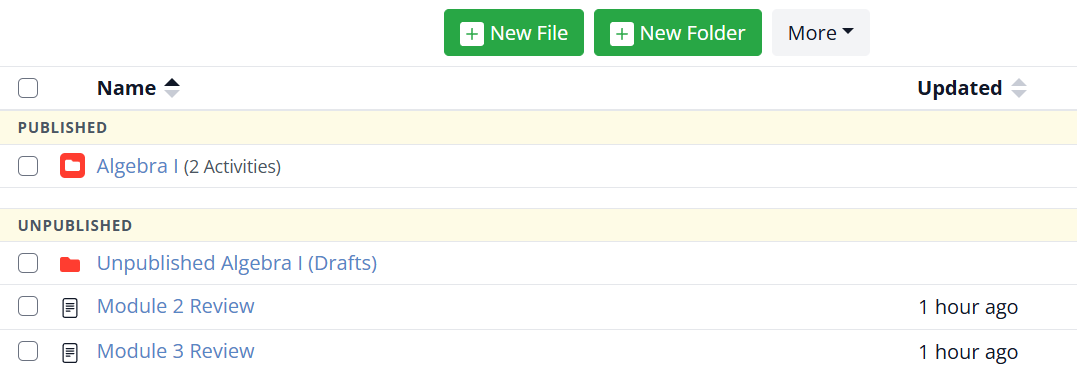
Create a Root Folder
Create a root folder for the group of materials you want teachers to access.
Examples include:
- Grade 6 Math
- Elementary Assessments
- Lincoln Middle School
- Module Tests
The name of the root folder is what teachers will see in District Resources.
Organize Content Inside the Root Folder
Inside a root folder, place all activities, assessments, and supporting resources that belong together.
You can also create additional folders inside other folders to organize content more deeply.
For example:
- Grade 7 Math
- Module 1
- Module 2
- Benchmarks
Publish a Folder
Teachers cannot access content until it is published.
To publish a folder:
- Click the checkbox to the left of the folder name and icon.
- Select Publish.
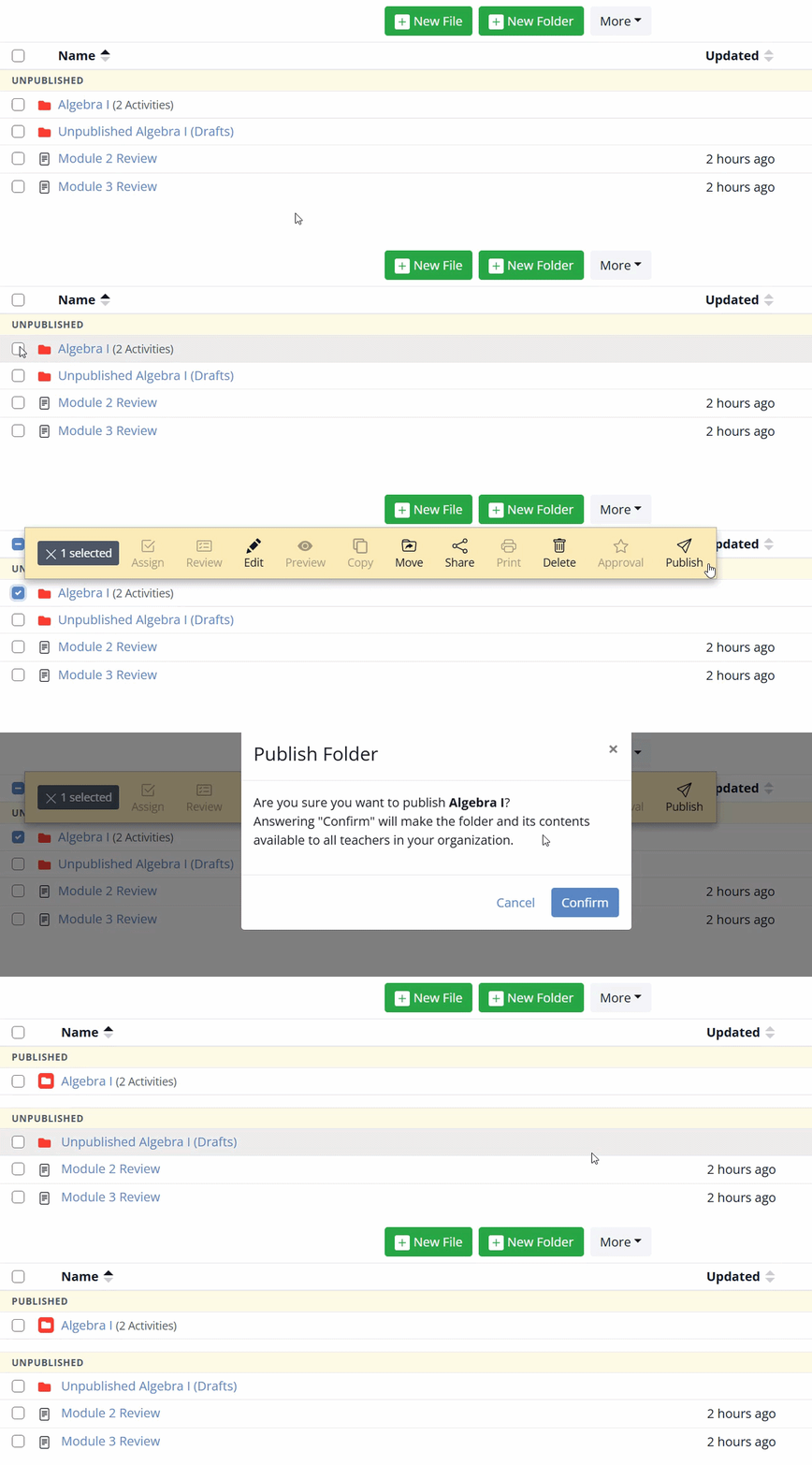
Publishing a folder publishes everything inside it, including:
- Activities
- Subfolders
- Nested folders and their contents
You cannot publish a single activity by itself. Activities must be inside a published folder to appear for teachers.
Move Folders and Content
You can move folders and activities as needed.
To move content:
- Click the checkbox to the left of the folder or activity.
- Select Move.
- Choose the destination folder.
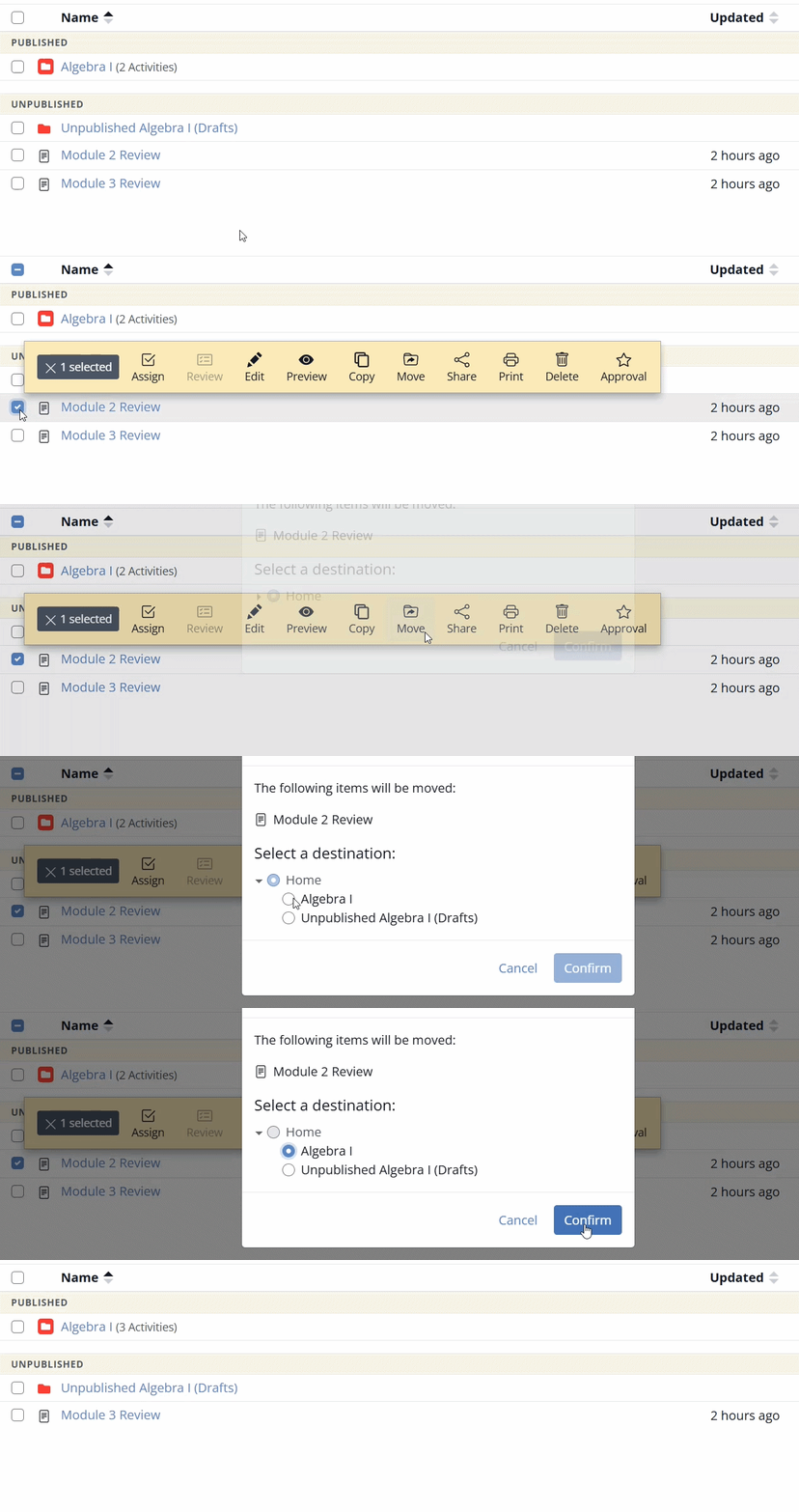
Moving a folder moves everything inside it.
If you move content into a published folder, teachers will immediately gain access to it.
If you move content into an unpublished folder, teachers will no longer see it.
Unpublish a Folder
If you need to remove content from teacher view, move it into an unpublished folder or unpublish the root folder itself.
When a published root folder is unpublished, it immediately disappears from teacher view.

This is useful for:
- Major revisions
- Removing outdated materials
- Temporarily hiding content
For what happens to teacher access and assigned content, see: Manage Curriculum Content and Published Updates.
Tips for Structuring Folders
- Use clear root folder names because teachers see those names directly.
- Group content by the structure teachers actually need, such as school, subject, grade level, or assessment type.
- Keep unpublished folders as your working area until content is ready.
Related Articles
Was this article helpful?
That’s Great!
Thank you for your feedback
Sorry! We couldn't be helpful
Thank you for your feedback
Feedback sent
We appreciate your effort and will try to fix the article