|
|
Curriculum Authoring - Manage Content and Published Updates |
Manage Curriculum Content and Published Updates
This article applies to users with the Curriculum Author role.
Curriculum Authors can continue updating content after it has been published. However, the type of edits available depends on whether teachers have already assigned that content.
Editing Published Content
Authors can edit published activities. Updates apply automatically to the teacher-facing version in District Resources.
This means teachers always see the latest published version unless the content has been unpublished or moved.
Use Unpublished Folders for Major Changes
If you need to make major changes, it is recommended that you move the content into an unpublished folder first.
You can also unpublish an entire root folder.
When content is unpublished, it immediately disappears from teacher view.
This is the safest workflow for large revisions.
Important Caveat: Answer Key Mode
If any teacher has already assigned the content, the activity opens in Answer Key Mode.
This protects student data integrity.
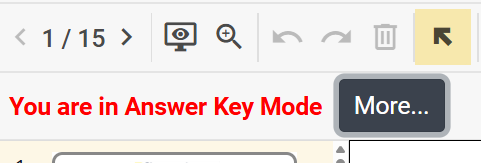
In Answer Key Mode, authors cannot:
- Add a question
- Delete a question
Authors can still make limited changes, such as:
- Adding text
- Adding images
- Using Content Tools to cover or clarify content
These limits ensure that already-assigned student work remains stable and scorable.
What Happens When Content Is Unpublished
When a published root folder or activity is moved into an unpublished folder, teachers lose access immediately.
This removes the content from teacher view in District Resources.
If you are making major revisions, this is the best way to prevent teachers from using a resource while it is being updated.
Working with Multiple Authors
Multiple Curriculum Authors can work inside the same curriculum container.
Authors can:
- Create folders
- Organize content
- Edit different activities in the same structure
However, two authors cannot edit the exact same piece of content at the same time.
Best Practices for Published Updates
- Use unpublished folders as your revision workspace.
- Publish only content that is ready for teachers.
- For high-stakes content, combine unpublishing with teacher access controls.
- Be cautious when updating materials that may already be assigned.
Related Articles
Was this article helpful?
That’s Great!
Thank you for your feedback
Sorry! We couldn't be helpful
Thank you for your feedback
Feedback sent
We appreciate your effort and will try to fix the article