|
|
Curriculum Authoring Overview |
Curriculum Authoring Overview
This article applies to users with the Curriculum Author role.
Curriculum Authoring is an Administration feature that allows authorized users to build, organize, and publish premade instructional materials for teachers throughout your district or school. You can create materials in one place and have all your teachers use them directly in shared folders.

Published content appears to teachers in District Resources at the top of their Activities page and are kept separate from their own activities.
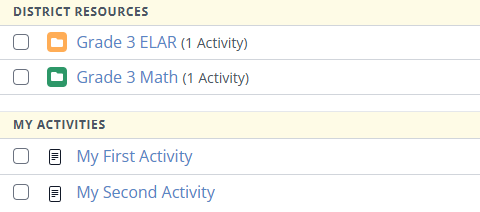
You can organize materials however you choose by creating folders and placing activities, assessments, and other resources inside them.
Before You Can Start
Before you can add materials to your district, Classwork will need to set up your account. Contact us at support@classwork.com and we'll be delighted to get you started.
By default, your folders will be divided into subject areas, such as Math, ELAR, Science, Social Studies, Electives, or CTE. We can change that upon request.
You also need to be designated as a Curriculum Author. Contact your User Administrator or the support email above for help setting up your roles and permissions.
Choose a Resource List
To begin authoring content, click the Administration page, then choose Curriculum Authoring.
You will see a list of the District Resource categories that have been set up for your account.
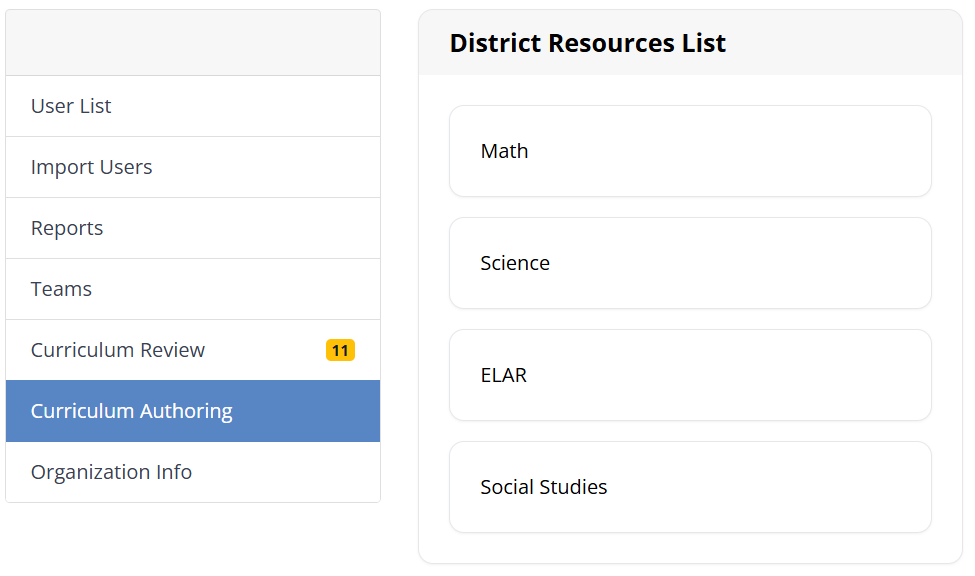
Click one of the categories to open it and begin adding materials.
Create Your First Folder
Once you've selected a category, you'll see the familiar Activities list for that category.
Click the New Folder button.
Type in a name and choose a color.
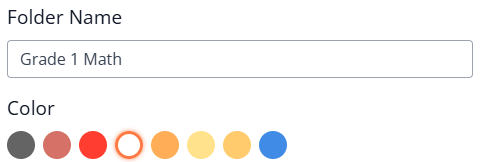
Your new folder will appear at the top of your Activities list, underneath the "Unpublished" header.
Understanding Published vs. Unpublished Folders
Teachers cannot see the materials you are working on until you publish them to make them visible. Published folders will appear at the top of the Activities list.
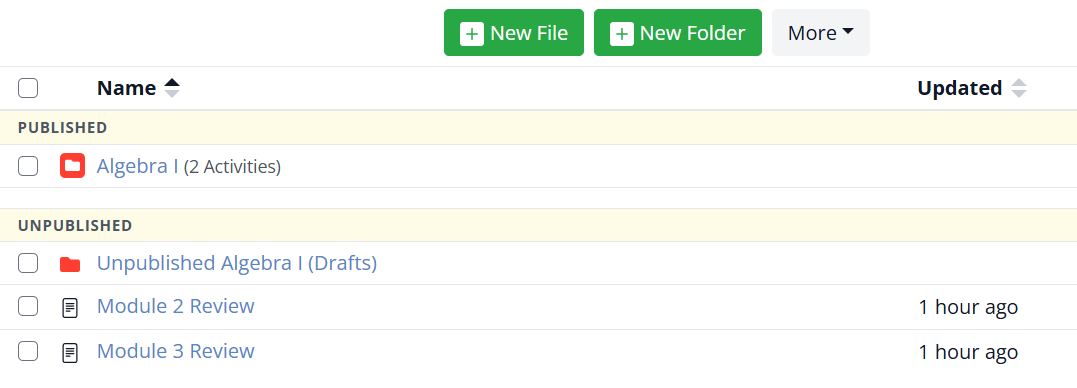
Any folder at the top level of your account can be published, and will automatically include all the subfolders and all the activities within that topmost folder. You have complete control over what folders you create and publish, giving you the flexibility to organize your curriculum any way you wish. You can organize by:
- Grade levels
- Topics
- Assessment collections
- Unit or module resources
- ...however you wish!
You can also create as many unpublished folders as you wish and use those to manage your authoring process. You can store drafts, move them to another folder for review, then move them once again to make them as final. Then, once you've built a complete folder, you can move it the topmost level of the Activities list and publish it.
To learn how to publish a folder, follow these instruction: Create and Publish Curriculum Folders.
Once published, a folder is available to teachers, but they must add the folder to their account. That allows them to choose only the subjects and grades they teach. You can read more about the teacher experience here: District and School Folders (Teacher Guide).
What Teachers Can Do with Published Content
After a teacher adds your folder to their Activities list, they'll see it listed under District Resources.
Teachers can assign Activities directly inside the folder and do not need to make a copy before assigning.
You can also control whether teachers are allowed to:
- Make copies into My Activities
- Preview content before assigning
- Assign content only during a specific date window
For these controls, see: Manage Teacher Access and Security for District Resources.
Editing Published Content
You can edit content even after it has been published. Changes update automatically for teachers. However, there is one important caveat: If teachers have already assigned the content, the activity opens in Answer Key Mode.
In Answer Key Mode, authors cannot:
- Delete questions
- Add new questions
Authors can still make limited edits, such as:
- Covering content with Content Tools
- Adding text
- Adding images
- Making other changes that preserve student data integrity
For publishing updates, unpublishing, and edit limitations, see: Manage Curriculum Content and Published Updates.
Working with Other Authors
There is no limit to the number of authors who can work on an account. The only restriction is that you cannot edit the same activity as another author at the same time.
I'm Done!
When you're done editing the activities in one set of folders and want to go back to your own account, click the Co-Teacher option at the bottom of the Main Menu.

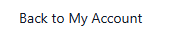
Then choose Back to My Account from the popup menu.
Recommended Next Steps
Was this article helpful?
That’s Great!
Thank you for your feedback
Sorry! We couldn't be helpful
Thank you for your feedback
Feedback sent
We appreciate your effort and will try to fix the article