|
|
Coaching: Use the Lesson Log Report |
Coaching: Use the Lesson Log Report
Coaching is available only if your district has purchased the Texas OER Math or RLA Companion.
The Lesson Log Report brings every coaching record into one list: teachers’ Lesson Logs and Internalization Logs, your classroom observations, and your teacher, PLC and administrator meetings. Filter it, open any record, or export it.
Open the report
In the left menu, click Lesson Log Report. (If you don’t also have the Teacher role, the menu item is just called Lesson Log.) Pick the School Year at the top right.
Filter the list
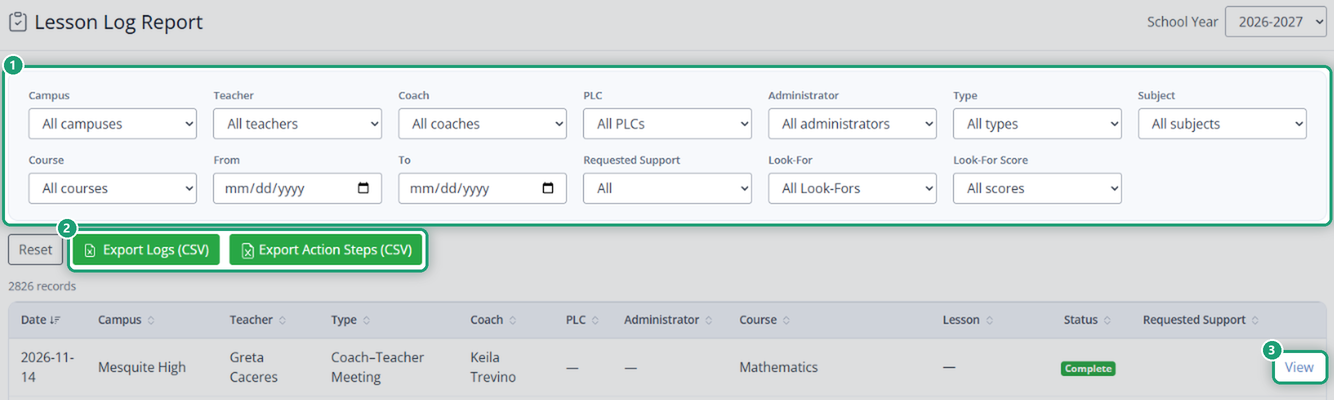
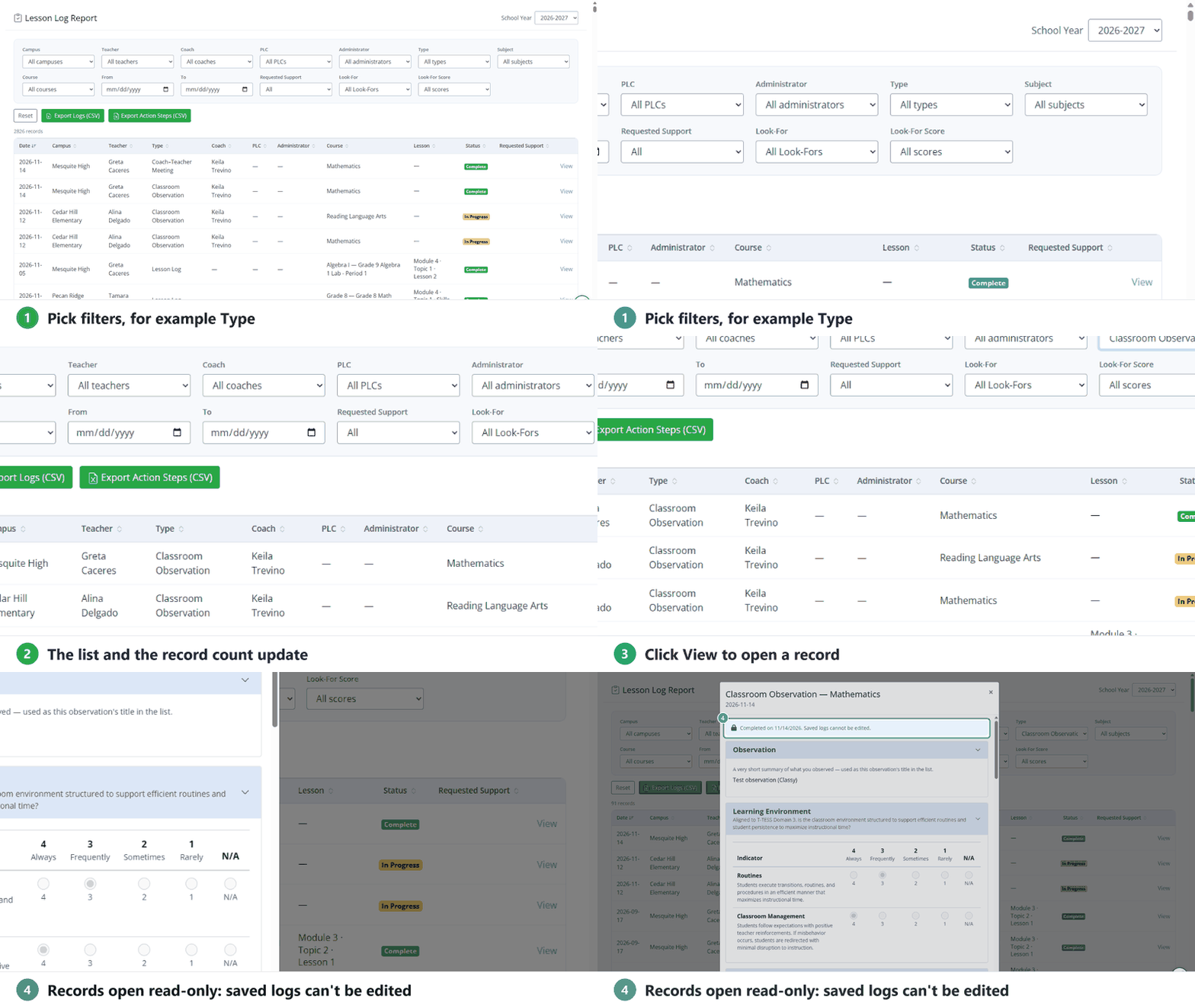
Use any mix of filters. The list and the record count update as you go.
- Campus, Teacher, Coach, PLC, Administrator
- Type: Lesson Log, Internalization Log, Coach–Teacher Meeting, Coach–PLC Meeting, Classroom Observation or Administrator Meeting
- Subject and Course
- From and To dates
- Requested Support: show only logs where the teacher asked for coaching support
- Look-For and Look-For Score: find observations by a look-for and its rating, for example every Checks for Understanding rated 1
Click Reset to clear them. Click a column name to sort by it.
Open a record
Click View at the end of a row. Records open read-only; saved logs can’t be edited. Status shows Complete or In Progress (started but not submitted).
Export
- Export Logs (CSV) downloads the records in the list.
- Export Action Steps (CSV) downloads the action steps.
Set your filters first to export just what you need.
Related
Was this article helpful?
That’s Great!
Thank you for your feedback
Sorry! We couldn't be helpful
Thank you for your feedback
Feedback sent
We appreciate your effort and will try to fix the article