|
|
Curriculum Pacing for Curriculum Managers |
Curriculum Pacing for Curriculum Managers
This article applies only to Curriculum Managers.
The Texas OER curriculum comes with a pacing guide that schedules each lesson, day by day. A real school year rarely matches it exactly, because of testing days, assemblies, field trips, and weather.
Curriculum Pacing lets you adjust the sequence of lessons for each course against your district’s calendar. When you change something, the rest of the calendar reflows automatically.
Before You Begin
- You need the Curriculum Manager role. See Manage User Roles and Permissions.
- Set up your School Year Calendar first. It defines the instructional days for every school in your district, and Curriculum Pacing builds on it. See managing your School Year Calendar.
Open Curriculum Pacing
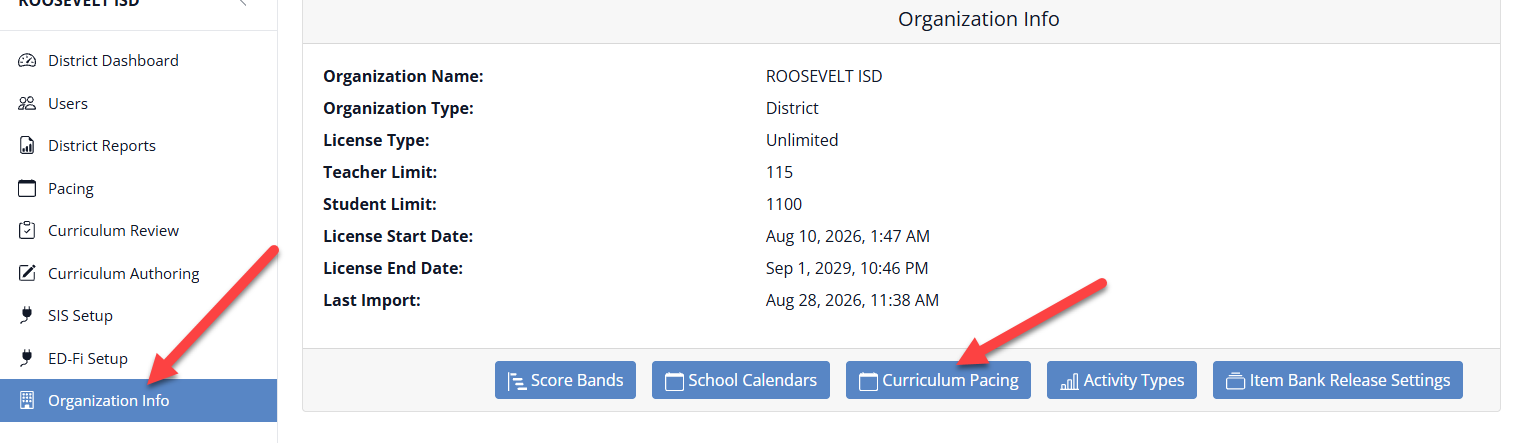
- Click Administration in the left navigation.
- Click Organization Info.
- Click the Curriculum Pacing button.
Add a Course
The first time you open Curriculum Pacing, you’ll add the course you want to customize.
- On the Curriculum Pacing Calendars page, click the green + New button.
- In the New Pacing Calendar window, select a course from the dropdown. Courses are grouped by subject: Mathematics (Kindergarten through Grade 8, Algebra I, Algebra II, and Geometry) and RLA (Reading for Kindergarten through Grade 5, plus Foundation Skills for Kindergarten through Grade 3).
Reading and Foundation Skills are separate courses, each with its own pacing calendar. Add one course at a time.
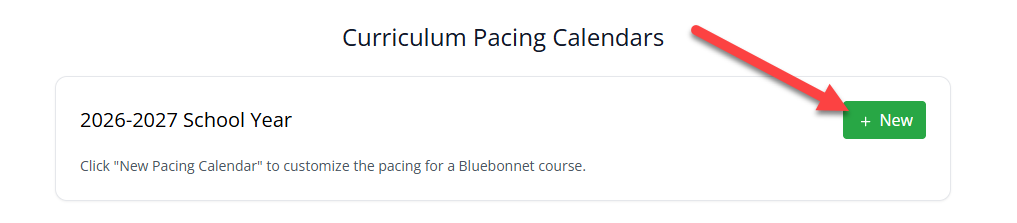
After you’ve edited a course, it appears in a list under your school year calendar’s name each time you return to Curriculum Pacing. Click a course in the list to reopen its calendar.
Your Pacing Calendar
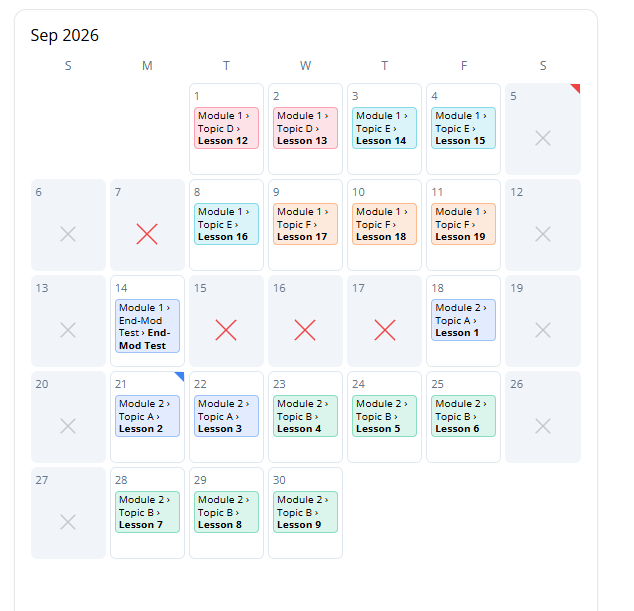
When you open a course, you’ll see the full school year, month by month. Your School Year Calendar is already layered in, and each lesson is placed according to the Texas OER Curriculum Pacing Guide.
- Header: The course and calendar name, with totals such as teaching days, scheduled days of lessons, events, and lessons removed.
- Lessons: Each lesson appears on its day (for example, Module 2 › Topic D › Lesson 17). For Math, the color changes with each Topic and with the assessments built into the curriculum (Mid-Module and End-of-Module), so you can see at a glance when a topic changes. For RLA, the color changes by Unit. Tests are lessons too, and a test can span two days (Day 1 and Day 2).
- Big X: A non-instructional day from your School Year Calendar. Students don’t attend, so no lesson is scheduled.
- Corner triangle: A note from your School Year Calendar. Blue marks a note on an instructional day, and red marks a note on a non-instructional day.
- Green outline: Today.
Your changes save automatically. Click Done when you’re finished.
Customize the Calendar
There are two ways to adjust a pacing calendar, and either one reflows the lessons that follow.
- Add an event. Log testing, a field trip, an assembly, and more. You decide whether a lesson is still taught that day, and you can apply the event to other courses at the same time. See Add Events to Your Curriculum Pacing Calendar.
- Move, double up, or remove lessons. Drag lessons to new days, put two lessons on one day, give a lesson more days, or take a lesson off the calendar. See Move, Double Up, and Remove Lessons on Your Curriculum Pacing Calendar.
What Your Changes Affect
Customized pacing flows through to the rest of Classwork:
- The Texas OER Pacing report reflects your customized pacing for any course you change.
- Teachers’ Lesson Logs are rearranged to match, so the lessons your teachers log follow your sequence.
- View-only calendars show your pacing to others. Administrators see it on the Pacing tab in Administration, Curriculum Authors see it on the Curriculum Authoring page, and teachers see it on the Pacing tab of their Classes page, marked Custom pacing when you’ve changed it.
Was this article helpful?
That’s Great!
Thank you for your feedback
Sorry! We couldn't be helpful
Thank you for your feedback
Feedback sent
We appreciate your effort and will try to fix the article