|
|
Administration - Managing School Year Calendar |
Manage School Year Calendar
The School Year Calendar allows Curriculum Managers to define the instructional calendar used for reporting across their school or district.
You can create or import calendars, define teaching days, label key dates, and organize grading periods to align reporting with your academic schedule.
Who Can Manage School Calendars
Only users with the Curriculum Manager role can create, edit, and publish school year calendars.
Other administrative roles may still see the Organization Info page, but the settings buttons will not appear.
Open School Calendars
- Click Administration.

- Click Organization Info.
- Click School Calendars.
This opens the School Calendars page, where all calendars for your organization are listed.
Create or Import a Calendar
If no calendars have been created yet, the page will be empty.
You can add a calendar in two ways:
- Import Calendar: Upload a district calendar using a PDF file.
- + New Calendar: Create a calendar manually.

Create a New Calendar
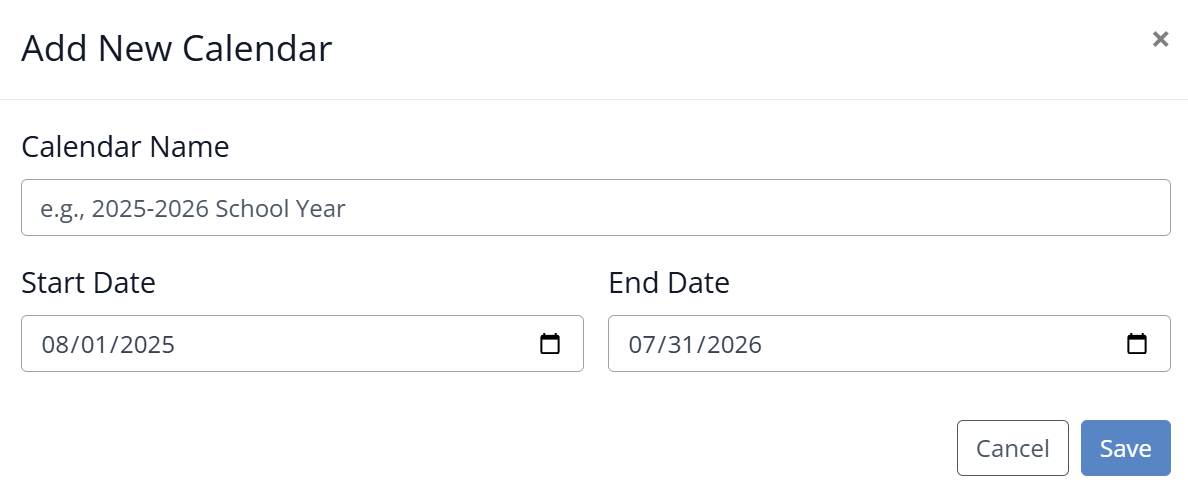
- Click + New Calendar.
- Enter a Calendar Name (for example, 2026–2027 School Year).
- Select a Start Date and End Date.
- Click Save.
After saving, the calendar will open in the calendar view.
Calendar View and Teaching Days
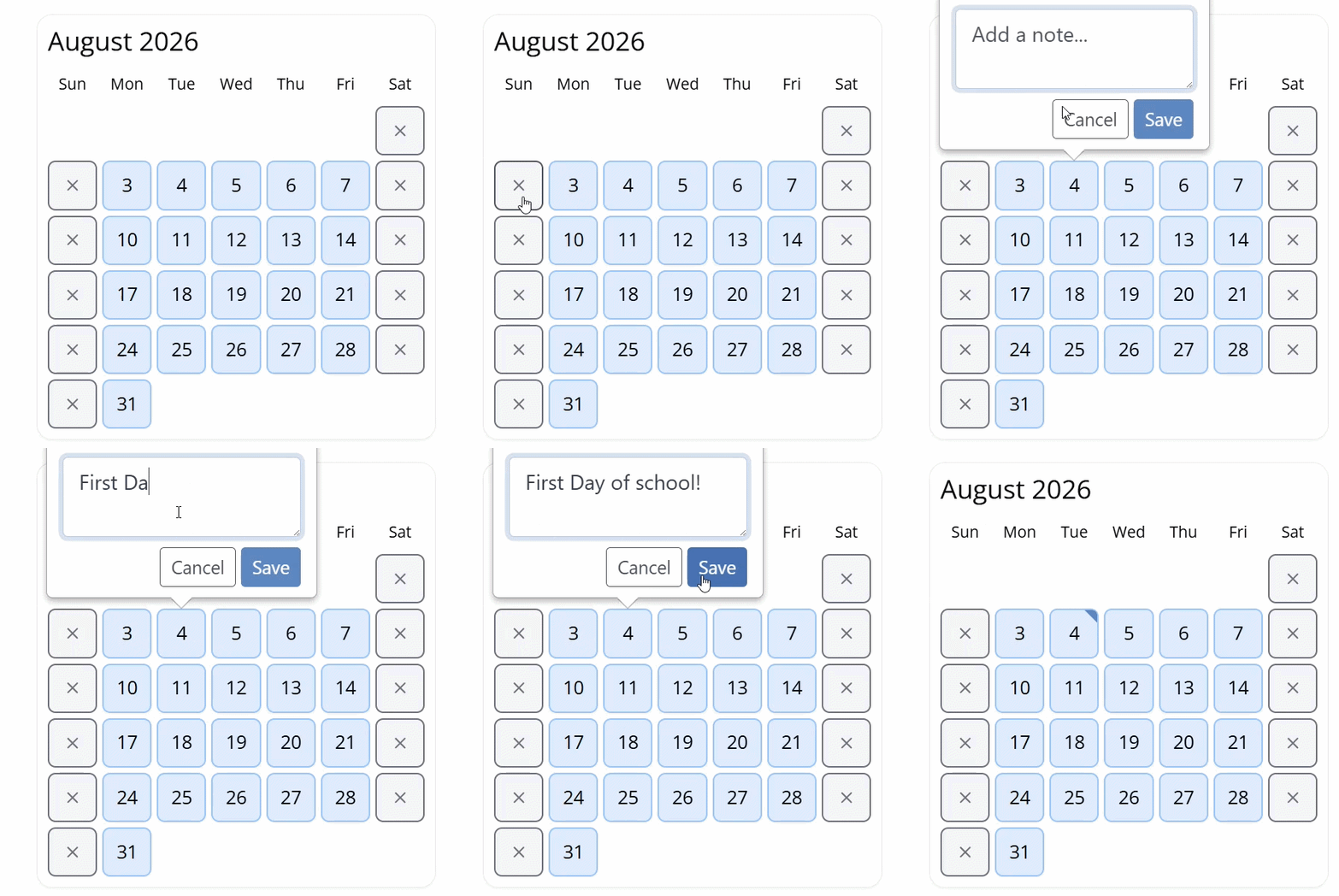
The calendar displays each month within the selected date range.
- Monday through Friday are set as Teaching Days by default.
- Saturday and Sunday are set as Days Off by default.
To change a day:
- Click any date to toggle between Teaching Day and Day Off.
To add a note:
- Hold Shift and click a date to add a note (for example, End of Q1).
Teaching Day Number View
At the top of the calendar, you can switch between two display modes:
- Date View: Shows standard calendar dates.
- Teaching Day View: Replaces dates with the instructional day number.
For example, the first instructional day will display as 1, and each subsequent teaching day will increase sequentially throughout the school year.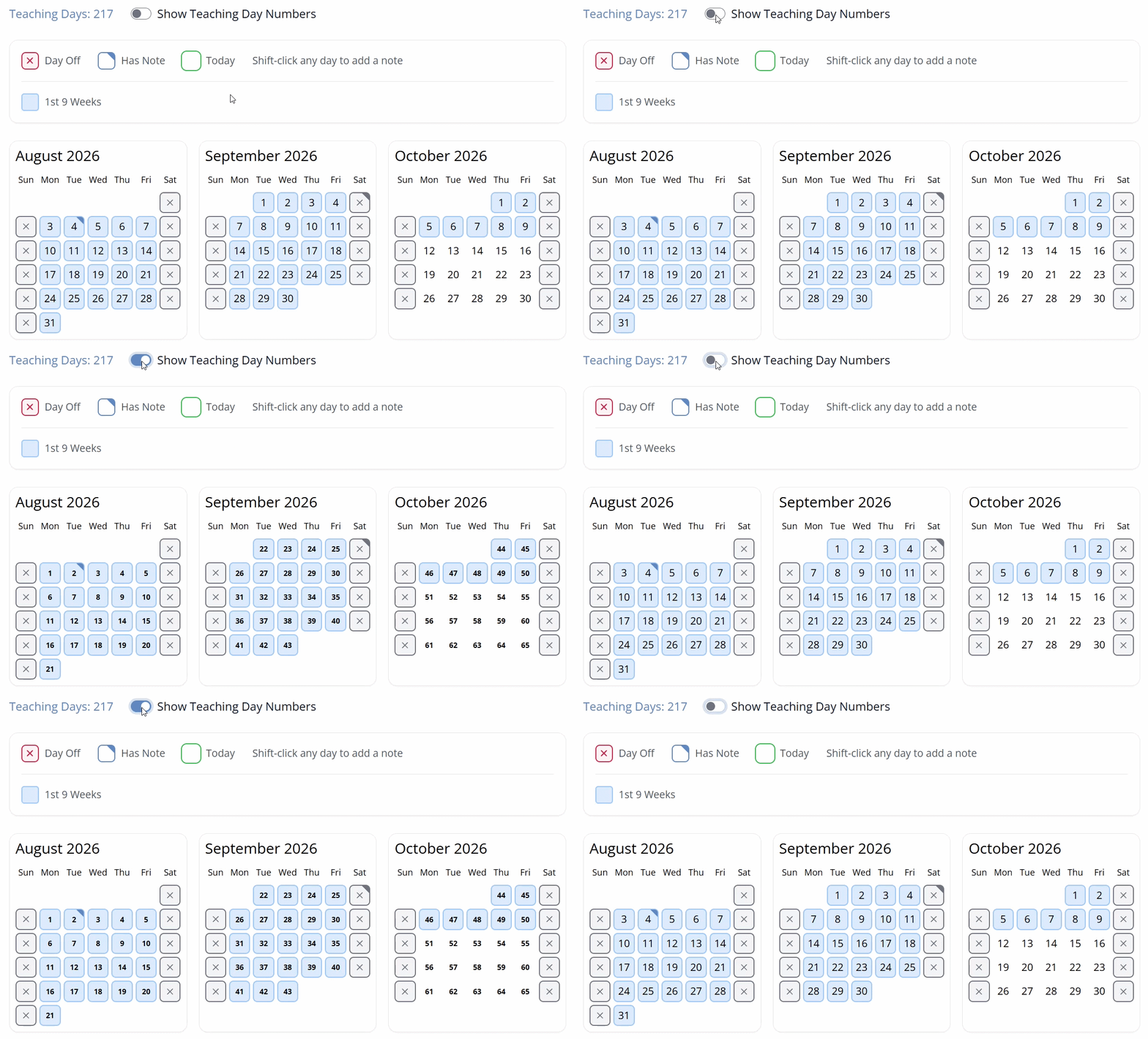
Set Grading Periods
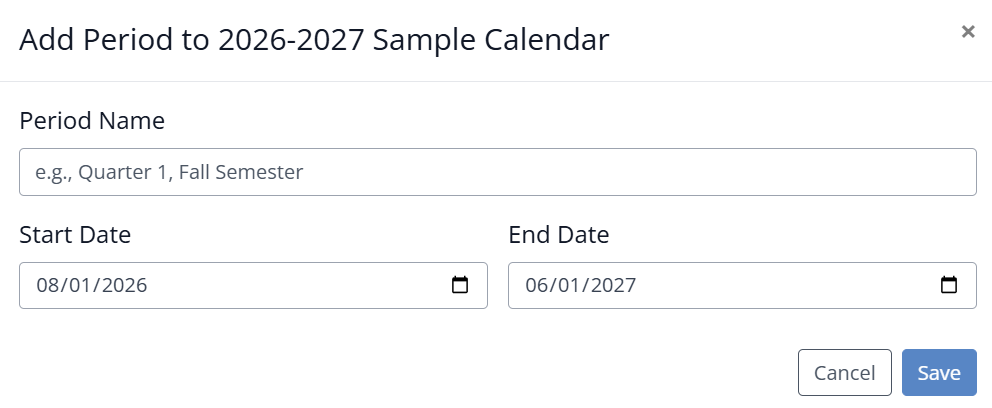
Within each calendar, you can define grading periods such as nine-week terms or semesters.
Each period can be configured to:
- Represent a specific date range
- Display as a distinct color on the calendar
This helps align reporting views with grading structures used by your school or district.

Publish a Calendar
Newly created or imported calendars are unpublished by default.
To make a calendar active for reporting:
- Select the calendar
- Click Publish
Only published calendars are used in reporting.

Before You Publish
The School Year Calendar affects how reporting data is organized and displayed across your organization.
Before publishing, confirm that:
- Teaching days are accurate
- Non-instructional days are correctly marked
- Grading periods are properly defined
- Notes are added where needed
Changes to a published calendar may affect reporting views for teachers and administrators.
Related Articles
Was this article helpful?
That’s Great!
Thank you for your feedback
Sorry! We couldn't be helpful
Thank you for your feedback
Feedback sent
We appreciate your effort and will try to fix the article