|
|
Curriculum Pacing: Move, Double Up, and Remove Lessons |
Curriculum Pacing: Move, Double Up, and Remove Lessons
This article applies only to Curriculum Managers. It’s part of Curriculum Pacing for Curriculum Managers.
The Texas OER pacing guide often lists more lesson days than your school actually has. On the pacing calendar, you can drag lessons to make the schedule fit: move a lesson to another day, double up two lessons on one day, give a lesson extra days, or take a lesson off the calendar. Each change reflows the lessons that follow, and your changes save automatically.
Pick Up a Lesson
Open the course in Curriculum Pacing (Administration › Organization Info › Curriculum Pacing). Click and hold any lesson on the calendar, then drag it.
As soon as you pick up a lesson, two drop areas appear on the left side of the screen: Remove lesson and Change Lesson Days. You can drop the lesson on one of those, or on a day on the calendar.
Move a Lesson to Another Day
Drag the lesson onto the day you want. That day shows two options: Move and Double Up. Drop the lesson on Move.
The lesson takes the new day. The lesson that was scheduled for that day moves to the next instructional day, and the rest of the calendar reflows.
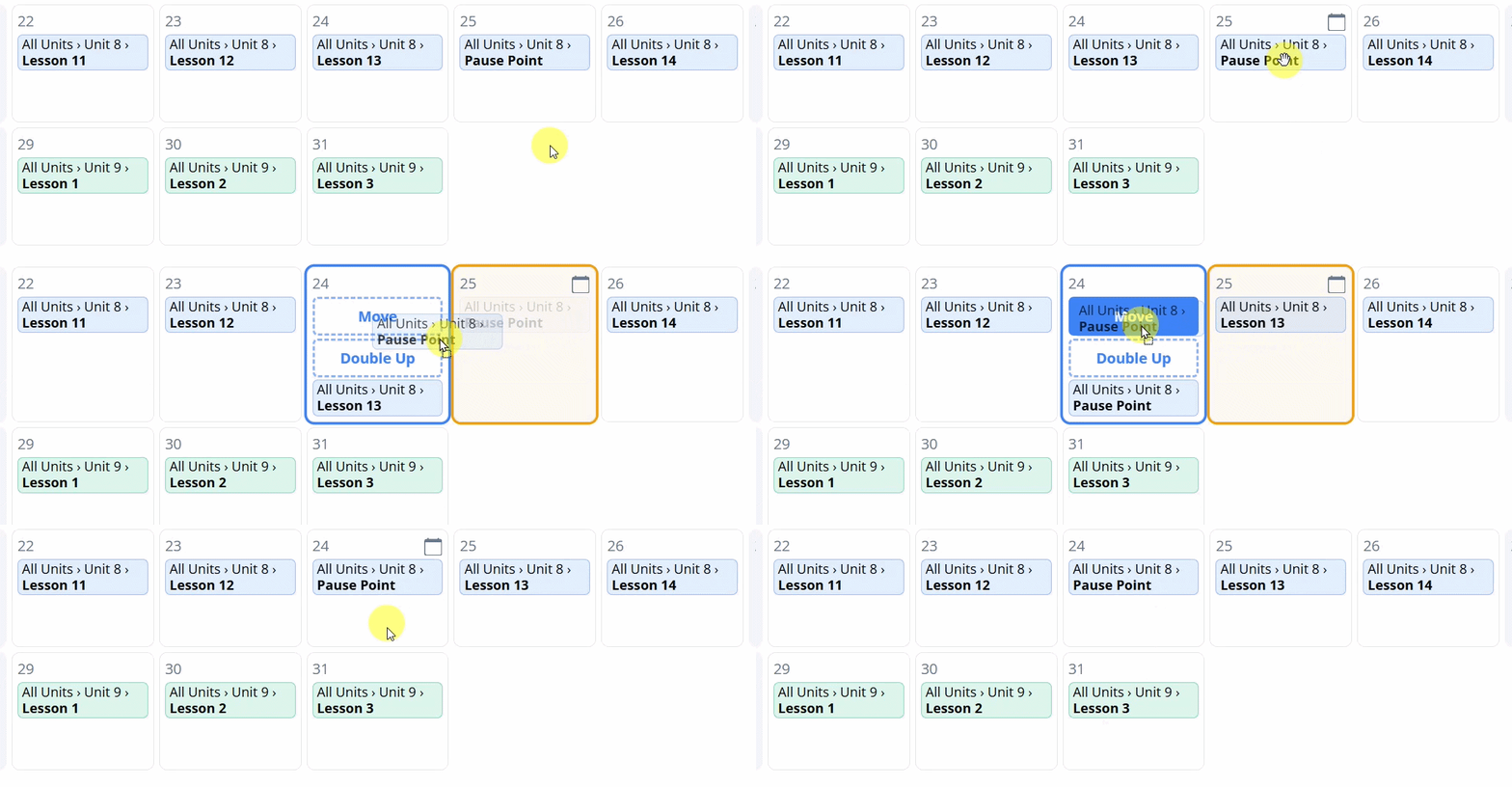
Tip: Lesson colors change as the curriculum moves from one topic to the next (by Topic and assessment for Math, and by Unit for RLA), so you can see where a topic begins and ends as you rearrange.
Double Up Two Lessons on One Day
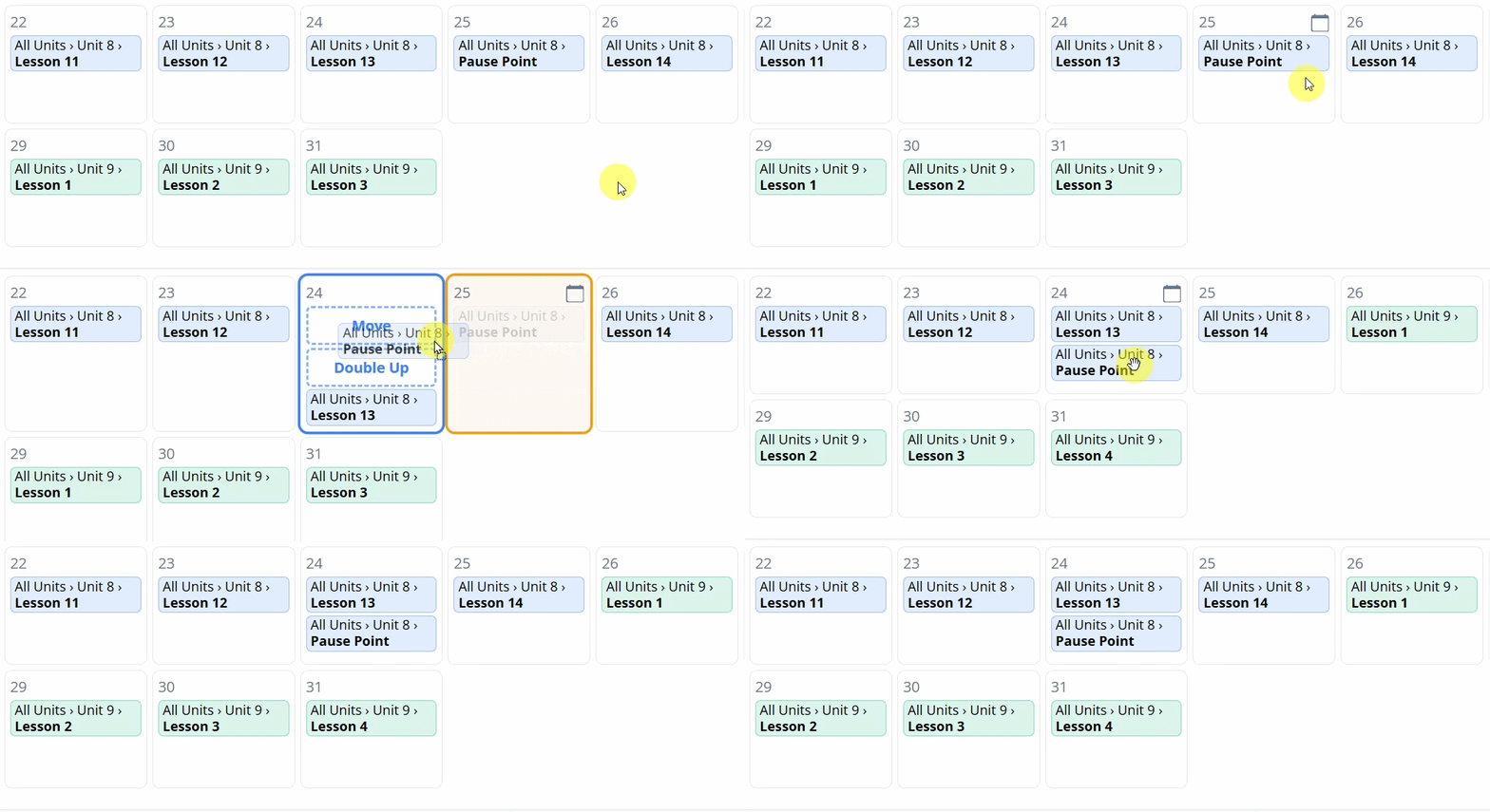
To teach two lessons on the same day, drop the lesson on Double Up instead. Both lessons then share that day.
Doubling up is common with the Texas OER pacing guide, because the guide lists more days than most schools have. The lessons that follow move up to fill the space, and the scheduled days of lessons total in the calendar header goes down.
Give a Lesson More Days
Some lessons need more than one day. To add days to a lesson:
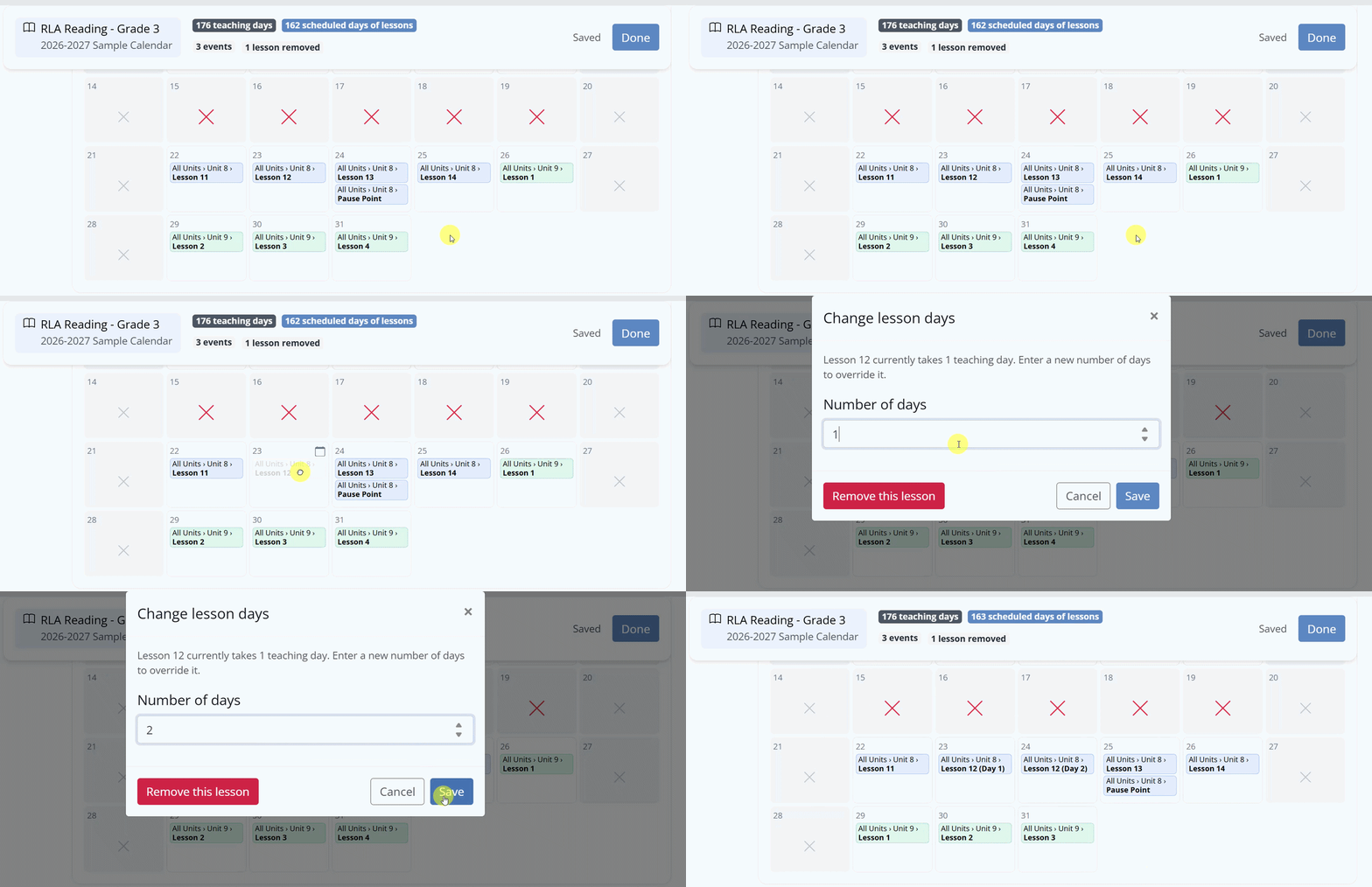
- Click the lesson, or drag it to Change Lesson Days on the left side of the screen. Either way opens the Change lesson days window.
- Enter a new Number of days. The window shows how many days the lesson currently takes (for example, Lesson 28 currently takes 1 teaching day).
- Click Save.
The lesson now spans that many days and is labeled by day, such as Lesson 28 (Day 1) and Lesson 28 (Day 2). The rest of the calendar reflows to make room.
Remove a Lesson
If you won’t teach a lesson this year, take it off the calendar. You can do it either way:
- Drag the lesson to Remove lesson on the left side of the screen.
- Or click the lesson to open the Change lesson days window, then click the red Remove this lesson button.
The lesson leaves the calendar, the calendar reflows to close the gap, and the lessons removed count in the header goes up.
Bring a Removed Lesson Back
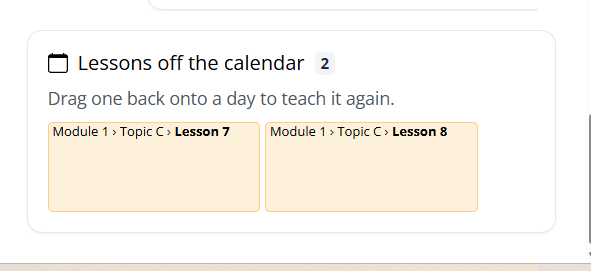
Removed lessons aren’t lost. Scroll to the bottom of the calendar to find Lessons off the calendar, which lists every lesson you’ve removed. To teach one again, drag it from there onto a day. Just like moving a lesson, the day offers Move and Double Up.
Lost a Whole Day?
If a day is taken by something like testing or an assembly, you don’t need to move lessons by hand. Add an event instead, and choose that no lesson is taught that day. See Curriculum Pacing: Add Events to Your Calendar.
Was this article helpful?
That’s Great!
Thank you for your feedback
Sorry! We couldn't be helpful
Thank you for your feedback
Feedback sent
We appreciate your effort and will try to fix the article