|
|
Manage User Roles and Permissions |
Manage User Roles and Permissions
This article applies to organization administrators only.
Classwork allows organizations to assign specific roles to users. Each role determines what features and administrative tools a user can access.
All roles other than Teacher receive access to the Administration menu in the left navigation panel. The options that appear inside Administration vary depending on the assigned role.

Available Roles
Teacher
The default role for most users.
- Create Activities
- Make Assignments
- Create and manage Classes
- Review student submissions
The Teacher role does not include access to the Administration menu.
User Administrator
User Administrators manage users within an organization.
- Create new users
- Remove users
- Update user information
- Manage Teams
This role sees the Administration menu with access to:
- User List
- Teams
- Organization Info
User Administrators can view the Organization Info page, but the Score Bands, School Year Calendar, and Activity Types setup buttons are available only to Curriculum Managers.
School Administrator
School Administrators can view reporting data for an entire school.
- Access school-level reports
Under the Administration menu, this role will see reporting tools relevant to their assigned school.
Note: Reporting features are currently in development.
District Administrator
District Administrators can view reporting data across an entire district.
- Access district-wide reports
Under the Administration menu, this role will see district-level reporting tools.
Note: Reporting features are currently in development.
Curriculum Author
Curriculum Authors create and manage instructional materials within district resources.
- Add curriculum materials to district resources
- Edit and update curriculum materials
- Submit materials for review (if applicable)
Under the Administration menu, this role will see Curriculum Authoring.
Curriculum Reviewer
Curriculum Reviewers evaluate submitted curriculum materials.
- This role is assigned using the same checkbox in the user profile as other roles.
- Curriculum submissions will only appear once the user is added to a designated review team.
This allows selected teachers or administrators to review instructional materials submitted for district approval.
If a user has the Curriculum Reviewer role but is not on a review team, no curriculum items will appear for review.
Curriculum Manager
Curriculum Managers configure the organization-level settings that shape how instructional data is organized and reported, and how the Texas OER curriculum is paced and released to teachers. They also have full Curriculum Authoring rights.
- Create and manage Score Bands
- Create, edit, and publish the School Year Calendar
- Create and manage Activity Types
- Adjust Texas OER lesson pacing for each course with Curriculum Pacing
- Release the Texas OER Item Bank (Math or RLA) to teachers
- Build, organize, and publish curriculum materials to District Resources
Under the Administration menu, this role will see Organization Info and Curriculum Authoring.
Organization-Level Settings
Users with the Curriculum Manager role can access organization-level settings that affect reporting, pacing, and teacher access across the entire school or district.
- Score Bands
- School Year Calendar
- Activity Types
- Curriculum Pacing
- Item Bank Release Settings
These settings are available on the Administration page under Organization Info.
Changes to Score Bands, the School Year Calendar, and Activity Types affect how student performance and reporting data are displayed for all users. Curriculum Pacing changes update the Texas OER Pacing report and teachers’ Lesson Logs.
Releasing the Texas OER Item Bank
The Texas OER Item Banks (Math and RLA) start out locked down, available only to Curriculum Authors and Curriculum Managers. When you’re ready for teachers to use an item bank, a Curriculum Manager releases it to them from Item Bank Release Settings on the Organization Info page.
How to Assign Roles
Initially, Classwork must grant at least one user User Administrator access within your organization.
Once a User Administrator exists, they can assign roles to others.
- Click Administration at the top of the left navigation menu.
- Click User List.
- Use the search bar to locate the user.
- Click the user’s name to open their profile.
- Assign the appropriate role.
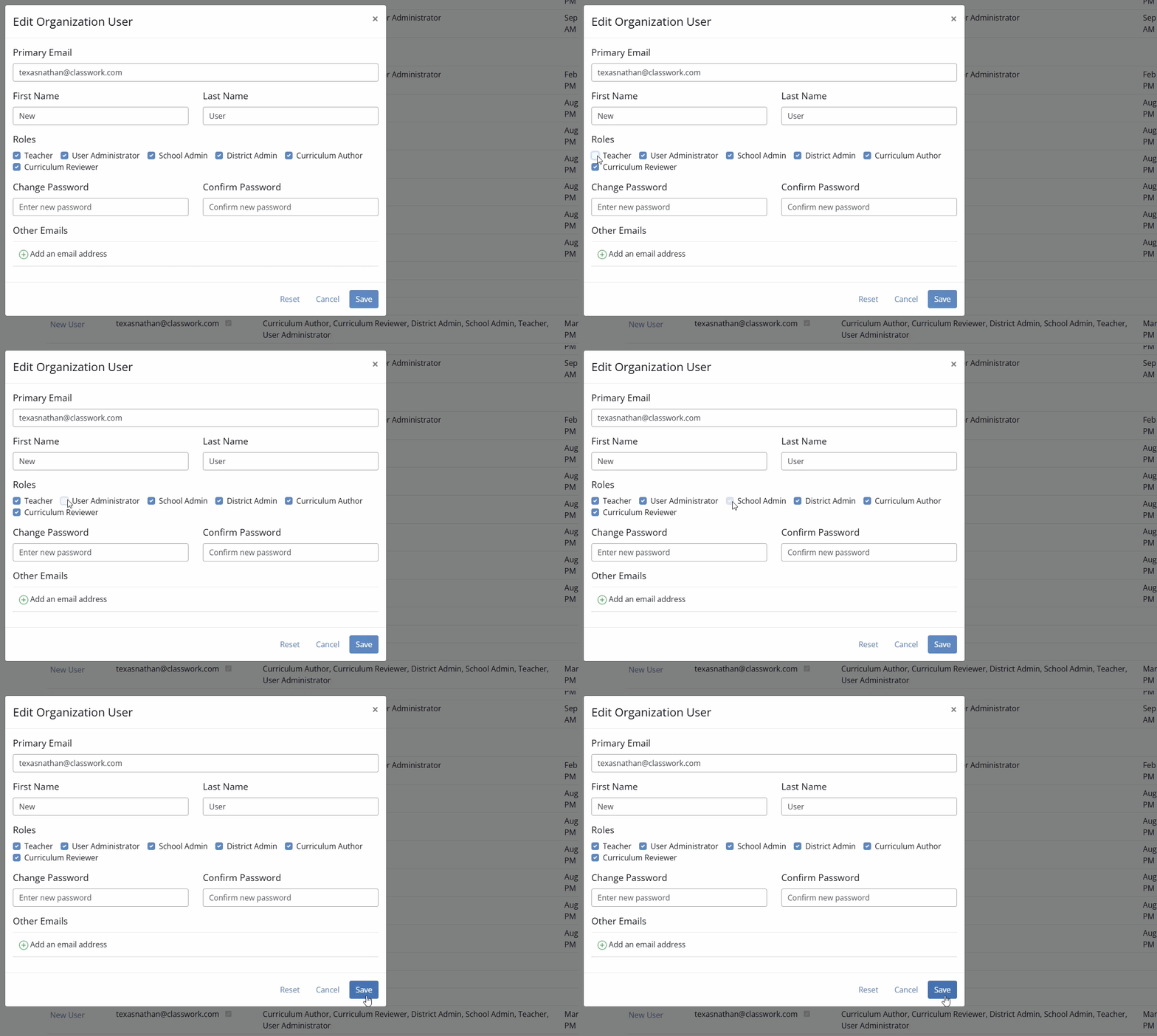
- Save your changes.
The same process applies when creating a new user. During setup, simply assign the appropriate role before saving.
How the Administration Menu Changes by Role
What appears under Administration depends on the assigned role:
- User Administrator: User List and Teams
- School Administrator: School-level reports
- District Administrator: District-level reports
- Curriculum Author: Curriculum Authoring tools
- Curriculum Manager: Organization Info & Curriculum Authoring tools
If a user does not see the Administration menu, confirm that their role has been updated correctly.
Was this article helpful?
That’s Great!
Thank you for your feedback
Sorry! We couldn't be helpful
Thank you for your feedback
Feedback sent
We appreciate your effort and will try to fix the article