|
|
Administration - Manage Score Bands |
Manage Score Bands
Score Bands let Curriculum Managers control how score ranges are grouped, labeled, and colored in reporting views that display quintile-style performance data.
You can edit the default score band model or create additional score band sets for teachers and administrators to choose from in reports.
Why Set Up Score Bands?
You can set up score bands to represent your district's:
- State Performance Bands
- Quintile or Quartile sorting
- Grade Levels (F through A)
They're fully customizable, so you can use them however you wish.
What if I Don't Create Them
If you don't set up score bands, the system will use a default 5-band 0-20%, 21-40%... Score Band.
Note: If you DO set them up, and you liked the 20% bands, be sure to set that band up, too. Once you set up your custom bands, we no longer assume you need the 20% bands. So, if you want them, add them!
Where Are They Used?
Score Bands affect a lot of the reports. If you define your own score bands, Teachers and Administrators throughout your district will see this drop down in their reports:

When they select a score band, it will change how the scores in the report are categorized and what colors are used to display them.
Who Can Manage Score Bands
Only users with the Curriculum Manager role can manage score bands.
Other administrative roles may still see the Organization Info page, but the settings buttons will not appear.
Open Score Bands
- Click Administration.

- Click Organization Info.

- Click the blue Score Bands button.

The Score Bands page will display all score band sets created for your organization.
What You Can Edit
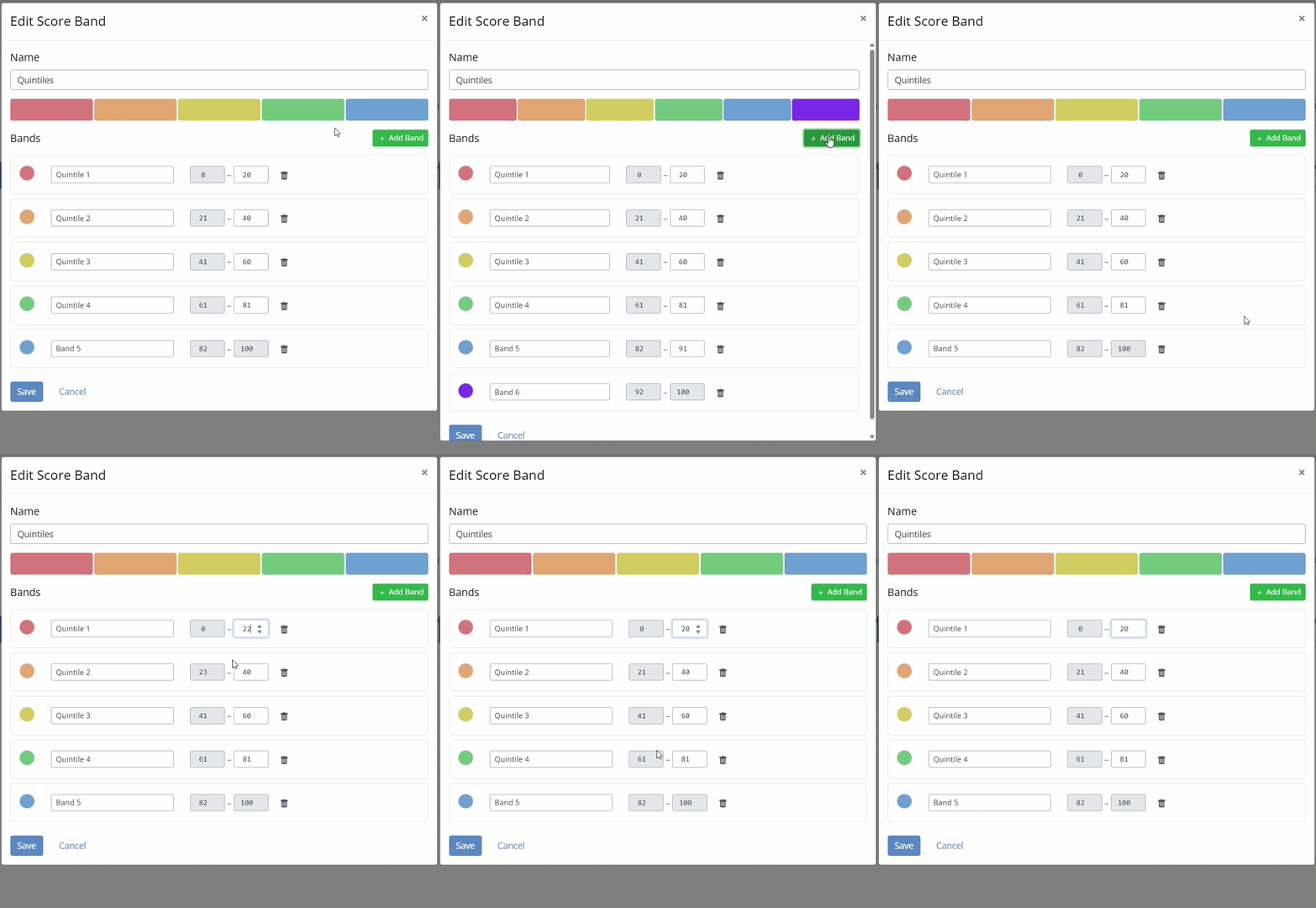
Within a score band set, you can customize the structure and appearance of the bands used in reports.
- Name the overall score band set
- Name each individual band
- Edit the percentage range for each band
- Select a color for each band
- Delete bands you no longer want to use
- Add new bands if you need a different structure
This allows your school or district to match reporting views to local grading language, intervention models, or performance frameworks.
Use Multiple Score Band Sets
Your organization can create more than one score band set.
When multiple score band sets exist, reports that include a quintile-style view will display a dropdown menu so teachers and administrators can choose which score band model to use when viewing data.
This makes it possible to compare the same performance data using different score band structures.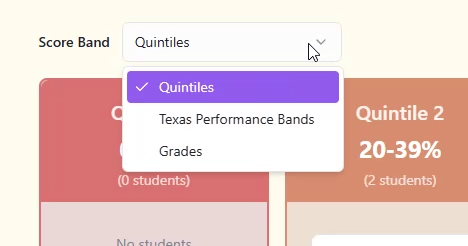
Before You Make Changes
Score band changes affect how performance data is displayed in reports across your organization.
Updating names, colors, or ranges does not change student work or raw scores, but it does change how those scores are grouped and presented in reporting views.
Related Articles
Was this article helpful?
That’s Great!
Thank you for your feedback
Sorry! We couldn't be helpful
Thank you for your feedback
Feedback sent
We appreciate your effort and will try to fix the article