|
|
Curriculum Authoring - Teacher Access and Security |
Manage Teacher Access and Security for District Resources
For Curriculum Authors and Curriculum Managers.
Each activity in District Resources has its own settings for when teachers can assign it, whether they can copy it, and how it counts in reports. Use them to protect secure tests and keep common materials easy to assign.
Where the settings are
Open the activity (click its name) to see its detail page.
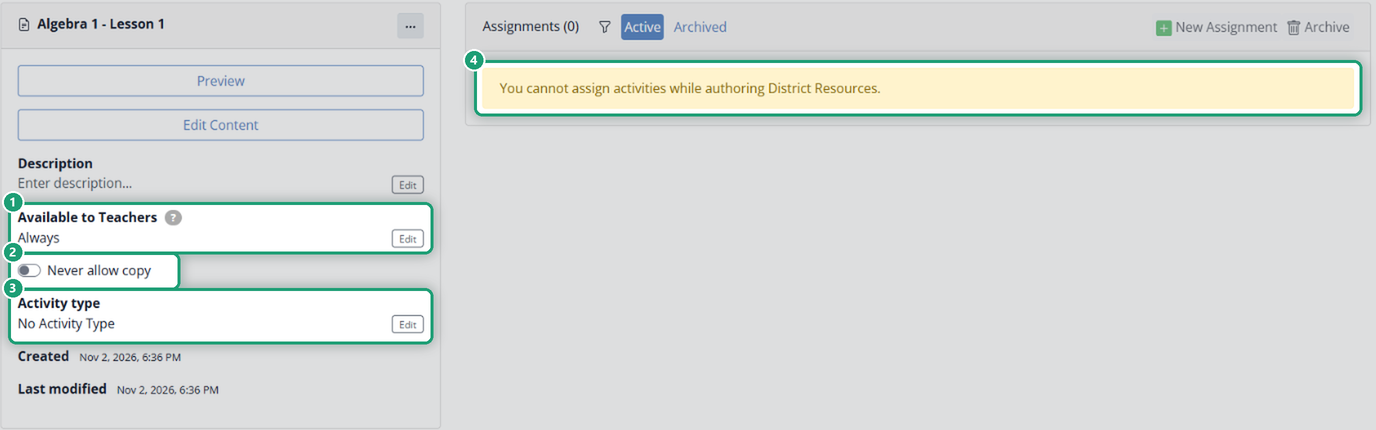
You can’t assign activities yourself while authoring District Resources. You’ll see a note saying so.
Available to Teachers
Available to Teachers starts as Always. To limit when teachers can assign the activity:
- Click Edit next to Available to Teachers.
- Pick the first and last day in the calendar.
- Click Save.
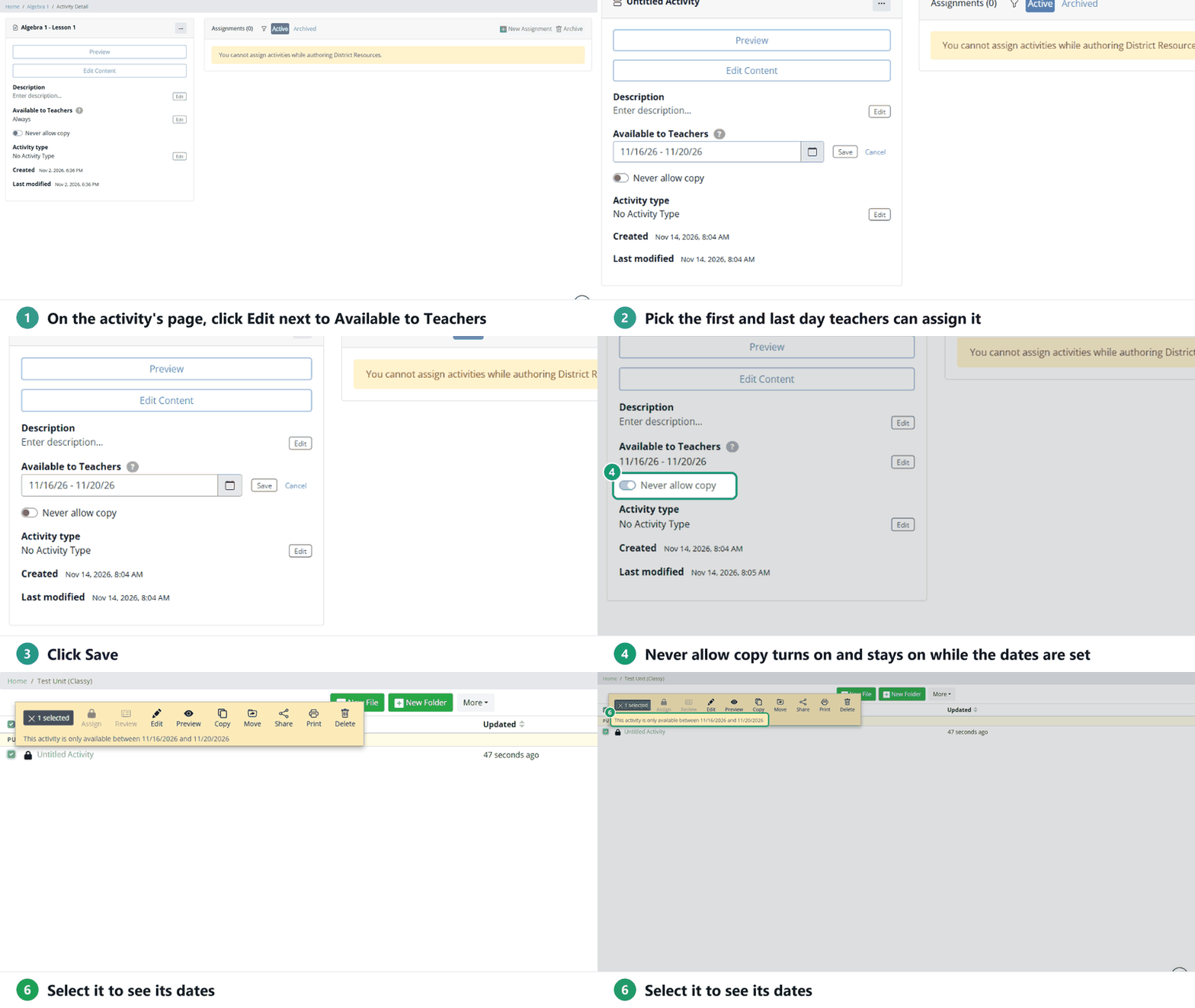
- Never allow copy turns on automatically and stays on until you remove the dates.
- A lock appears next to the activity in the folder. Select it to see This activity is only available between your dates.
- Teachers still see the activity, with the lock. Before the window opens, they can’t assign or preview it; once it opens, they can.
Never allow copy
- Off: teachers can copy the activity into their own Activities and edit their copy (for example, for SPED or 504 accommodations).
- On: teachers can assign it but can’t copy it. Good for secure tests and common assessments.
Teachers can never edit the original in District Resources; only authors can.
Activity type
Tag the activity with one of your district’s Activity Types so it’s counted correctly in reports. Click Edit next to Activity type, pick a type (grouped by category), and click Save.

Only Curriculum Authors and Curriculum Managers tag activities, which keeps tags consistent. Your Curriculum Manager sets up the types; see Manage Activity Types.
Which settings to use
- Secure assessments: set a date window (copying turns off automatically).
- Common lessons: leave it Always; allow copying if teachers may adapt them.
- Materials teachers need to adapt: leave Never allow copy off.
Related
Was this article helpful?
That’s Great!
Thank you for your feedback
Sorry! We couldn't be helpful
Thank you for your feedback
Feedback sent
We appreciate your effort and will try to fix the article