|
|
Curriculum Authoring - Manage Content and Published Updates |
Manage Curriculum Content and Published Updates
For Curriculum Authors and Curriculum Managers.
You can keep improving District Resources after you publish them. What you can change depends on whether teachers have already assigned the activity.
Edit a published activity
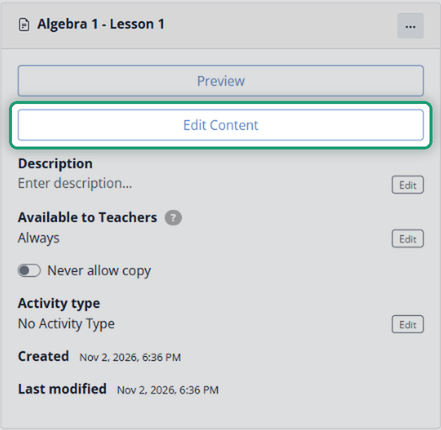
Open the activity and click Edit Content. Your changes reach teachers right away: they always get the latest version.
Answer Key Mode
If any teacher has already assigned the activity, it opens in Answer Key Mode to protect student work that’s already in progress.
- You can’t add or delete questions.
- You can add text and images, and use Content Tools to cover or clarify content.
For bigger changes, make a new version of the activity in an unpublished folder.
Major revisions
Take content out of teachers’ view while you rework it:
- Move the activity or folder into an unpublished folder, or
- Unpublish the top-level folder (check it, click Unpublish, then Confirm).
Either way, teachers lose access right away. Publish or move it back when it’s ready. See Create and Publish Curriculum Folders.
Working with other authors
Several authors can work in the same District Resources list at once: creating folders, organizing and editing different activities. Two authors can’t edit the same activity at the same time.
Good habits
- Use unpublished folders as your revision workspace.
- Publish only what’s ready for teachers.
- For high-stakes tests, combine a date window with Never allow copy. See Manage Teacher Access and Security for District Resources.
- Be careful changing materials teachers may already have assigned.
Related
Was this article helpful?
That’s Great!
Thank you for your feedback
Sorry! We couldn't be helpful
Thank you for your feedback
Feedback sent
We appreciate your effort and will try to fix the article