|
|
Import Document |
Import Document
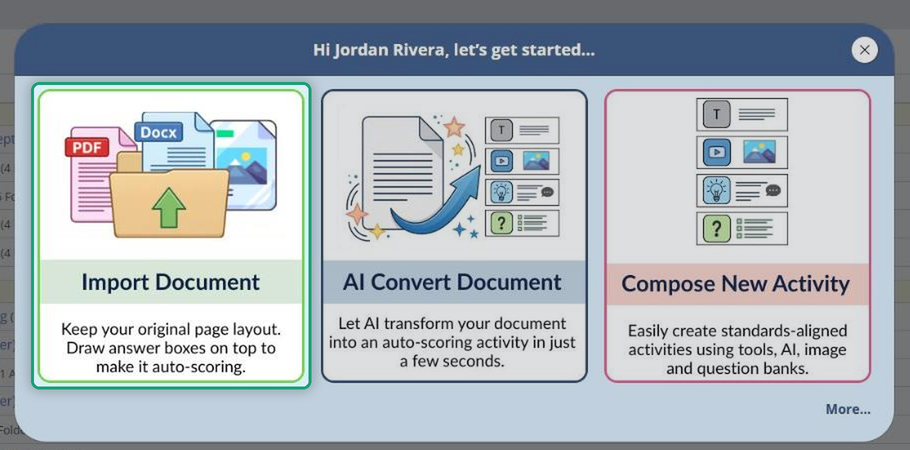
Have a PDF, Word file or image you want to keep exactly as it looks? Import Document brings it in as the page, and you draw answer boxes on top to make it auto-scoring. It opens in the Slide Editor.
Open Import Document
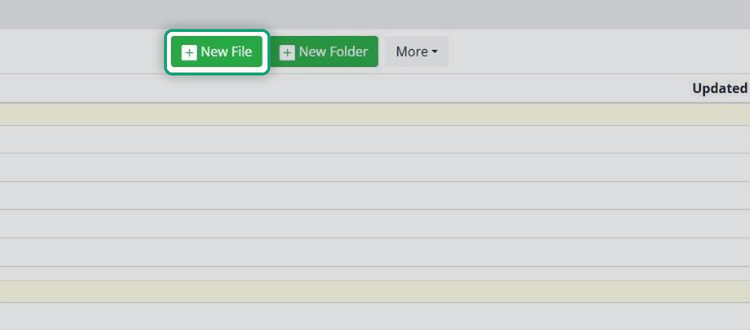
- On your Activities page, click + New File.
- Click Import Document.
Add your file
The Upload a File window gives you three ways in. It takes PDF, Word, images and more; PDF gives the best results.
- Drag and drop the file onto the dashed area. See Drag and Drop a File here.
- Click Choose File to pick one from your computer. See Upload a File from your computer.
- Click Google Drive to pick a file from your Drive, including Google Docs and Google Slides. See Import from Google Drive.
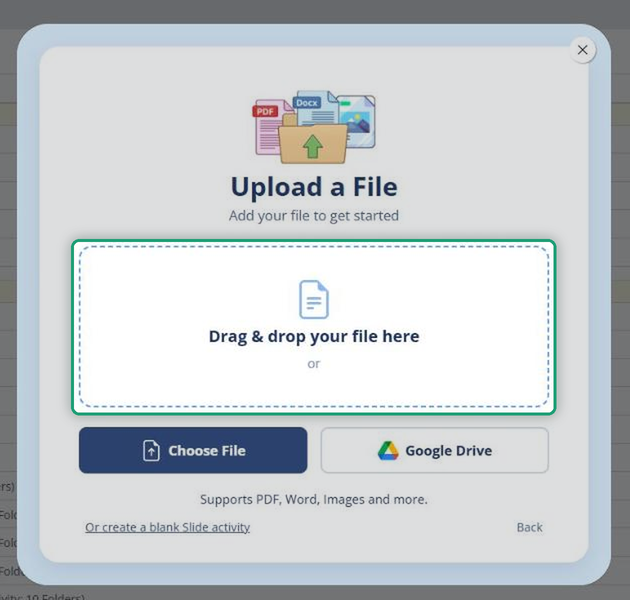
Long document? See Dealing With the 25-Page Limit. Want an empty page instead? Click Or create a blank Slide activity.
Choose your pages
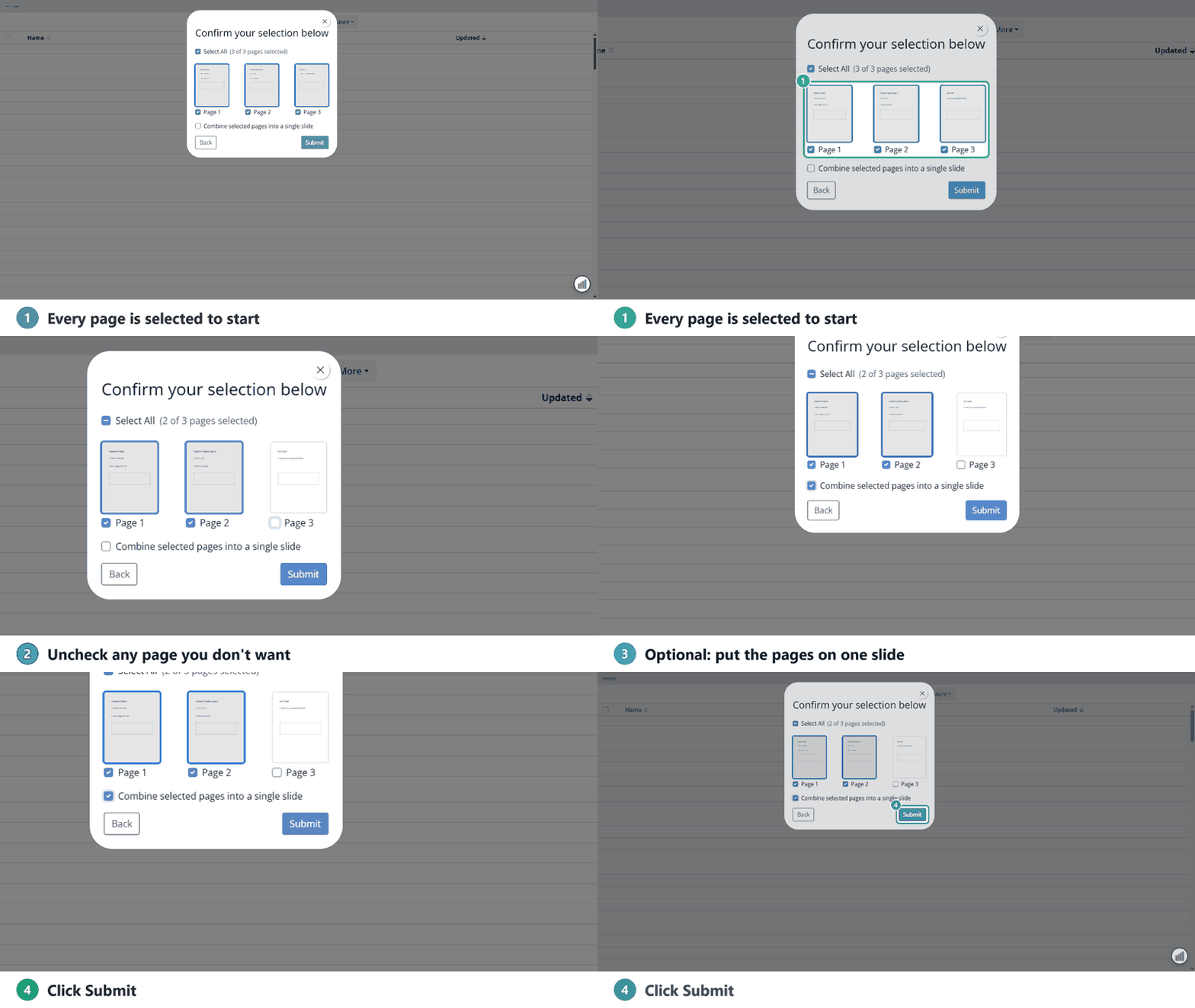
When the file finishes processing, the Confirm your selection below window shows every page, all checked to start.
- Uncheck any page you don’t want, or use Select All.
- To put the selected pages on one long slide, check Combine selected pages into a single slide. Otherwise each page becomes its own slide.
- Click Submit.
Your Activity opens in the Slide Editor, ready for answer boxes. See Adding Interactions (Slide Editor).
Related articles
- New File Button (all three ways to start an Activity)
- Slide Editor vs. Flex Editor
- Creating a PDF from Google Docs, Google Slides, Microsoft Word or Powerpoint
Was this article helpful?
That’s Great!
Thank you for your feedback
Sorry! We couldn't be helpful
Thank you for your feedback
Feedback sent
We appreciate your effort and will try to fix the article