|
|
Creating a PDF from Google Docs, Google Slides, Microsoft Word or Powerpoint |
Creating a PDF from Google Docs, Google Slides, Microsoft Word or PowerPoint
You may not need a PDF at all. Google Docs and Google Slides import straight from Google Drive, and Word files can be uploaded as they are. Save as a PDF when you have a PowerPoint file, or when you want your layout kept exactly.
Google Docs and Google Slides: import from Google Drive
- On the Activities page, click + New File.
- Click Import Document.
- Click Google Drive and choose your Google Doc or Google Slides file.
- Pick the pages you want and click Submit. The file opens in the Slide Editor.
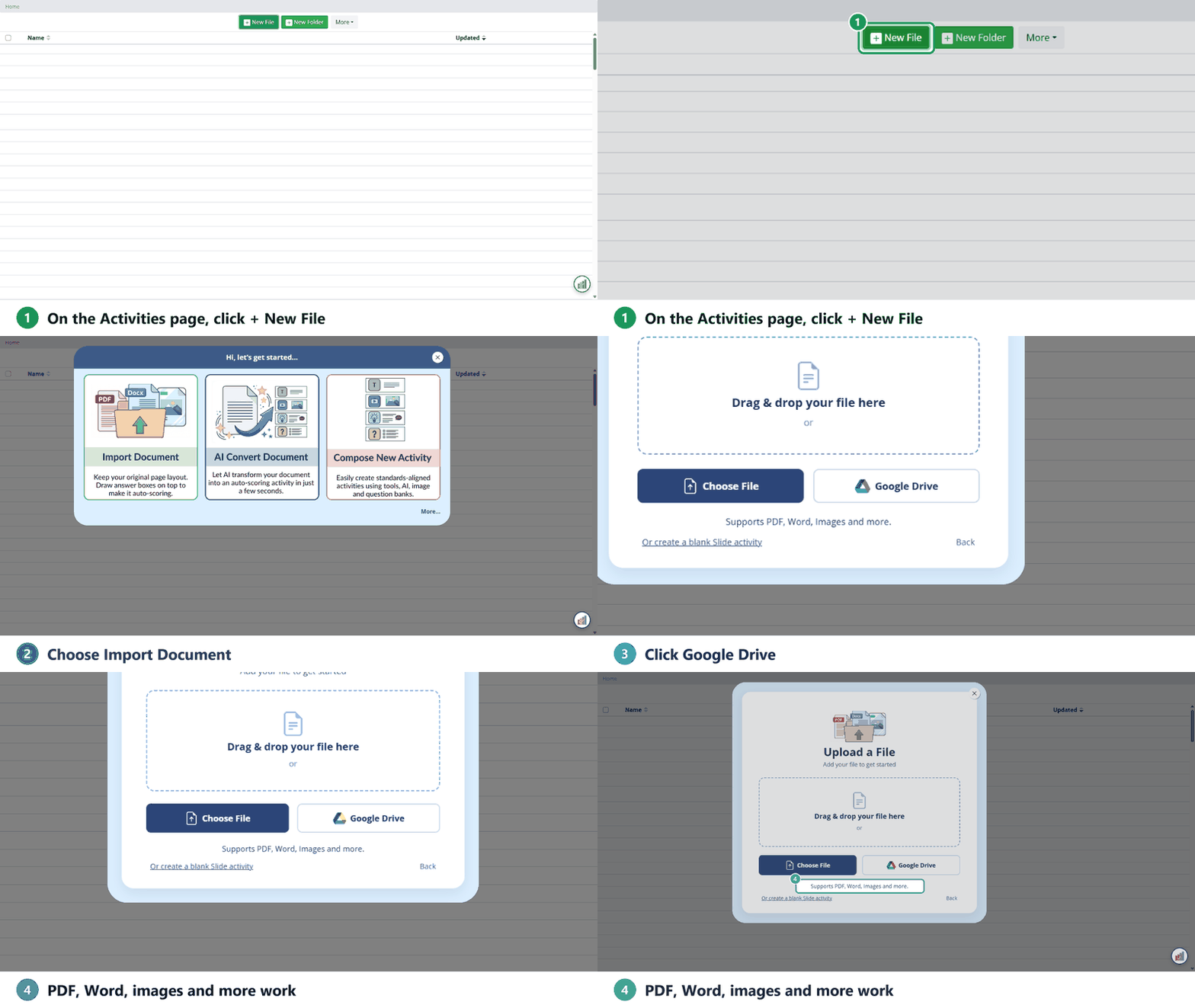
Your pages keep their layout, and you add auto-scored answer boxes on top of them. See Uploading Directly From Google Drive for more.
Word files: upload as they are
In the same Upload a File window, click Choose File (or drag the file onto the window). It accepts PDF, Word and image files. If a Word file’s layout shifts, save it as a PDF (below) and upload that instead.
Save a Word or PowerPoint file as a PDF
- Open the file in Word or PowerPoint.
- Click the File menu and choose Save As.

- Click the arrow next to the file type.

- Choose PDF (*.pdf). In PowerPoint, PDF is near the top of the list.
- Pick where to save it on your computer and click Save.

Turn the file into an auto-scored Activity
Flex Editor: AI Convert Document
With a School or District license, click + New File, then AI Convert Document. Click Upload a File (JPG, PNG, GIF, PDF or DOCX, up to 25 MB) or Pick from Drive. The questions in your document become auto-scored Flex items. AI Convert doesn’t keep your page layout, so check the Activity before you assign it.
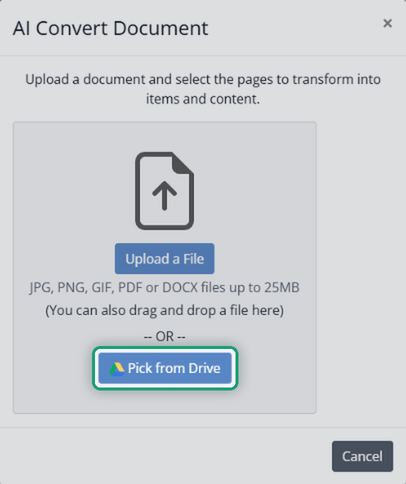
To use a PDF as reading material in a Flex Activity, click + Add and open the Add Document as Content tab.
Slide Editor: Import Document
- Click + New File, then Import Document.
- Click Choose File (or drag the file onto the window), pick the pages and click Submit.
- Add questions from the Tool Box right on top of your pages.
See Import Document and Creating an Activity.
Was this article helpful?
That’s Great!
Thank you for your feedback
Sorry! We couldn't be helpful
Thank you for your feedback
Feedback sent
We appreciate your effort and will try to fix the article