|
|
Split Screen in the Flex Editor |
Split Screen in the Flex Editor
In the Flex Editor, Split Screen keeps a stimulus (a passage, image, or map) on screen while students work through the questions attached to it. The stimulus stays pinned on the left while students move through the questions on the right. To use Split Screen, you first group the stimulus with its questions.
Group a Stimulus with Its Questions
To put items into Split Screen, group them first:
- Hold Shift and click each item you want in the group (the stimulus plus its questions).
- In the panel that appears, click Group.
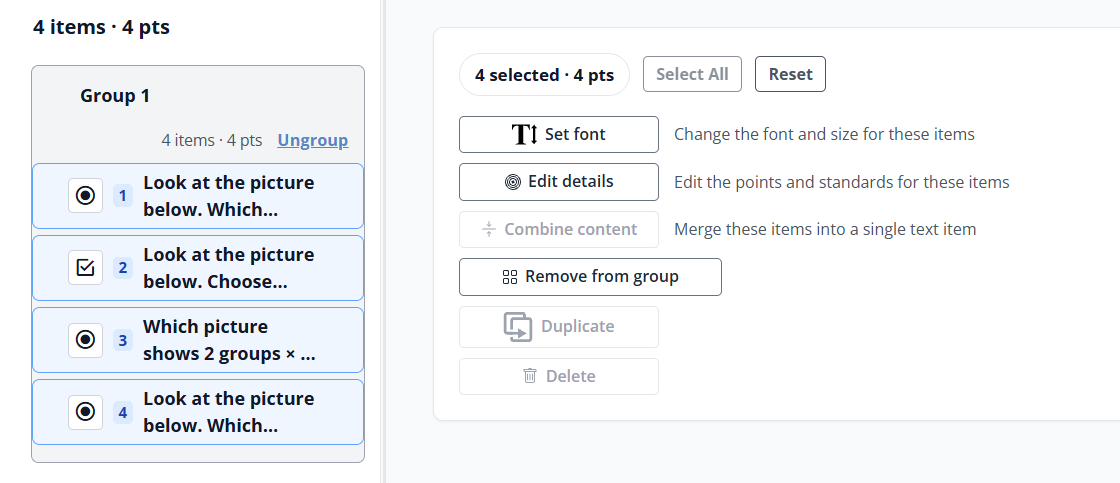
Grouped items travel together. In the item rail, the group shows its name, its item and point count, and an Ungroup link. To break a group apart, click Ungroup.
Turn Split Screen On or Off
Split Screen is on by default, so a group displays side by side automatically: the stimulus stays pinned on the left while students answer the questions on the right.
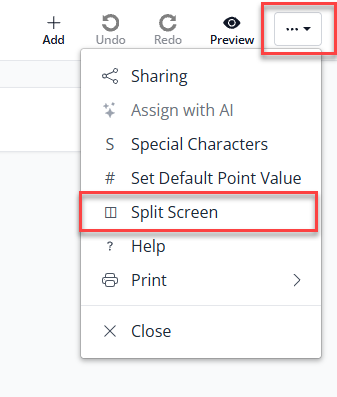
To change it, open the … (3-dot) menu at the top right and toggle Split Screen:
- On: grouped items show side by side (stimulus and questions).
- Off: grouped items simply stack, with no side-by-side view.
Split Screen applies to grouped items only, so grouping always comes first.
Let AI Create Build a Split-Screen Set for You
The fastest way to build a split-screen passage set is with AI Create:
- Use AI Create (Create with AI) to generate a passage.
- Once the passage is generated, Classwork asks if you want to generate questions for it. Choose to generate the questions.
- Classwork creates the questions, groups them with the passage, and turns on Split Screen for you.
Your passage and its questions are ready as a split-screen set, with no manual grouping needed. See Use AI to Generate Content for more on AI Create.
What Students See
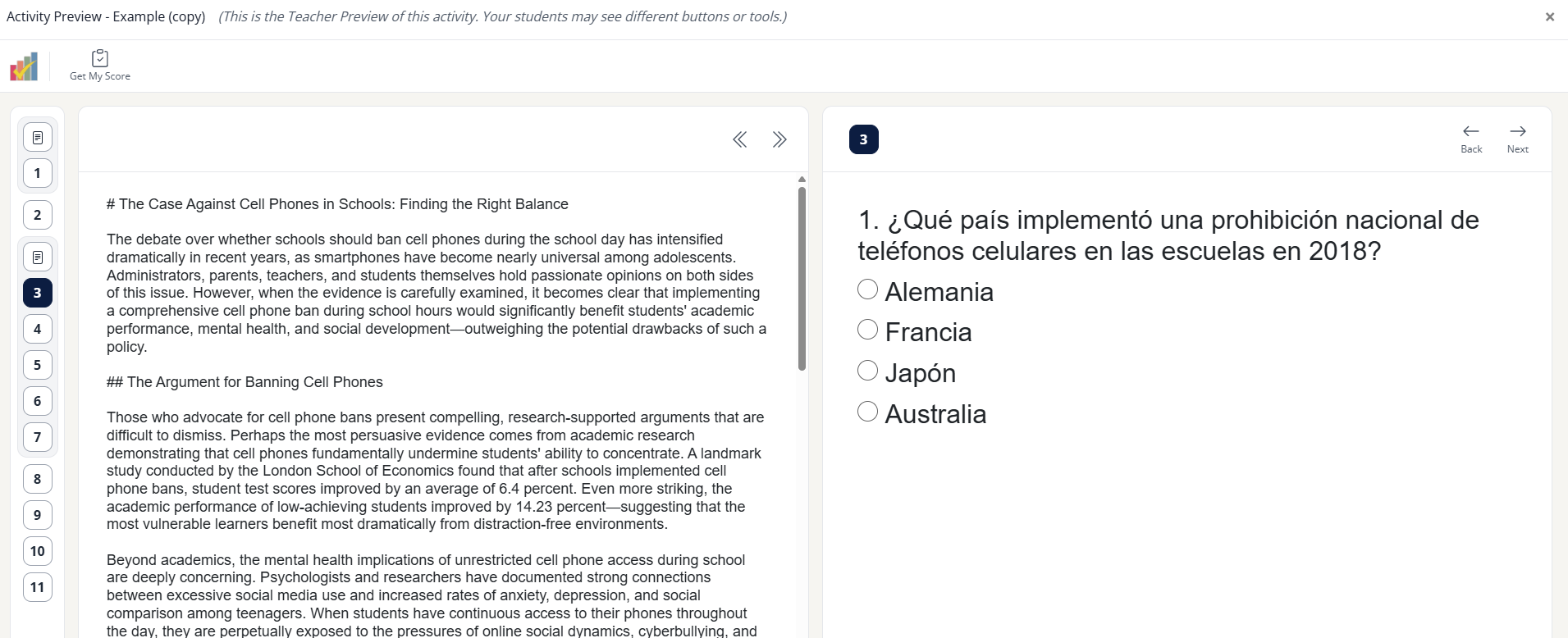
In Split Screen, students see the stimulus on the left (they can scroll it, and expand or collapse it) and one question at a time on the right, moving through with Back and Next. Click Preview to see it as a student would before you assign.
Related Articles
Was this article helpful?
That’s Great!
Thank you for your feedback
Sorry! We couldn't be helpful
Thank you for your feedback
Feedback sent
We appreciate your effort and will try to fix the article