|
|
Flex Editor Overview |
Flex Editor Overview
The Flex Editor is Classwork’s item-based activity builder. Instead of drawing answer boxes on top of an uploaded document (the way the Slide Editor works), you build an activity from discrete items: reading passages, images, audio, video, and question types that Classwork scores for you. Items resize to fit any screen, and each one can be tagged with standards, Bloom’s, and Webb’s DOK.
Want the full comparison first? See Slide Editor vs. Flex Editor.
Open the Flex Editor
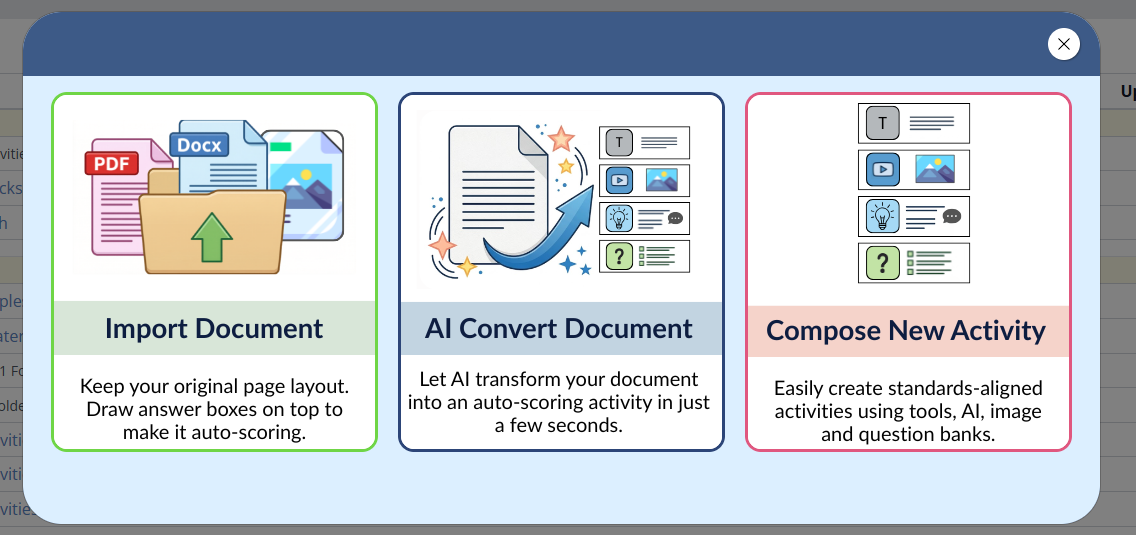
From the Activities page, click + New File and choose one of these:
- Compose New Activity: build a Flex activity from scratch using tools, AI, and item banks.
- AI Convert Document: let AI turn a document into an auto-scoring Flex activity in seconds.
The third card, Import Document, opens the Slide Editor instead. AI Convert Document is available on School and District licenses; Trial and Pro Individual accounts see Import Document and Compose New Activity only.
The Editor at a Glance
The Flex Editor has a few key areas:
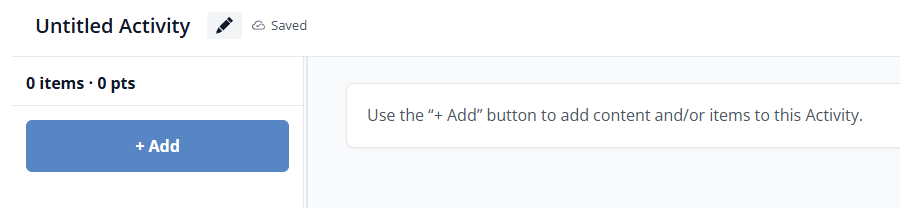
- Item rail (left): every item in order, with a running items and points count and a big + Add button.
- Workspace (center): where you edit the selected item.
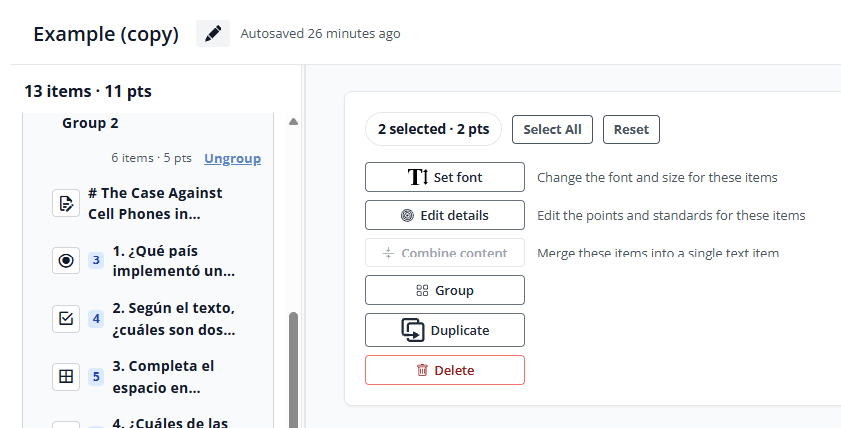
- Toolbar (top right): + Add, Undo, Redo, Preview, and a … (3-dot) menu.
Your work autosaves as you go. A banner at the top lets you Switch to slide if you would rather build this as a Slide activity.
Add Content and Items
Click + Add to open Add item(s) to this Activity. The tabs across the top mirror the + New File menu, now inside the editor:
- Add Item: the item picker (see below).
- Add Document as Content: bring a PDF in as reference content to display, not a surface to draw answer boxes on.
- OER Math Item Bank and OER RLA Item Bank: pull ready-made items from the Texas OER banks (Texas organizations with the matching Companion).
- Create with AI: generate passages and questions.
- AI Convert Document: convert a document into items.

On the Add Item tab, pick from three columns:
- Content: Text, Image, Audio, Video.
- Items: Multiple Choice, Multiple Select, Short Answer, Open Answer, Fill in the Blank, Inline Choice, True/False, Match Table Grid, Hot Text, and Part A / Part B.
- Math: Numeric, Algebra Expression, Graphing, Number Line, Bar Graph.
Item types that are greyed out (for example Drag and Drop, Matching List, and Hotspot) are coming soon.
Build an Item
Select an item to edit it in the workspace: type the prompt, fill in the answer options, and set the point value. Use Edit for that item’s full options, and the quick controls to duplicate, delete, or open the item’s own … menu.
Tag Standards, Bloom’s, and Webb’s DOK
Every item can carry a Standard, a Bloom’s level, and a Webb’s DOK level. (Bloom’s and Webb’s DOK are unique to the Flex Editor.) Set them yourself, or click the AI (sparkle) button on an item to have Classwork suggest them: choose the subject and grade, pick which attributes to add, and decide whether to replace or combine an existing standard.

To tag the whole activity at once, open the … menu and choose AI Standard Tagging. You can run it on every item, or only the items still missing a standard, Bloom’s, or DOK.
Group Items and Split Screen
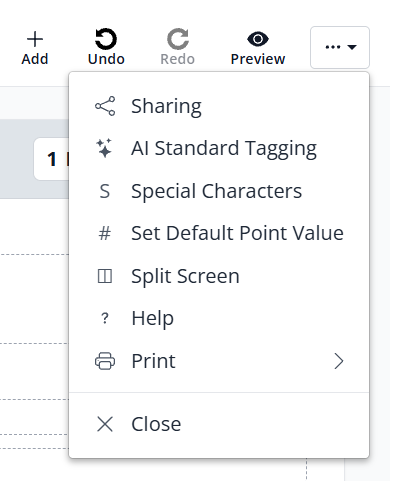
When several questions share one stimulus (a passage, image, or map), group them so they stay together: hold Shift and click each item, then choose Group. Students then see the whole set in a single panel. You can also set the font, edit details, duplicate, or delete a multi-item selection, as described in Work with Several Items at Once below.
By default, a group displays in Split Screen: the stimulus stays pinned on the left while students work through the questions on the right. If you would rather the grouped items simply stack, turn Split Screen off in the … menu. Split screen applies to grouped items only, so grouping comes first.
Work with Several Items at Once
Hold Shift and click to select multiple items. From the panel that appears you can Set font, Edit details (points and standards), Group, Duplicate, or Delete the whole selection.
More Tools and Preview
The top-right … menu holds Sharing, Special Characters, Set Default Point Value, Split Screen, Print, and more. Click Preview at any time to see the activity as a student would before you assign it.
Related Articles
- Slide Editor vs. Flex Editor (what is different, and when to use each)
- Creating an Activity
Was this article helpful?
That’s Great!
Thank you for your feedback
Sorry! We couldn't be helpful
Thank you for your feedback
Feedback sent
We appreciate your effort and will try to fix the article