|
|
Review Tab - Classes Page |
Review Tab - Classes Page
The Review tab is where you grade and return student work. The tab shows how many submissions are waiting for you, for the selected class (or all classes) in your date range, for example Review (24).
Work is sorted into three sections by how it’s scored: Auto-Scored, Verify AI-Scoring and Hand Grade.
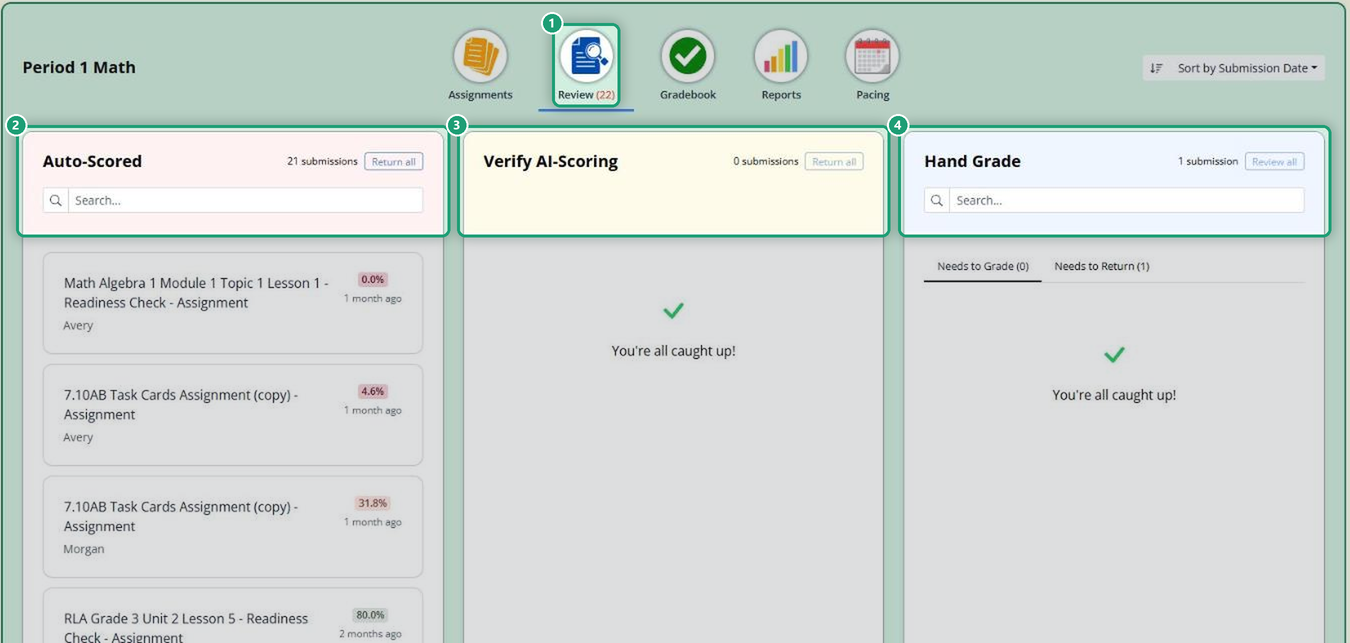
Open the Review tab
- Click Classes in the left menu.
- Click a class card, or All Classes (top right) to include every class.
- Click the Review tab.
Each submission shows as a card with the assignment, the student and the score. Click a card to open the student’s work. Use a section’s search box to find a student or assignment, and Sort by to order cards by submission date or assignment.
Auto-Scored
Submissions where every question was scored automatically, with nothing for you to grade. They’re ready to go.
Click Return all to return all of them to students at once.
Verify AI-Scoring
Submissions with an Open Answer question that AI scored (AI Scoring is a PRO feature). Check the AI’s scores before the work goes back to students: open a card, click Review AI Score on an answer to see the suggested score and the reasons, and adjust it if needed, or click Accept All. Then return the work.
Always double-check AI scoring. It’s a strong head start, but it isn’t perfect. See AI Scoring for Open Answer Questions.
Hand Grade
Submissions with an Open Answer question where AI Scoring wasn’t turned on, so you grade them yourself. Hand Grade has two tabs, each with a count, for example Needs to Grade (5):
- Needs to Grade: work still waiting for your score. Click Review all to work through it.
- Needs to Return: work you’ve graded but not returned. Click Return all to send it back.
Work in more than one section
Some assignments have both AI-scored and hand-graded questions. Then a student’s submission shows up in more than one section, so you finish each part in its own section.
Related articles
Was this article helpful?
That’s Great!
Thank you for your feedback
Sorry! We couldn't be helpful
Thank you for your feedback
Feedback sent
We appreciate your effort and will try to fix the article