|
|
Classes Page Overview |
Classes Page Overview
The Classes page is your home base for classes in Classwork.com. From here you can connect Google Classroom, create your own classes (for Canvas, Schoology or no LMS), and track, grade and report on student work.
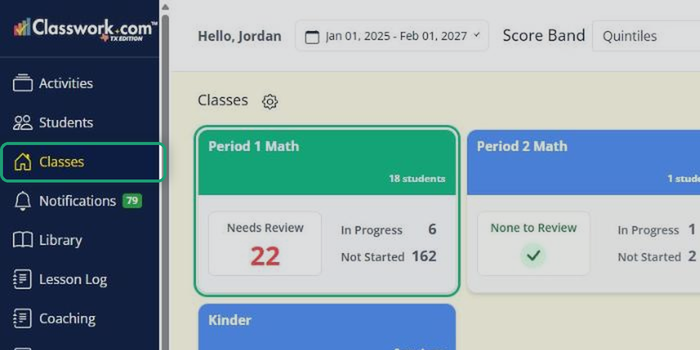
Class cards
Each class you have added appears as a card across the top of the page. The colored header shows the class name and how many students are enrolled.
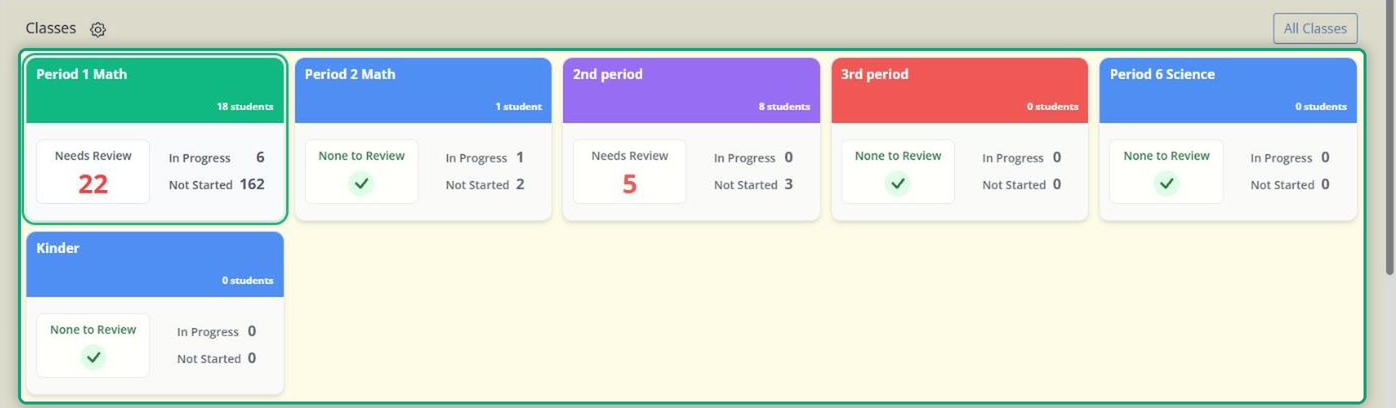
Below the header, each card shows three quick snapshots of student progress:
| Needs Review | Student submissions waiting for feedback or return. When nothing is waiting, the card shows None to Review with a checkmark instead of a count. |
| In Progress | Students who opened the assignment but have not submitted it. |
| Not Started | Students who have not begun the assignment. |
Note: “In Progress” means the student opened the assignment. It doesn’t necessarily mean recent activity.
Click a class to open its details. To see every class together, click All Classes (top right).
Date range and score colors
The Date Range (top left) decides which assignments and scores you see on every tab. It starts on the last two weeks, and Classwork.com remembers the last range you picked.
- Click the Date Range.
- Pick one of your district’s grading periods if they’re listed (for example, 1st 9 Weeks), or click Custom date range.
- For a custom range, click your start date on the calendar, then your end date.
Scores are colored by score band. The default bands are Blue 80–100, Green 60–79, Yellow 40–59, Orange 20–39 and Red 0–19. If your district has set up its own bands, pick them in the score band menu at the top of the class (it shows Quintiles by default).
Class tabs
Each class has four main tabs. If your district has a Texas OER Companion, you also see a fifth tab, Pacing.

| Assignments | Track assignment progress, see totals across all of your assignments, and check the average score on each one. See Assignments Tab - Classes Page. |
| Review | Grade and return student work. Submissions are sorted into Auto-Scored, Verify AI-Scoring and Hand Grade. See Review Tab - Classes Page. |
| Gradebook | See scores for every student and assignment in the date range. Click an assignment name to open Assignment Detail, or a student name to open Student Detail. See Gradebook Tab - Classes Page. |
| Reports | Track performance over time with the Activity, Quintile and Standards Mastery reports (plus the Texas OER reports with a Companion). See Reports Tab - Classes Page. |
| Pacing | View the lesson pacing calendar for each course you teach, by week, month or year. Available for the Texas OER (Bluebonnet Learning®) Math and RLA curriculum in districts with a Texas OER Companion. Your district’s Curriculum Manager sets the pacing: see Curriculum Pacing for Curriculum Managers. |
Adding or syncing classes
Click the gear icon next to the Classes heading to open Setup Classes and Students. You can add classes in two ways:
- Sync with Google Classroom: bring in your Google Classroom classes and students.
- Create your own class: add a class by hand if you don’t use Google Classroom.
If your district rosters classes from its student information system (SIS), your classes may already be there.
For the full walkthrough, see Sync or Add New Classes - Setup Classes and Students. Once added, your classes appear across the top of the Classes page.
Was this article helpful?
That’s Great!
Thank you for your feedback
Sorry! We couldn't be helpful
Thank you for your feedback
Feedback sent
We appreciate your effort and will try to fix the article