|
|
Assignments Tab - Classes Page |
Assignments Tab - Classes Page
The Assignments tab on the Classes page gives you an at-a-glance view of how your classes are progressing. See totals across all of your assignments, track who has and has not submitted, and check the average score on each assignment. When you are ready to grade and return work, head to the Review tab.
You can view assignments for a single class or select All Classes to see everything in one place.
Select a Class or View All
At the top of the Classes page:
- Click a class to view assignments for that specific class.
- Or, click All Classes (top right) to see every assignment across all your classes in one view.
Below the class tiles, the selected view will display, showing your class name or All Classes along with the assignment list.
Submission Totals
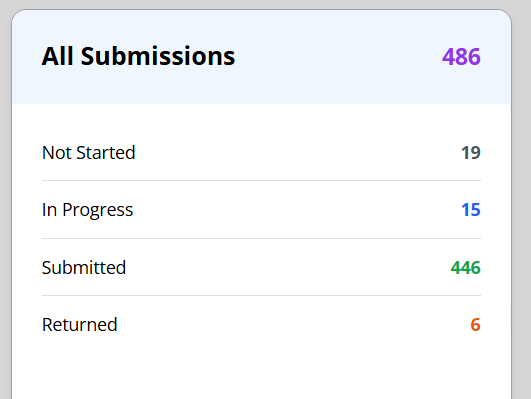
At the top of the tab, you will see a summary of all submissions for the selected class (or all classes) within your date range. This includes the total number of submissions, along with totals across every assignment for:
- Not Started
- In Progress
- Submitted
- Returned
It is a quick pulse-check on where all of your classes stand at a glance.
The Assignment List
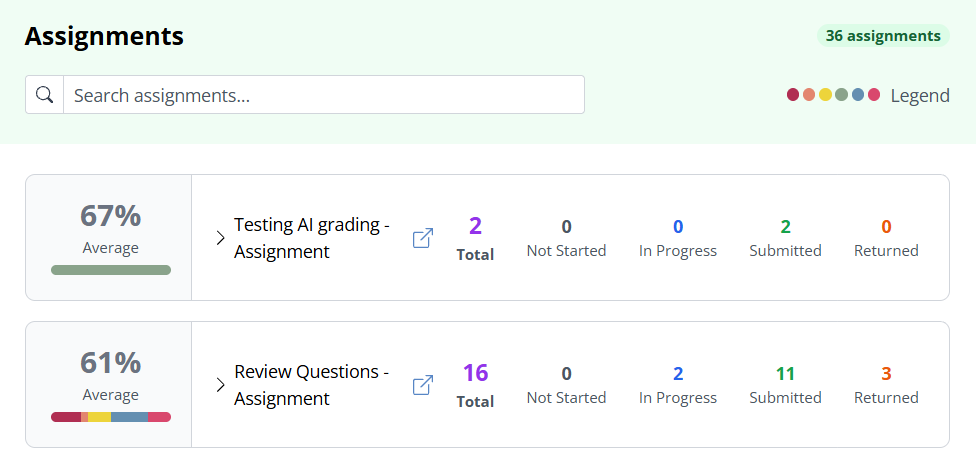
Below the totals, you will see every assignment for the selected class, or for all classes if you are using the combined view. The total number of assignments displayed appears at the top right.
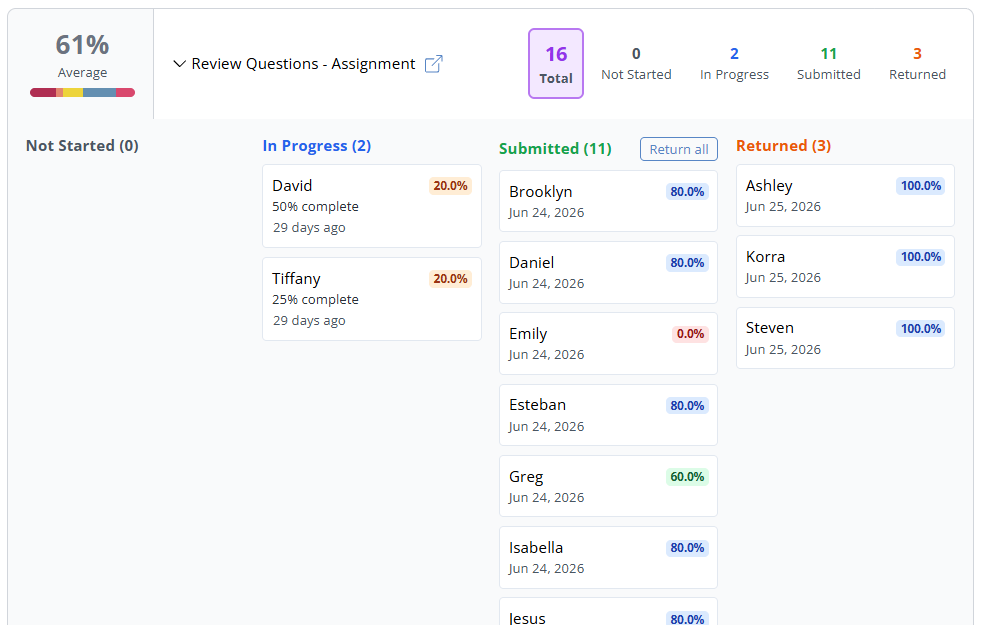
Each assignment row displays:
- Assignment name
- Total assigned students
- Progress counts for Not Started, In Progress, Submitted, and Returned
- The average score across all submissions, with a small score band graph beneath it
Note: The Date Filter at the top of the screen controls what appears here. Only assignments and submissions within the selected date range are displayed.

Expand an Assignment
Click an assignment to expand its details, including Open Date, Close Date, Due Date, and the student lists under each progress status.
Each status is clickable. Select Not Started, In Progress, Submitted, or Returned to filter the view to just the student tiles in that status. Each tile shows the student's name, along with their submission date and score.
Click any student's submission tile to open their actual submission, where you can review their work, leave feedback, and more.
If the assignment has any submitted work, a Return all button appears here, letting you return all submitted student work for that assignment at once.
Sort and Search
You can:
- Sort by Date Assigned, Total Assigned, Not Started, In Progress, Submitted, Returned, Open Date, Close Date, or Due Date.
- Click the Sort by dropdown to choose your sorting preference.
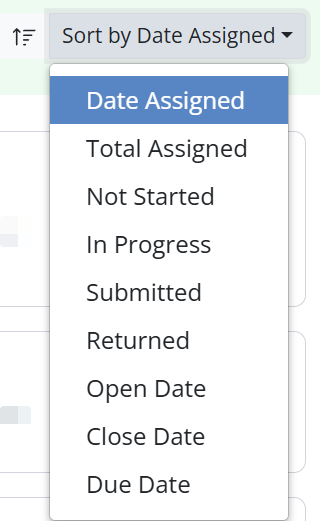
- Click the Sort Order button to toggle ascending or descending.

- Click the Sort by dropdown to choose your sorting preference.
- Search by keyword using the search bar at the top.
- Results filter automatically as you type.
- To clear the search, click the X inside the search bar or delete the text.

This overview helps you see how your classes are progressing and who may need extra support or reminders.
Grading and Returning Work
To review, grade, and return individual submissions, use the Review tab. It gathers everything that needs your attention into Auto-Scored, Verify AI-Scoring, and Hand Grade sections. See Review Tab - Classes Page.
Was this article helpful?
That’s Great!
Thank you for your feedback
Sorry! We couldn't be helpful
Thank you for your feedback
Feedback sent
We appreciate your effort and will try to fix the article