|
|
Gradebook Tab - Classes Page |
Gradebook Tab - Classes Page
The Gradebook tab shows every student’s score or status on every assignment in your date range, plus each student’s average. Click any assignment or student to dig in.
Open the Gradebook
- Click Classes in the left menu.
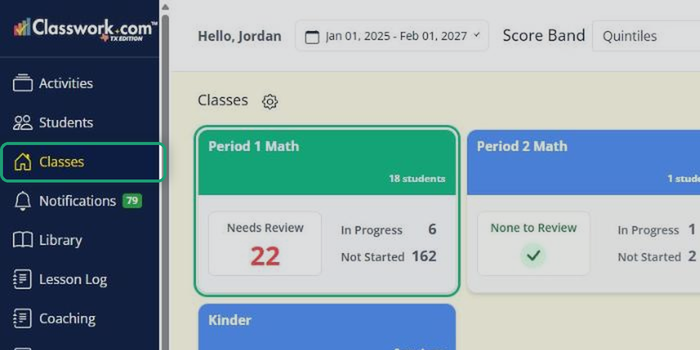
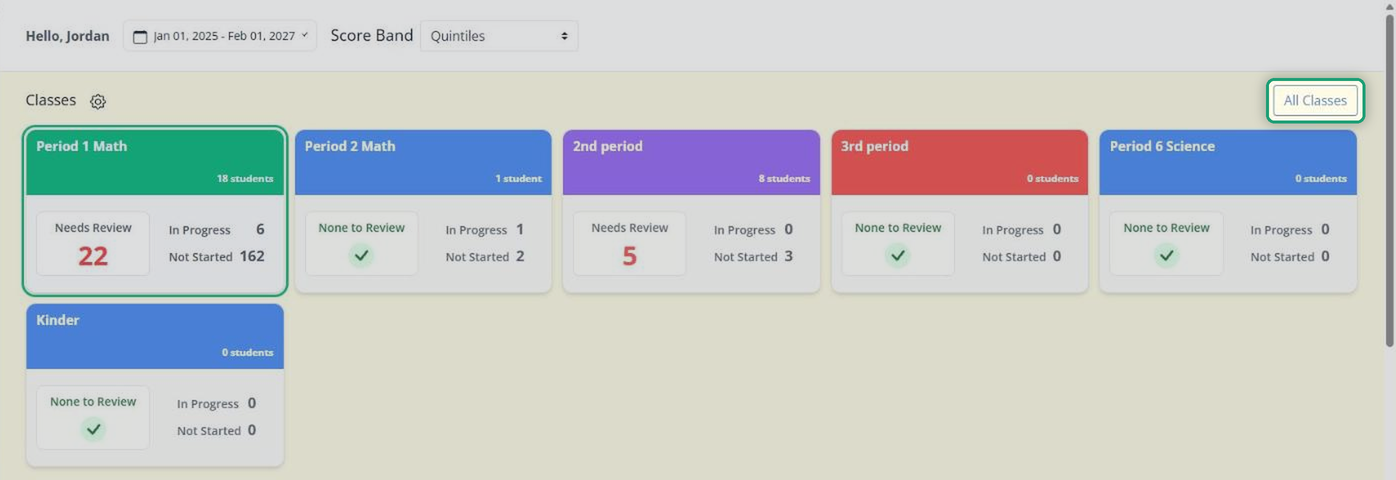
- Click a class card, or click All Classes (top right) to see every class together.
- Click the Gradebook tab (third, after Assignments and Review).

If you haven’t set up classes, the page still loads and shows all of your assignments and students together. Learn how to set up your classes.
Choose the date range
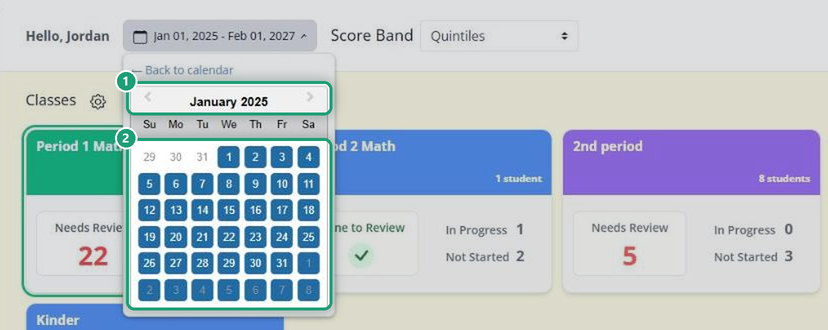
The Gradebook shows assignments in the Date Range at the top left of the Classes page.
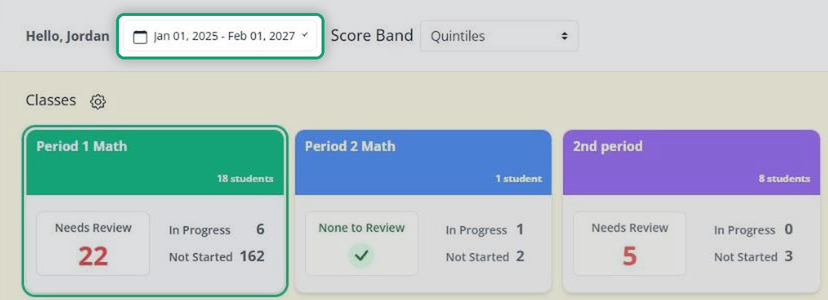
- It starts on the last two weeks, and Classwork.com remembers the last range you picked.
- Change it when you want to see older or newer assignments.
To pick a new range:
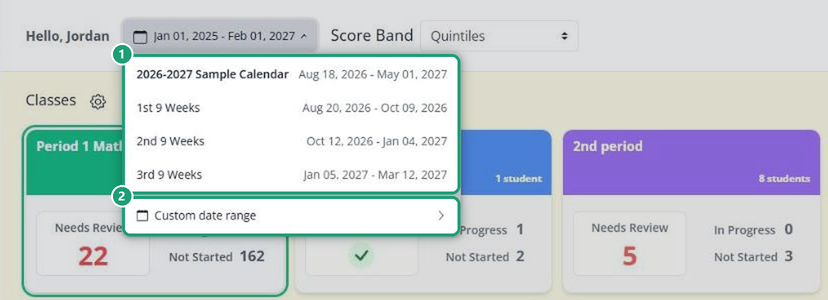
- Click the Date Range.
- Pick one of your district’s grading periods if they’re listed (for example, 1st 9 Weeks), or click Custom date range.
- For a custom range, use the arrows to move between months, click your start date, then click your end date.
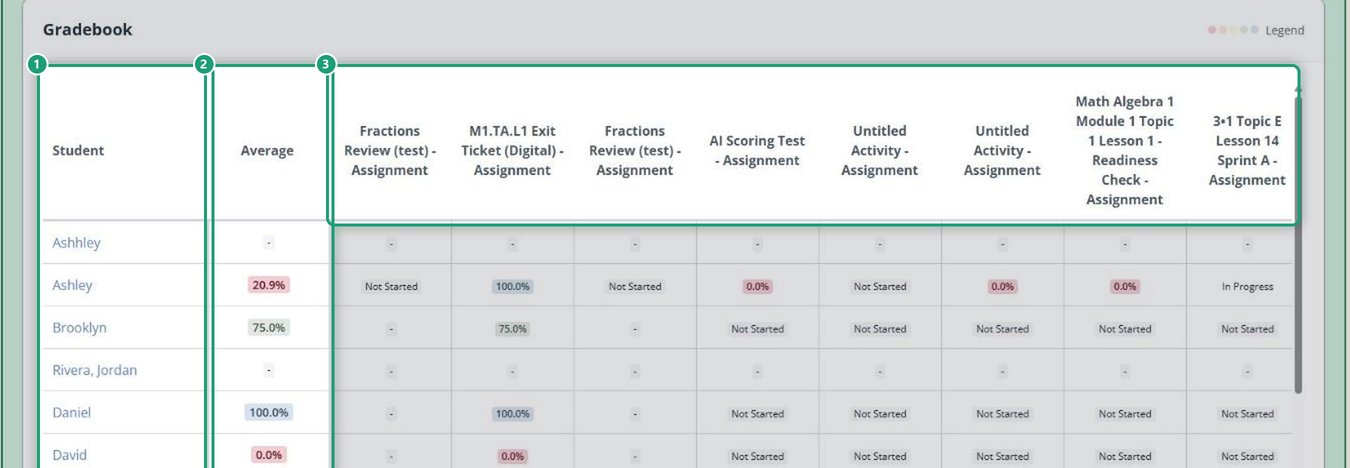
What the Gradebook shows
- Your students in alphabetical order.
- Each student’s average score for all assignments in the date range.
- A column for every assignment in the date range, with each student’s score or status.
Statuses
- Not Started: the student hasn’t opened the assignment.
- In Progress: the student opened the assignment but hasn’t submitted it.
- Late: a tag that appears when the work was submitted after the due date.
Score colors
Scores are color-coded so you can spot patterns quickly. Click Legend (top right of the Gradebook) to see the key. The default bands are:
- Blue: 80–100%
- Green: 60–79%
- Yellow: 40–59%
- Orange: 20–39%
- Red: 0–19%
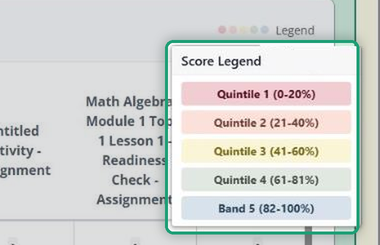
If your district has set up its own score bands, pick them in the score band menu at the top of the class (it shows Quintiles by default). The colors change; the scores don’t.
Open an assignment or a student
- Assignment name: opens Assignment Detail, filtered to the class you’re viewing, with each student’s progress, score and submission.
- Student name: opens Student Detail, with all of that student’s work across all dates, including work outside the Gradebook’s date range.
Tips
- Don’t see a recent assignment? Check the date range first.
- Use All Classes to track progress across several sections at once.
Was this article helpful?
That’s Great!
Thank you for your feedback
Sorry! We couldn't be helpful
Thank you for your feedback
Feedback sent
We appreciate your effort and will try to fix the article