|
|
Using the Hyperlink Tool |
Hyperlink Tool
Use the Hyperlink tool to insert URLs, Google Docs, Google Slides, YouTube videos, and more into your Classwork.com Activity. The Hyperlink tool is located in the bottom section of the Tool Box on the right.
This tool allows you to connect students directly to online resources from within your Activity.
Add a Hyperlink
- In the Tool Box, click Link.
- Click and drag to draw a box on your Activity where you want the hyperlink to appear.
- Formatting options will appear below the toolbar:

Using these options, you can adjust:
- Border color
- Font size and text color
- Transparent or solid background
Next, click Edit Link in the toolbar or double-click inside the hyperlink box.
Note: The Edit Link popup may appear immediately after drawing the box. If so, complete the link setup first, then adjust formatting afterward.
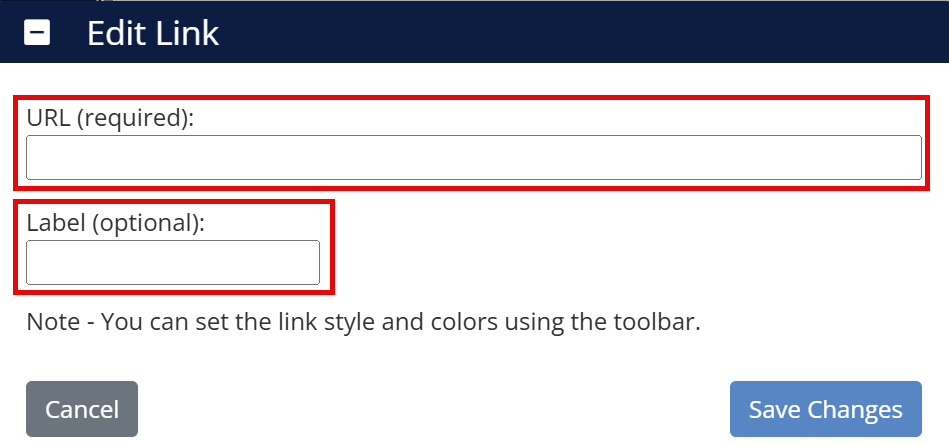
In the Edit Link window:
- Add the URL: Enter the full URL (must include http:// or https://).
- Add a Label: Type the text students will see inside the box. Resize the box if needed.
Click Save Changes when finished.
We recommend using Preview before assigning to ensure the link is easy to recognize and works properly. When students click the hyperlink, it opens in a new window.
What Do Students See?
Students see exactly what you place onto the Activity using the Hyperlink tool. The system does not automatically generate thumbnails or previews of the target website or video.
For clarity and safety, use meaningful labels instead of displaying raw URLs.
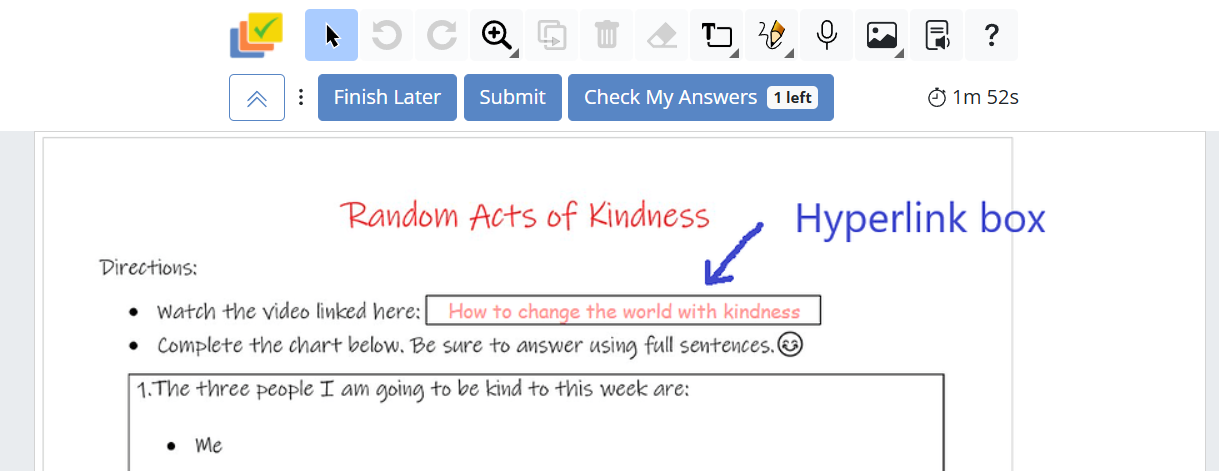
After drawing the hyperlink box, select Edit Hyperlink, enter the URL, and provide a clear label that students will understand.
Pro Tip: Start your label with “Click here to…” if you want to make the action especially clear for students.
Was this article helpful?
That’s Great!
Thank you for your feedback
Sorry! We couldn't be helpful
Thank you for your feedback
Feedback sent
We appreciate your effort and will try to fix the article