|
|
How Do I Use the Embed Code Tool? |
Embedding Web Content (Embed Code and Web Page)
You can show a simulation, graph, calculator or web page right inside an Activity, so students don’t leave Classwork.com. In the Flex Editor, add a Web Page item. In the Slide Editor, use the Embed Code tool. Both take the <iframe> embed code that many sites offer under Share or Embed (often a </> button).
Flex Editor: Web Page
- Click + Add. On the Add Item tab, under Content, click Web Page.
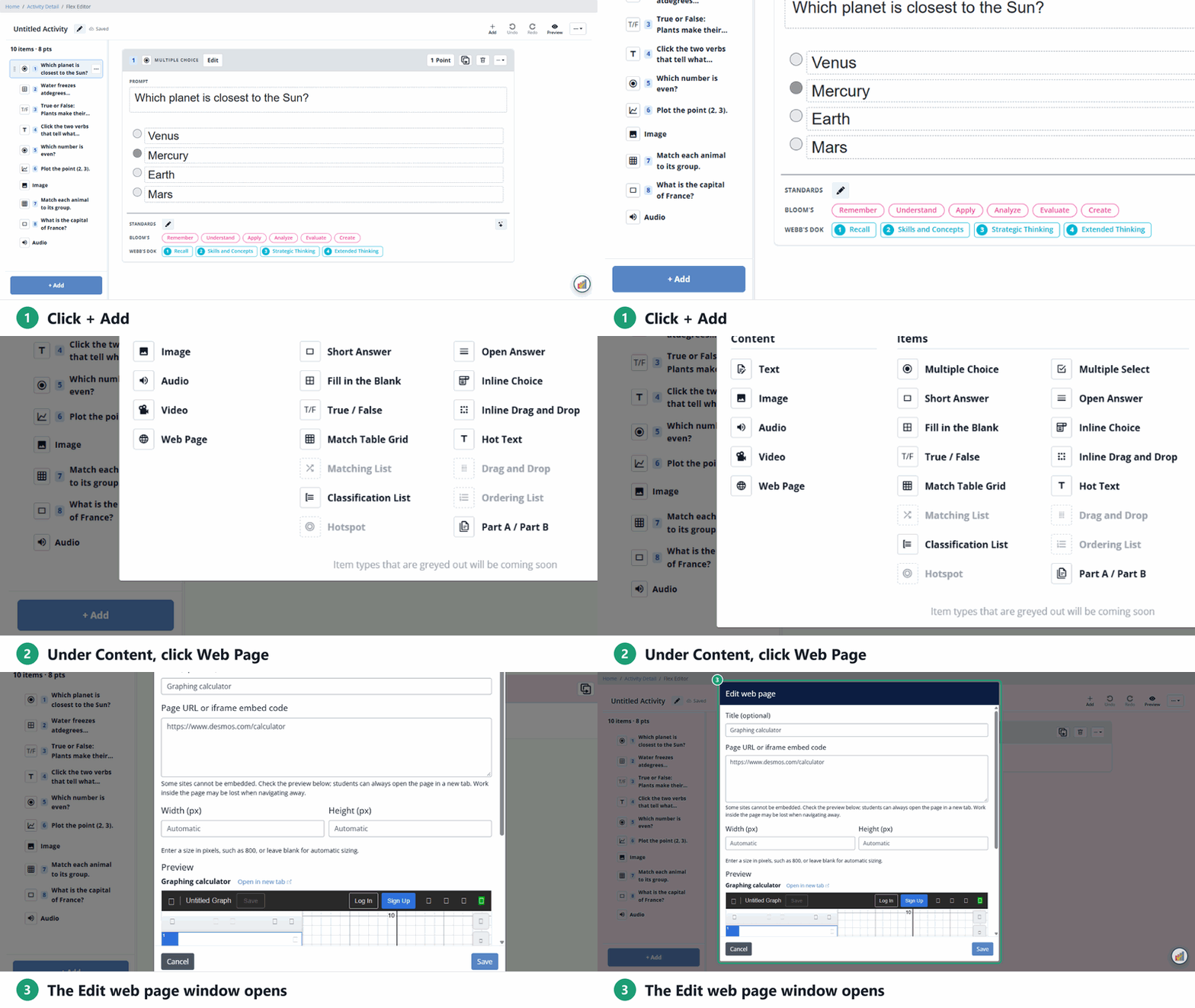
- Paste a web address or the iframe embed code into Page URL or iframe embed code. Add a Title (optional) if you like.
- Leave Width (px) and Height (px) on Automatic, or type a size in pixels.
- Check the Preview, then click Save.
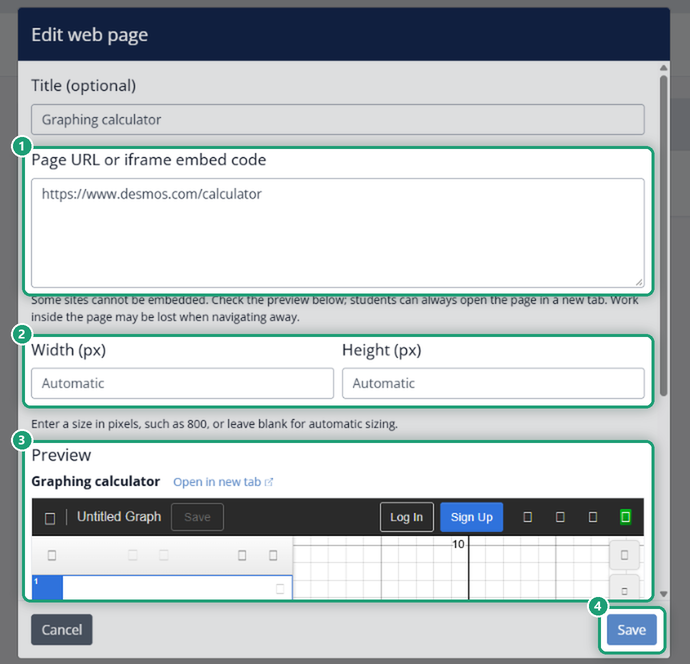
Some sites don’t allow embedding. If the preview stays blank, students can still use Open in new tab. Work students do inside the page may be lost when they move away from it.
Slide Editor: Embed Code
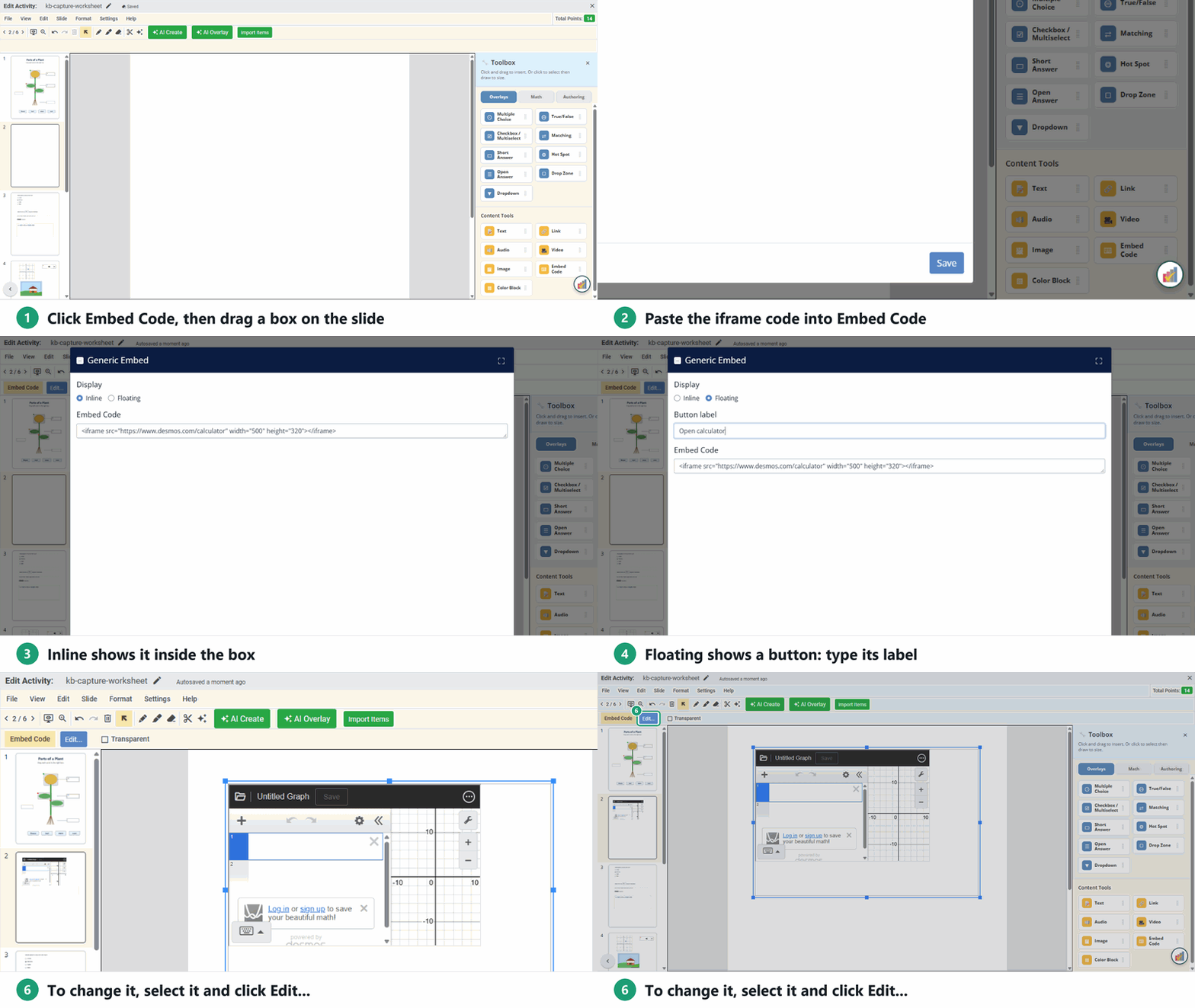
- In the Tool Box, under Content Tools, click Embed Code.
- Click and drag on the slide to draw the area for the content.
- The Generic Embed window opens. (If it doesn’t, select the box and click Edit... in the toolbar, or double-click it.) Paste the iframe code into Embed Code.
- Under Display, choose how it shows:
- Inline: inside the box you drew.
- Floating: a button that opens the content beside the Activity, so students see both. Type the text for the button in Button label.
- Click Save. Inline content shows in the box on the slide, so you can check it there.
Only seeing a web address instead of the content? You copied the link, not the embed code. Look for the code that starts with <iframe.
Example: PhET science simulations
- Open the simulation and click the </> icon under the title.
- Click Copy to clipboard.
- Paste the code into a Web Page item (Flex) or an Embed Code box (Slide).
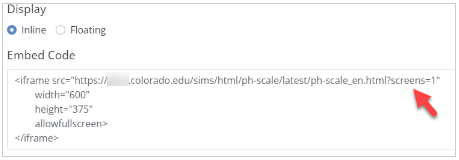
Want only one screen of a multi-screen simulation? Add ?screens=1 to the end of the address inside the iframe (use the screen number you want).
PhET simulations are licensed CC-BY-4.0. Add the credit in a Text box, for example: (Simulation name) by PhET Interactive Simulations, University of Colorado Boulder, licensed under CC-BY-4.0 (https://phet.colorado.edu).
Example: Desmos
- Open your Desmos graph and click Share.
- Click Embed and copy the whole <iframe> code.
- Paste it into a Web Page item (Flex) or an Embed Code box (Slide).

Desmos is copyright Desmos Studio PBC.
Any other web page (Slide Editor)
Put the address in this code, change the size if needed, and paste it into Embed Code:
<iframe src="URL" width="800" height="600"></iframe>
In the Flex Editor you can paste the address itself into a Web Page item.
Classwork.com doesn’t own third-party content. Give credit where the creator asks for it.
Was this article helpful?
That’s Great!
Thank you for your feedback
Sorry! We couldn't be helpful
Thank you for your feedback
Feedback sent
We appreciate your effort and will try to fix the article