|
|
What does an inserted link look like to students? |
What Does an Inserted Link Look Like to Students?
It depends on the editor. In a Flex Activity, students see the web page itself inside the Activity. In a Slide Activity, students see only the link box you drew, with your label: no preview of the site or video.
Flex Activities: the page shows inside the Activity
A Web Page item shows the site right in the Activity, with Open in new tab so students can open it on its own. Some sites don’t allow this; students can still use Open in new tab.
Group the Web Page with its questions and the page stays on the left while students answer on the right:
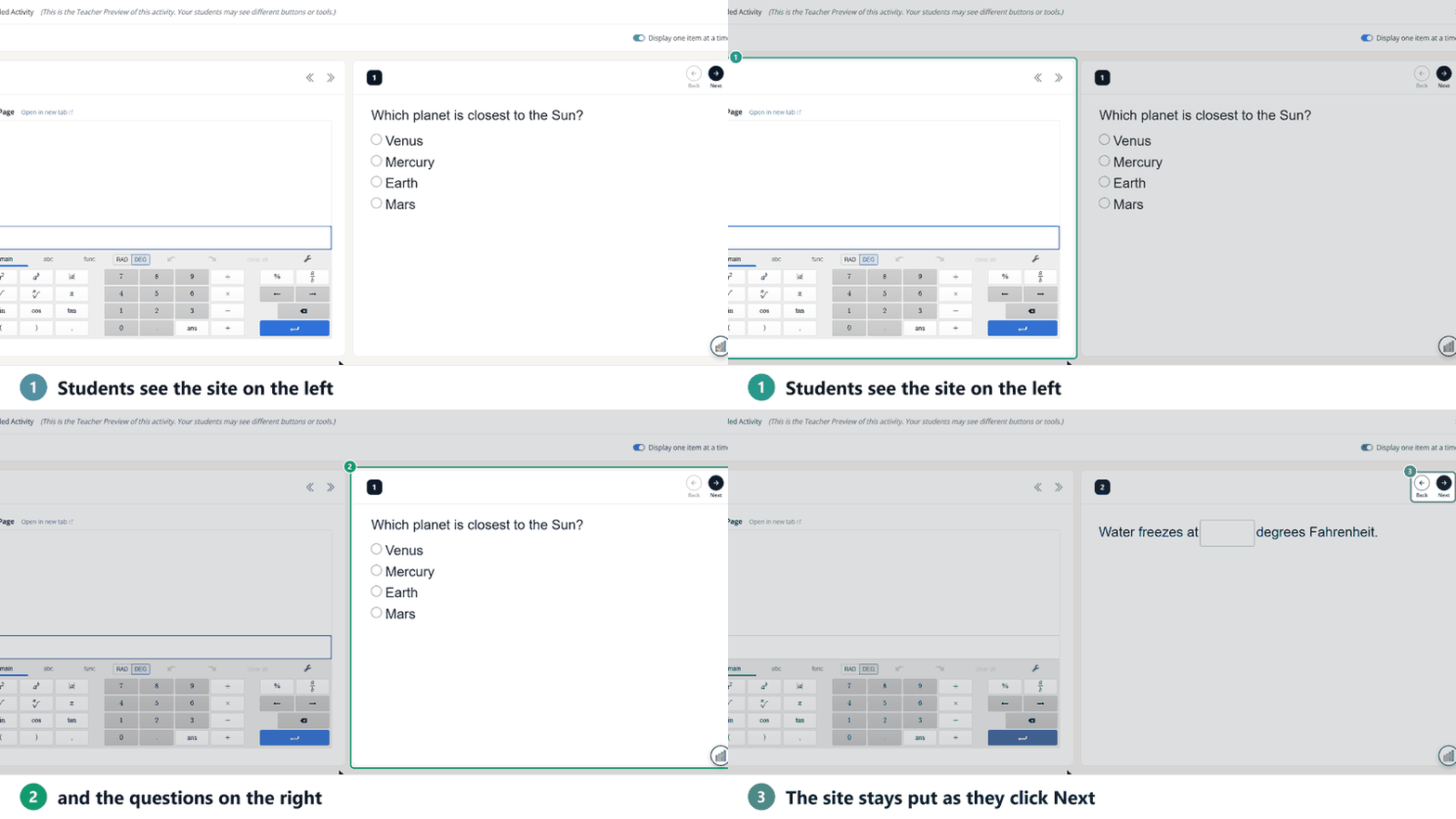
To add one, see Add a Link to an Activity.
Slide Activities: only the link box
Students see exactly the box you drew with the Link tool. Classwork.com doesn’t add a thumbnail of the website or video, so make the box clear:
- Give it a meaningful Label so students don’t see a raw https:// address.
- Not sure students will know what to do? Start the label with “Click here to…”.
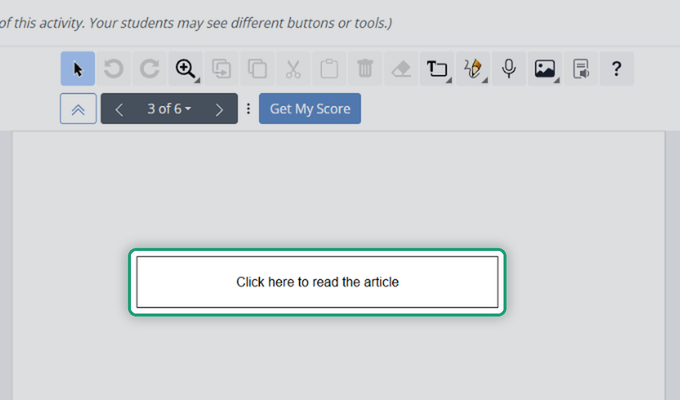
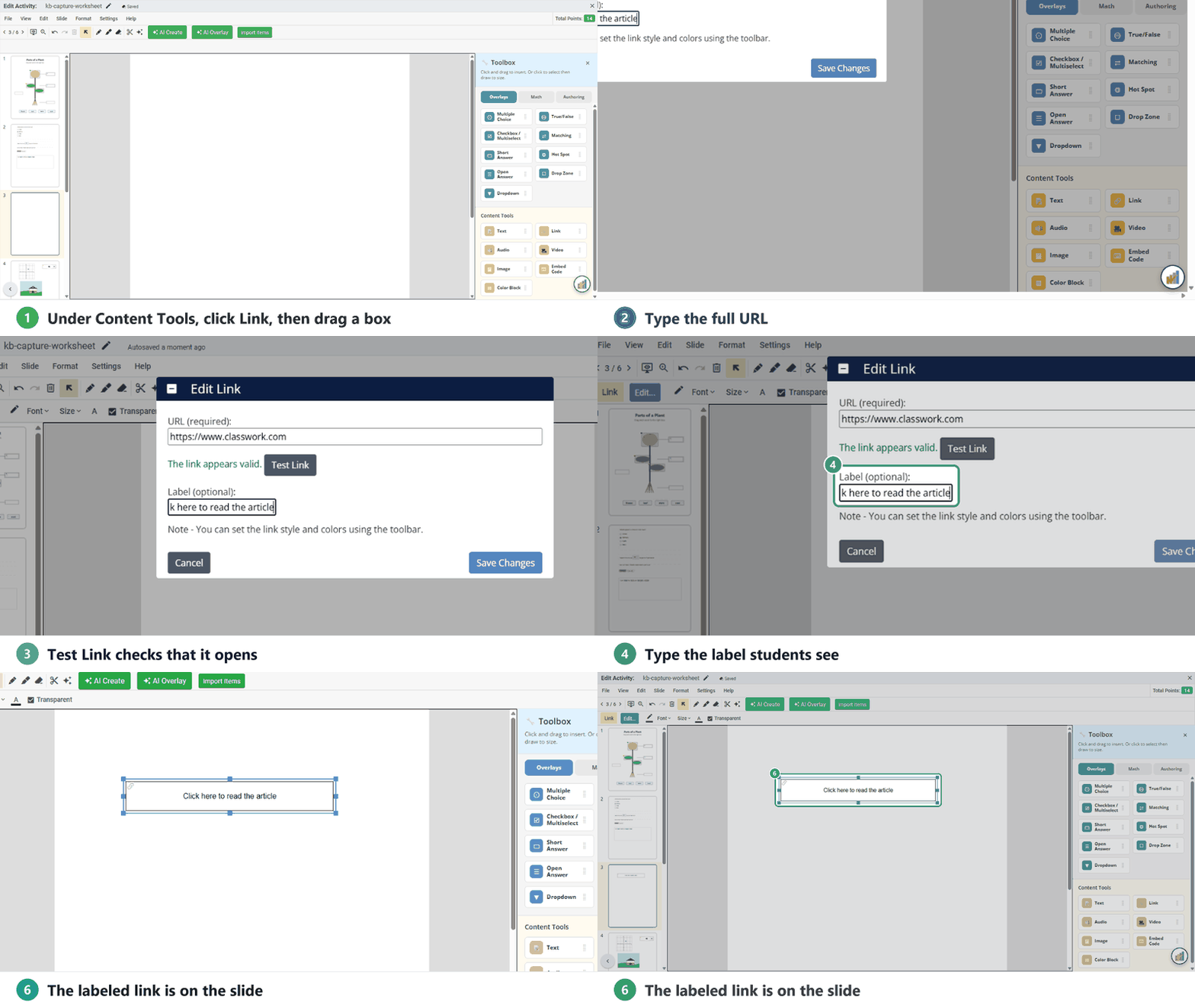
To add a link: in the Tool Box, under Content Tools, click Link and drag a box on the page. In the Edit Link window, enter the URL, click Test Link to check it, type the Label and click Save Changes.
Was this article helpful?
That’s Great!
Thank you for your feedback
Sorry! We couldn't be helpful
Thank you for your feedback
Feedback sent
We appreciate your effort and will try to fix the article