|
|
PLCs: Plan and Run a PLC Meeting |
PLCs: Plan and Run a PLC Meeting
PLCs are available only if your district has purchased the Texas OER Math or RLA Companion.
The PLCs page in the left menu is home base for each professional learning community (PLC) you belong to. Facilitators plan the PLC’s meetings there, and every member sees the agendas once they’re published.
Coaches and admins set up PLCs and pick facilitators: see Coaching: Set Up PLCs and Observe a PLC.
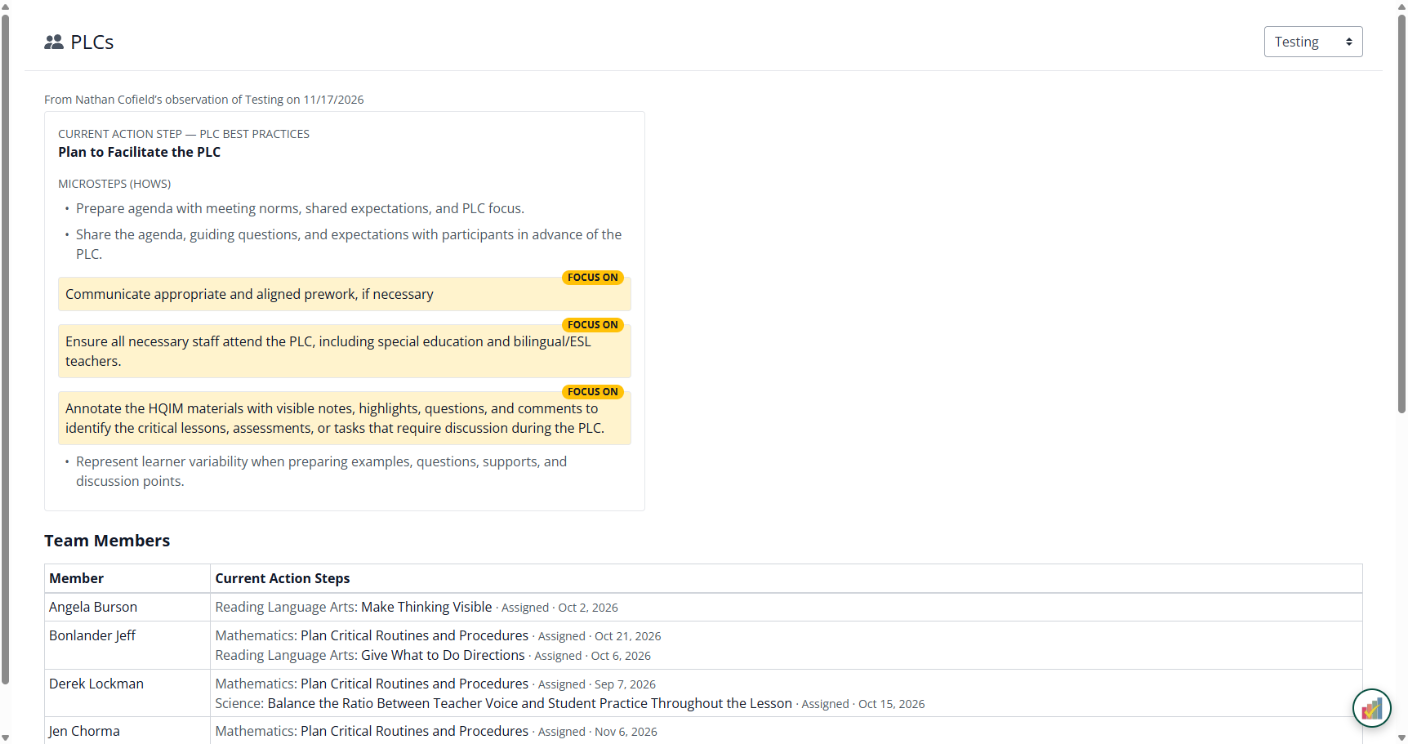
What’s on the PLCs page
If you’re in more than one PLC, pick it from the menu at the top right.
| Section | Facilitators see | Members see |
|---|---|---|
| Current action step | The PLC action step from your coach’s latest observation, with its microsteps | — |
| Team Members | Each member and their current coaching action steps | — |
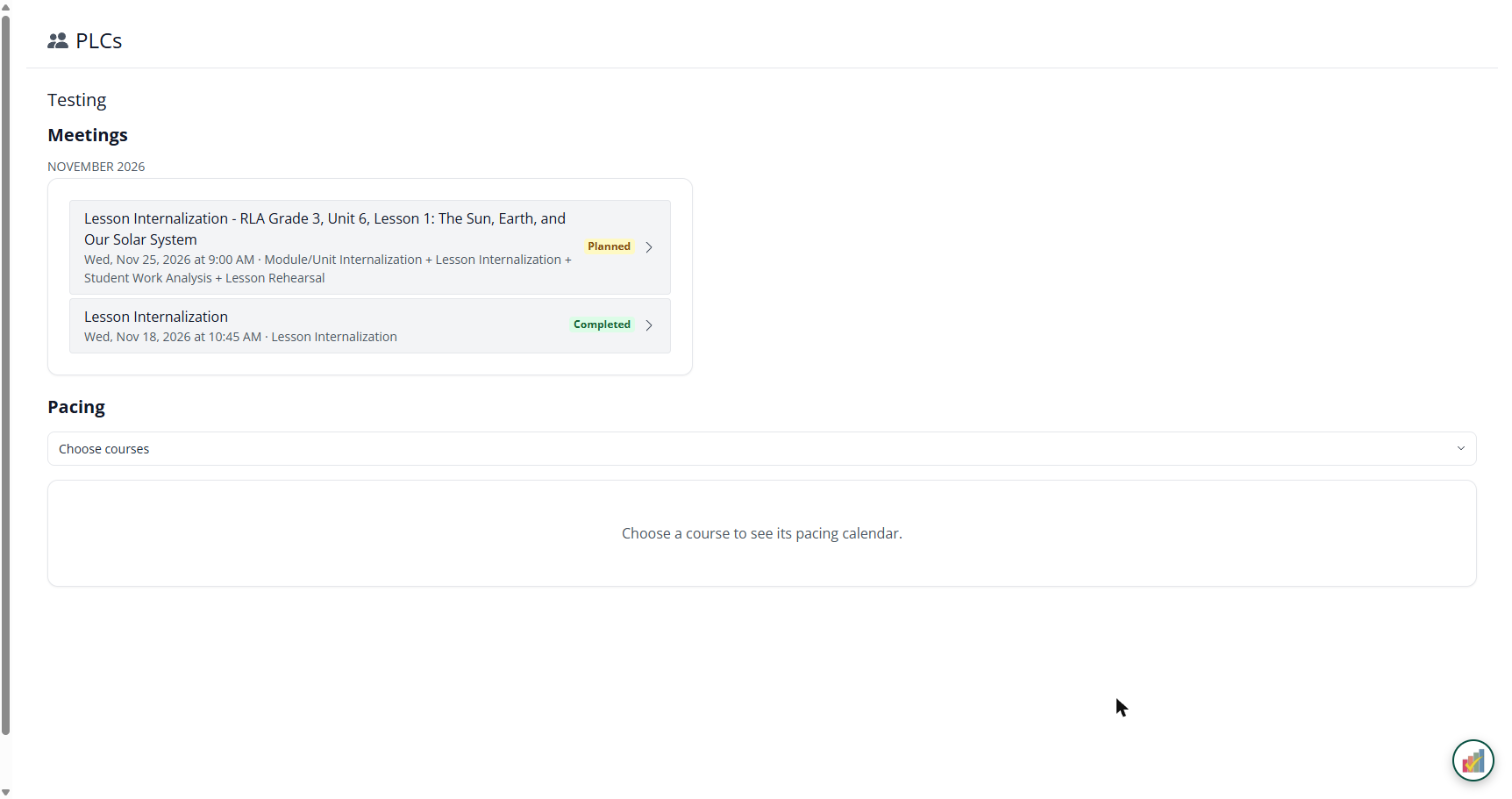
| Meetings | Every meeting, with + New meeting | Published and completed meetings (read only) |
| Pacing | Pick courses under Choose courses to see their pacing calendar | |
Plan a meeting (facilitators)
- On the PLCs page, under Meetings, click + New meeting.
- Set the Date and time, Topic and Grade level. Add a Focus lesson and the Materials needed if you like.
- Fill in Teacher pre-work (what teachers do before the meeting) and Teacher post-work (what they do after).
- Build the Agenda: under Add from a template, click Module/Unit Internalization, Lesson Internalization, Lesson Rehearsal, Student Work Analysis or Other. Each template adds timed agenda items you can edit, add to (+) or remove (×).
- Use Facilitator private notes for anything only the PLC’s facilitators should see.
- Click Publish Agenda when it’s ready. Members then see it on their PLCs page. (Publishing doesn’t send an email or notification.)
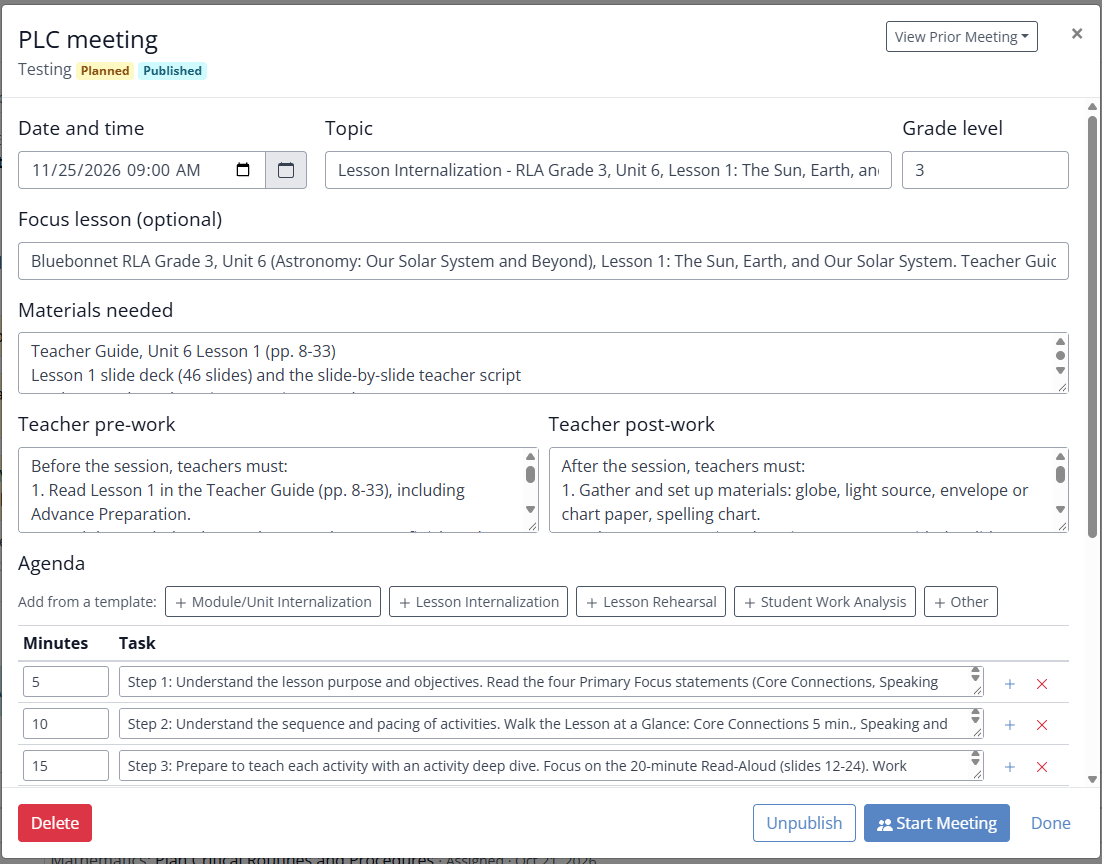
The meeting saves as you work (All changes saved). It shows as Planned; click Unpublish to take a published agenda back. View Prior Meeting opens an earlier meeting for reference.
Run the meeting
- Open the meeting and click Start Meeting.
- Under Who is here?, uncheck anyone who’s absent, then click OK.
- Take notes in the Meeting notes column next to each agenda item.
- Click Done.
The meeting then shows as Completed with its attendance.
For PLC members
Open PLCs in the left menu to see your PLC’s published agendas: the topic, materials, your pre-work and post-work, and the agenda. Nothing shows until the facilitator publishes a meeting.
Related
Was this article helpful?
That’s Great!
Thank you for your feedback
Sorry! We couldn't be helpful
Thank you for your feedback
Feedback sent
We appreciate your effort and will try to fix the article