|
|
Slide Editor vs. Flex Editor |
Slide Editor vs. Flex Editor
Classwork gives you two ways to build an activity: the Slide Editor and the Flex Editor. Both create interactive, auto-scoring activities. They differ in how you build and what each one can do. This article explains the difference so you can pick the right one.
The Big Difference
Slide Editor: you start from a document (a PDF or a Word or Google file). The document becomes the page, and you draw answer boxes on top of it. Your activity keeps the original layout, so it is a natural fit for worksheets you already have.
Flex Editor: you build from discrete items (passages, images, audio, video, and questions) added to a list. Items resize to fit any screen, and any document you bring in is shown as reference content rather than a surface to draw on.
At a Glance
| Slide Editor | Flex Editor | |
|---|---|---|
| How you build | Upload a document, then draw answer boxes on top | Add items (content and questions) to a list |
| Page layout | Keeps your document’s original layout | Responsive; items resize to any screen |
| Standards | Yes | Yes |
| Bloom’s & Webb’s DOK | Not available | Per item, by hand or with AI |
| Group a stimulus with its questions (split screen) | Not available | Yes |
| Item types unique to it (today) | Drag and Drop, Hotspot, Matching, and the stacked Fraction / Mixed Number input | Part A / Part B (with Classification List and Ordering List coming soon) |
| Start it from + New File | Import Document | AI Convert Document or Compose New Activity |
When to Use the Slide Editor
- You want to keep a document’s exact layout and just add answer boxes on top, for example an existing worksheet or PDF.
- You need Drag and Drop, Hotspot, or Matching (these are coming to the Flex Editor but are not there yet).
- You need the stacked numerator and denominator input for fractions or mixed numbers (in the Flex Editor, use the Numeric item, which does not yet offer that stacked format).
When to Use the Flex Editor
- You are building from scratch and want items that resize to any screen.
- You want to tag Bloom’s and Webb’s DOK, not just standards.
- You want AI to generate content, convert a document, or assign standards, Bloom’s, and DOK for you.
- You want to group a passage or image with its questions and show them side by side with Split Screen.
- You want newer item types such as Part A / Part B.
How to Choose (and Switch)
Both editors start from + New File on the Activities page:
- Import Document opens the Slide Editor.
- AI Convert Document or Compose New Activity opens the Flex Editor.
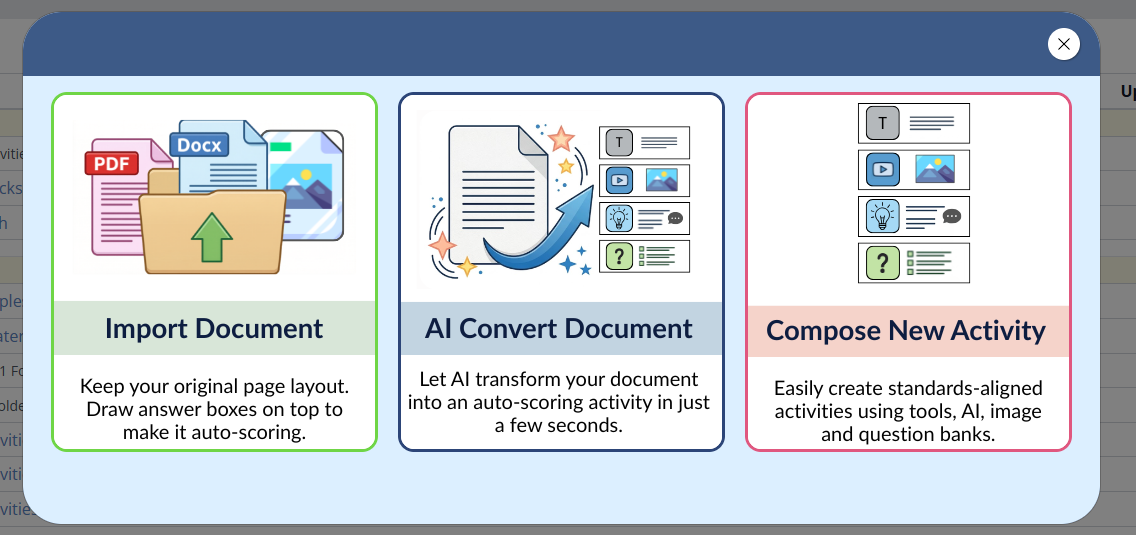
If you start a Flex activity and would rather use the Slide Editor, click Switch to slide at the top of the editor.
AI Convert Document is available on School and District licenses; Trial and Pro Individual accounts see Import Document and Compose New Activity only.
Related Articles
Was this article helpful?
That’s Great!
Thank you for your feedback
Sorry! We couldn't be helpful
Thank you for your feedback
Feedback sent
We appreciate your effort and will try to fix the article