|
|
How Do I Keep My Question Visible in an Open Answer Box? |
How Do I Keep My Question Visible in an Open Answer Box?
Applies to: Flex Editor & Slide Editor
Put the question somewhere students can always see it, not in Starter Text. Starter Text disappears as soon as a student starts typing. In the Flex Editor, type the question in the Open Answer’s Prompt. In the Slide Editor, add a Text box right above the Open Answer box.
Flex Editor: use the Prompt
- Add an Open Answer item (+ Add → Add Item → Open Answer), or click Edit on one you already have.
- Type the full question in Prompt. It stays above the answer box while students write.
- Optional: put a short hint in Starter Text, such as “Type your answer here.”
- Click Save.
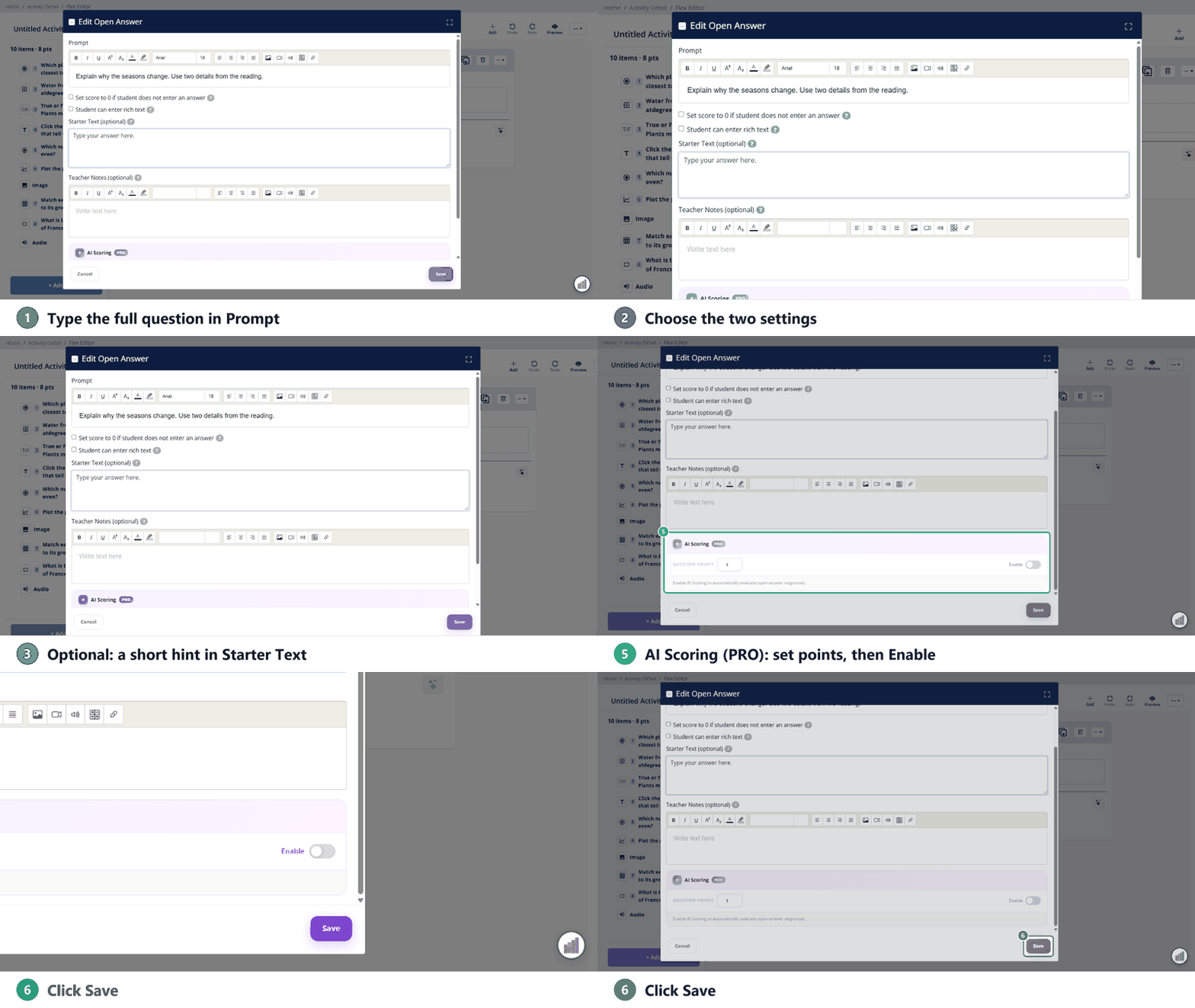
Slide Editor: add a Text box above the answer box
- In the Tool Box, under Content Tools, click Text.
- Click and drag on the slide directly above the Open Answer box.
- The Edit Teacher Text window opens. Type the full question and click Save.
- Optional: select the Open Answer box, click Edit... and put a short hint in Starter Text.
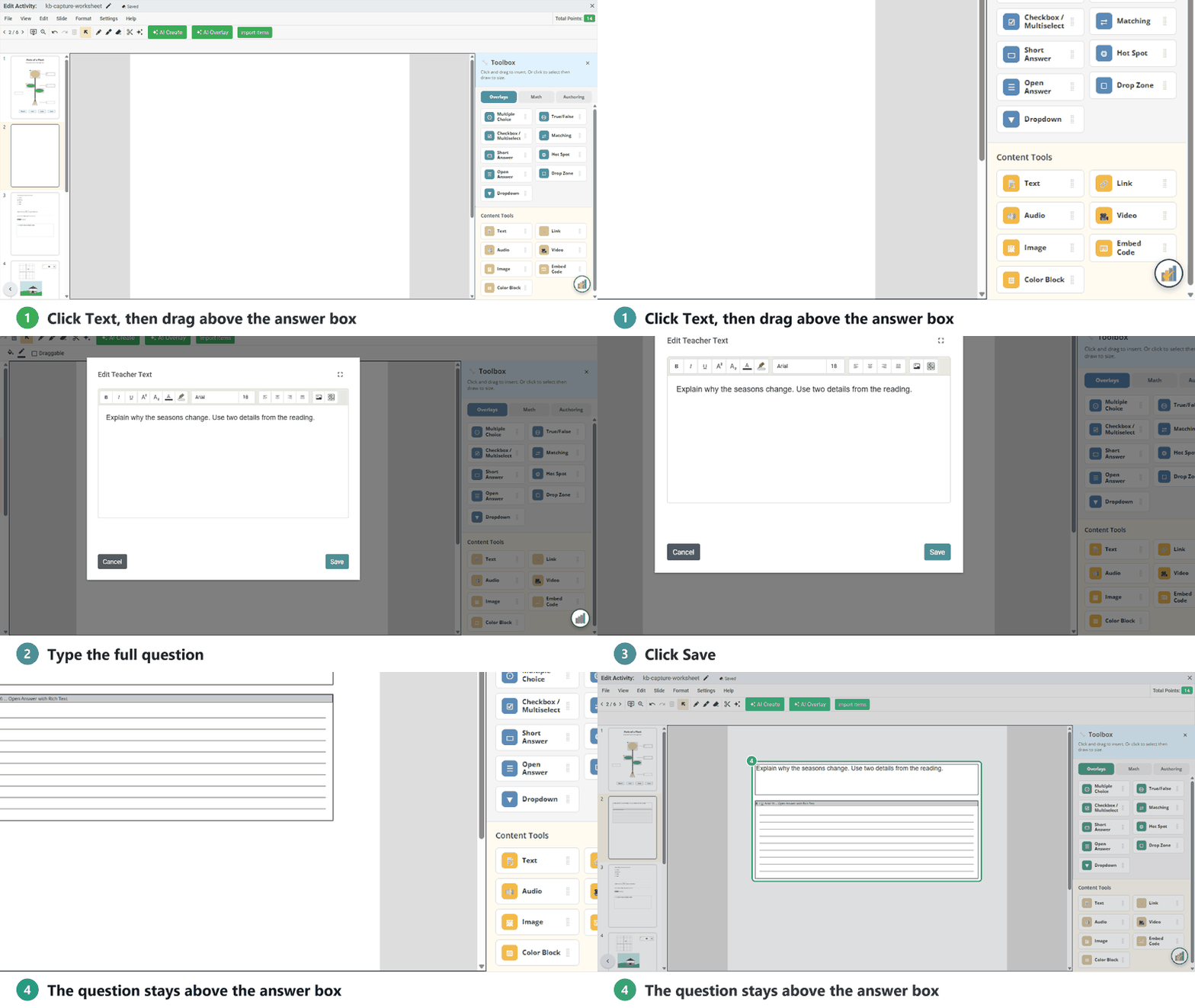
The question stays on screen while students write in the box below it.
Tip: don’t use Teacher Notes for the question. Students never see Teacher Notes; they’re for your rubric, scoring guide or answer key.
Related articles
Are you new to Classwork.com? Welcome!
Click here to start your 30 day risk-free PRO trial today.
Was this article helpful?
That’s Great!
Thank you for your feedback
Sorry! We couldn't be helpful
Thank you for your feedback
Feedback sent
We appreciate your effort and will try to fix the article