|
|
Using the Open Answer Question Type |
Open Answer
An Open Answer question gives students a large box for sentences, paragraphs or essays. You score it yourself, or turn on AI Scoring (PRO) to get a suggested score and feedback for each response.
Flex Editor
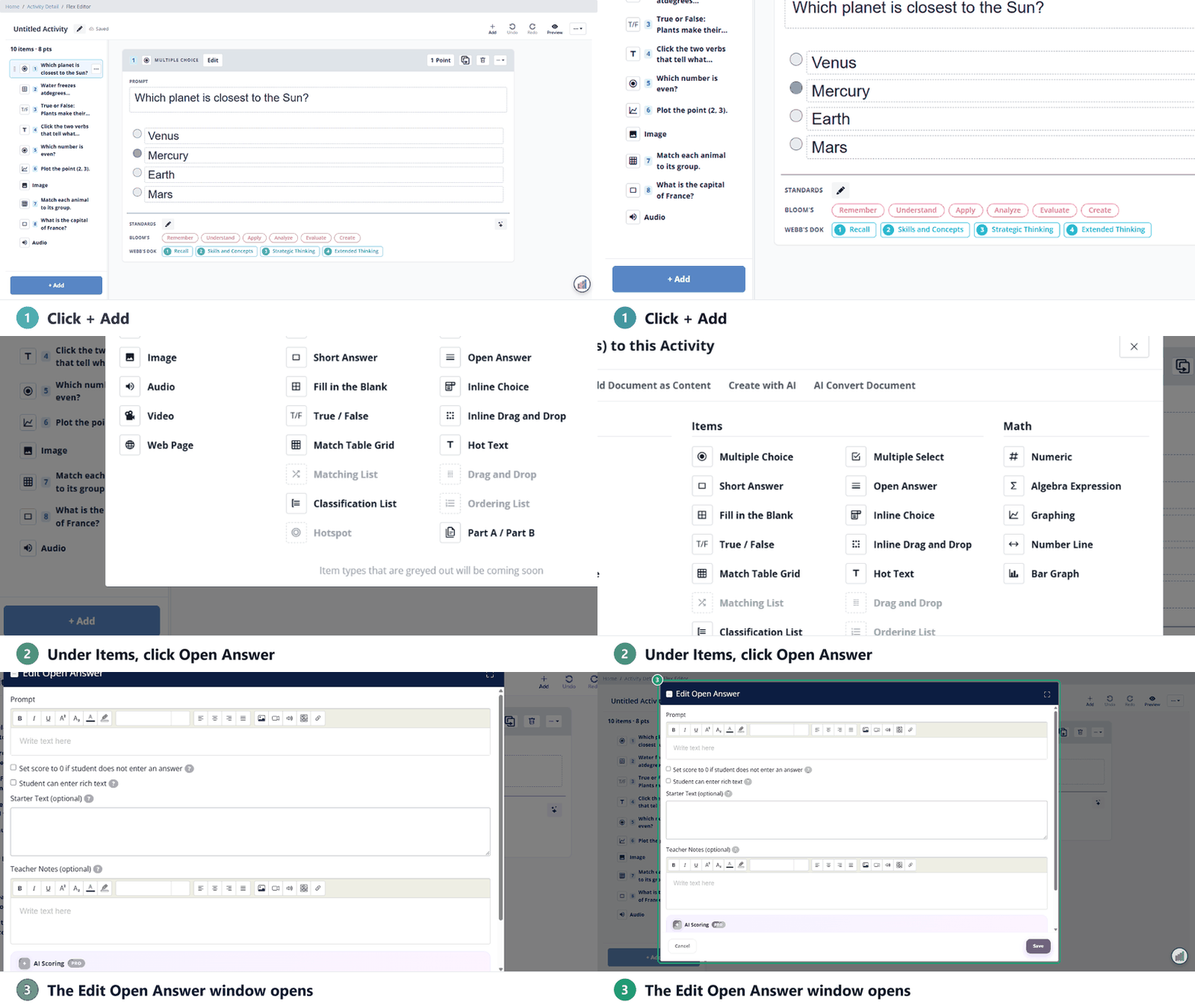
- Click + Add, and on the Add Item tab, under Items, click Open Answer.
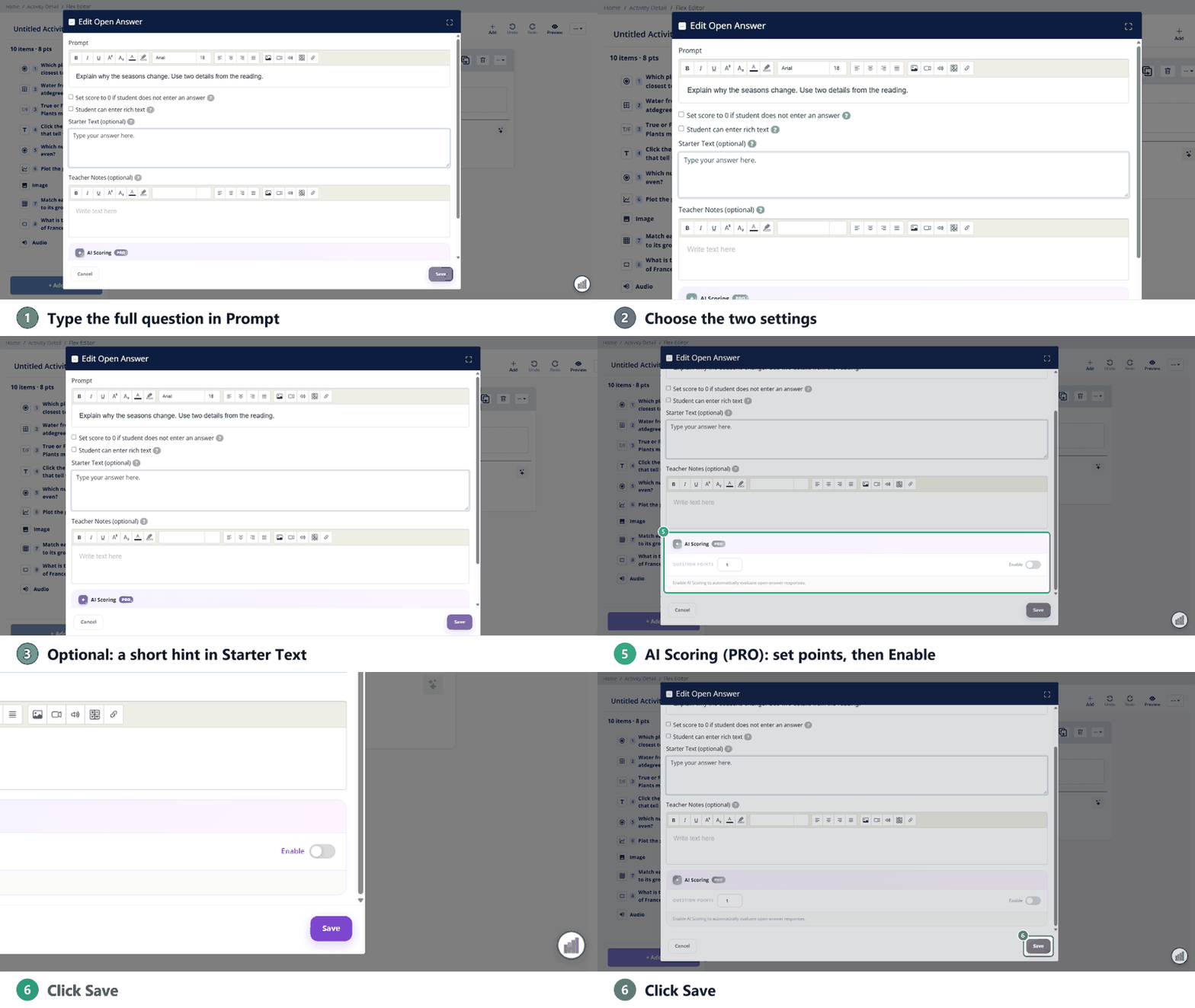
- The Edit Open Answer window opens. Type the question in Prompt.
- Choose your settings (below).
- To have AI score it, set the Question Points and turn on Enable under AI Scoring.
- Click Save.
In the Flex Editor, an Open Answer starts at 1 point. Click the points button on the item to change it.
Slide Editor
- In the Tool Box on the right, on the Overlays tab, click Open Answer.
- Click and drag to draw the box on the page.
- Click Edit... in the toolbar (or double-click the box) to open the Open Answer settings, then click Save. There’s no Prompt here: put the question on the page or in a Text box above the answer box.
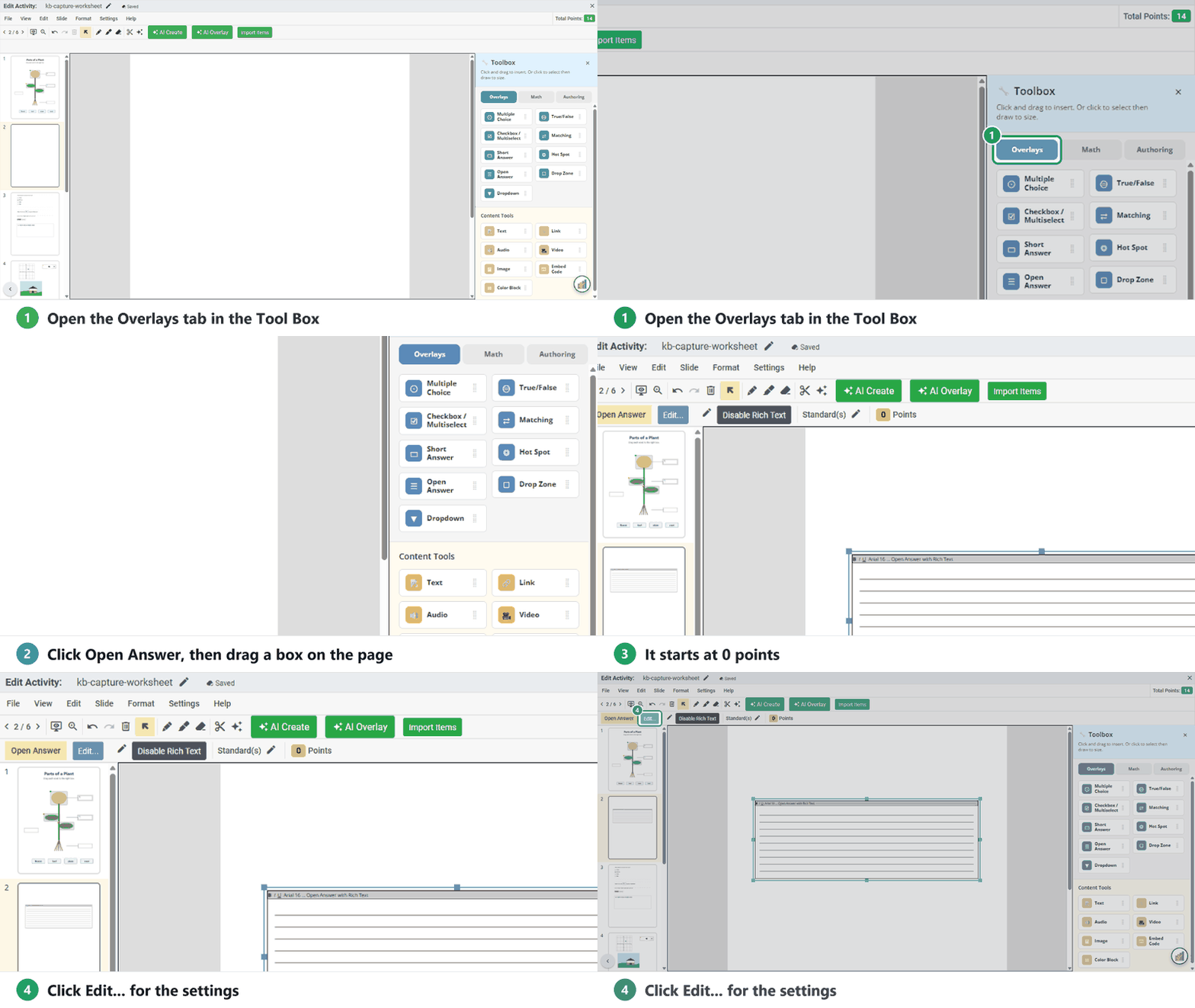
In the Slide Editor, an Open Answer starts at 0 points. To score it, select the box, click the number next to Points in the toolbar and type a value.
Settings (both editors)
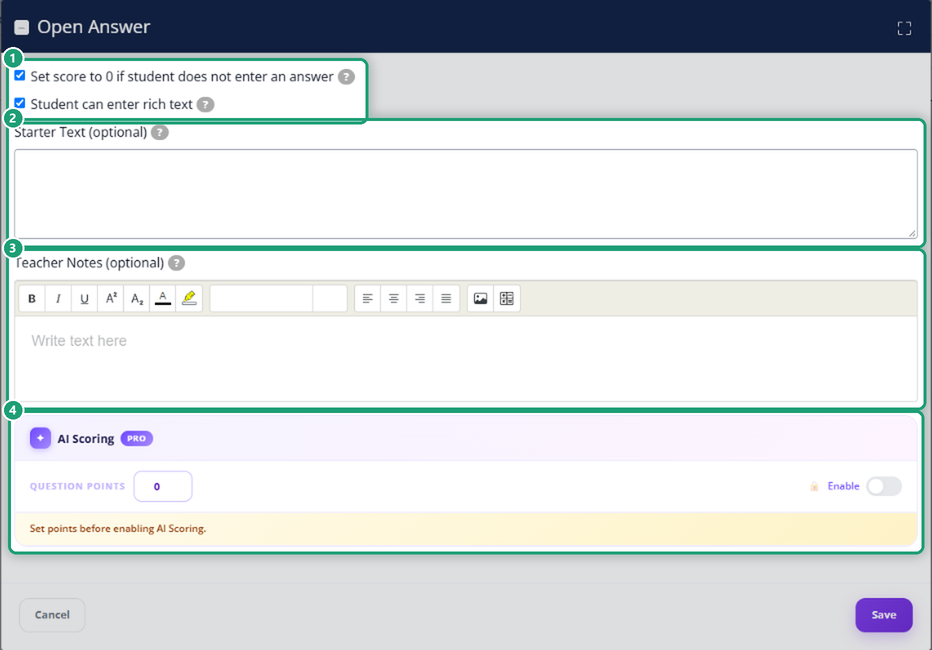
The two checkboxes start off in the Flex Editor and on in the Slide Editor.
- Set score to 0 if student does not enter an answer: a blank answer gets 0 points automatically.
- Student can enter rich text: students can format their writing (font, size, alignment). Off, they type plain text. In the Slide Editor you can also switch it with Disable Rich Text in the toolbar.
- Starter Text: text that shows in the box until the student starts typing. For instructions that stay on screen, put them in the prompt or a Text item instead.
- Teacher Notes: a rubric or notes for you. Students never see them; they show when you review submissions.
AI Scoring (PRO)
AI reads each response against the criteria you set and suggests a score and feedback. You review and finalize every score. The question needs a point value first: set Question Points, then turn on Enable. See AI Scoring for Open Answer Questions.
Score the answers
Open a student’s submission.
- Flex Editor: go to the Open Answer item, click Set Score, enter the points in Adjust Points and click Save.
- Slide Editor: answers that still need a score are outlined in purple. Click the student’s answer, click Set Score, type the points and click Save.
The points are added to the student’s total. With AI Scoring on, check the AI’s suggested score first, change it if needed, and finalize.
Was this article helpful?
That’s Great!
Thank you for your feedback
Sorry! We couldn't be helpful
Thank you for your feedback
Feedback sent
We appreciate your effort and will try to fix the article