|
|
Import Document |
Import Document
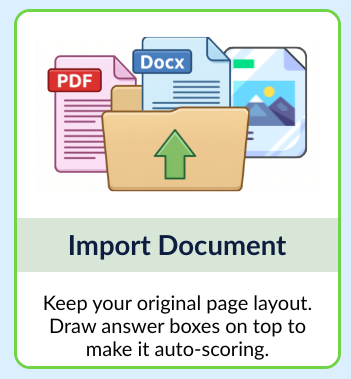
Use Import Document when you already have a document such as a PDF, Word file, or image and want to keep its original layout. Classwork brings the document in as your page, and you draw answer boxes on top to make it auto-scoring. This option opens the Slide Editor.
From your Activities page, click the + New File button.

When the pop-up appears, choose Import Document.
Upload Your File
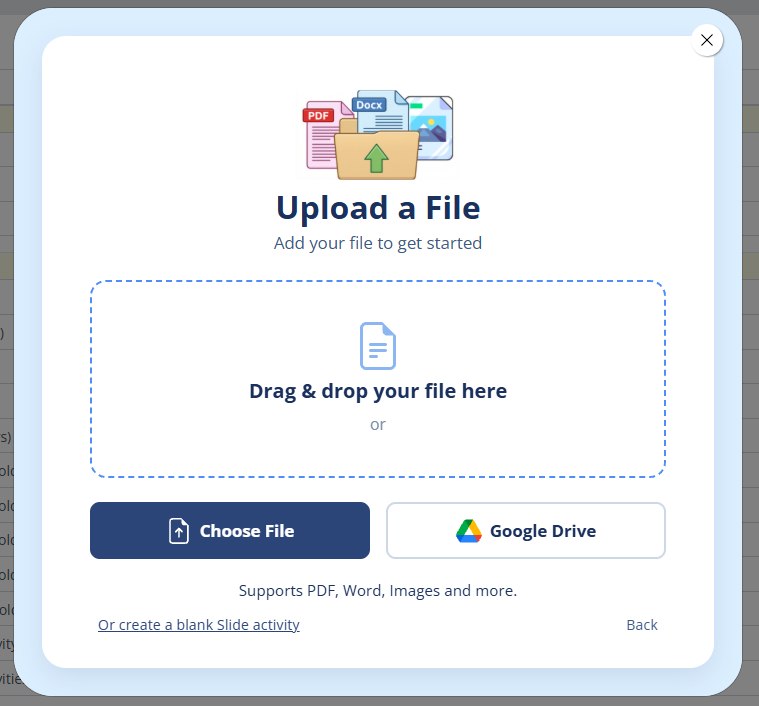
Add your document in one of these ways:
- Upload from your computer.
- Drag and drop your file into the upload area.
- Import directly from Google Drive.
Choose Your Pages
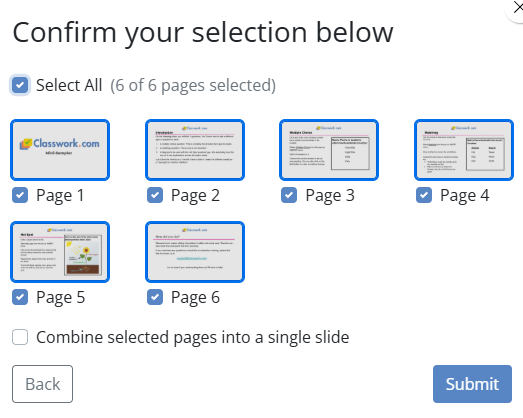
After your file finishes processing, you will see thumbnail previews of each page.
- Click the thumbnails of the pages you want to include.
- Selected pages highlight in blue with a checkmark.
- Use the option at the bottom if you want to combine each page into a single slide.
- Click Submit when you are ready.
Start Building
Your activity opens in the Slide Editor, where you draw answer boxes on top of your pages to make them auto-scoring. See Adding Interactions to add question types and interactive elements.
Related Articles
- New File Button (all three ways to start an activity)
- Slide Editor vs. Flex Editor
Was this article helpful?
That’s Great!
Thank you for your feedback
Sorry! We couldn't be helpful
Thank you for your feedback
Feedback sent
We appreciate your effort and will try to fix the article