|
|
Can I restrict students from submitting late? |
Can I Restrict Students from Submitting Late?
Applies to: Flex Editor & Slide Editor
Yes. Set a Close Date on the Assignment. At that date and time, the Assignment closes and students can no longer open it or keep working.
A Due Date doesn’t do this. It only shows students when the work is due; they can still open it and turn it in after that.
Set a Close Date
- When you assign the Activity, open the Time Management settings. (For an Assignment you already made, open it, click the three-dot menu in the Assignment panel and choose Edit Assignment.)
- Turn on Enable Close Date.
- Pick the date and time.
- Click Save.
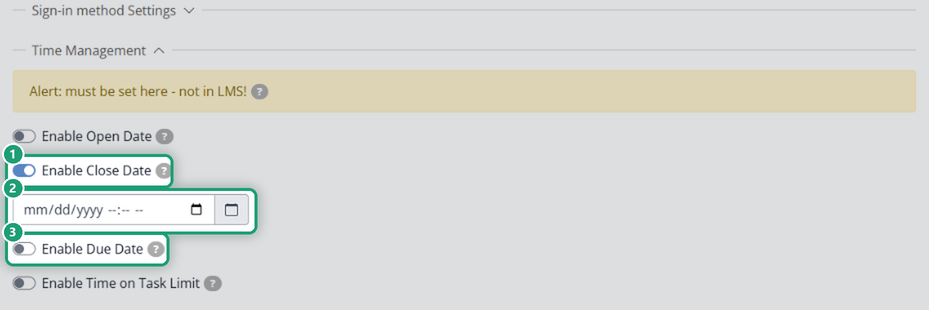
If you post the Assignment in Google Classroom, Canvas or another LMS, set the Close Date here in Classwork.com. A due date set in the LMS doesn’t close the Assignment.
Other ways to stop work
- Lock it now: on the Assignment’s page, click the three-dot menu in the Assignment panel and choose Lock Assignment.
- Turn in what students have: select their work and use Set Selected as Completed.
- Give a time limit: Enable Time on Task Limit sets how long each student gets once they start.
For all the timing options, see Are There Time Management Features in Classwork.com?
Are you new to Classwork.com? Welcome!
Click here to start your 30 day risk-free PRO trial today.
Was this article helpful?
That’s Great!
Thank you for your feedback
Sorry! We couldn't be helpful
Thank you for your feedback
Feedback sent
We appreciate your effort and will try to fix the article