|
|
What is the Set Selected as Completed Button? |
What Is the Set Selected as Completed Button?
Set Selected as Completed turns in a student’s work for them. Use it when a student forgot to click Submit, ran out of time, or closed the Assignment before finishing. Their work moves from In Progress to Submitted, so you can grade it and return it like any other.
Turn in work for several students
- Open the Assignment.
- Check the box next to each student whose work is In Progress.
- Click the three-dot menu above the list of students.
- Click Set Selected as Completed.
- Click Confirm.
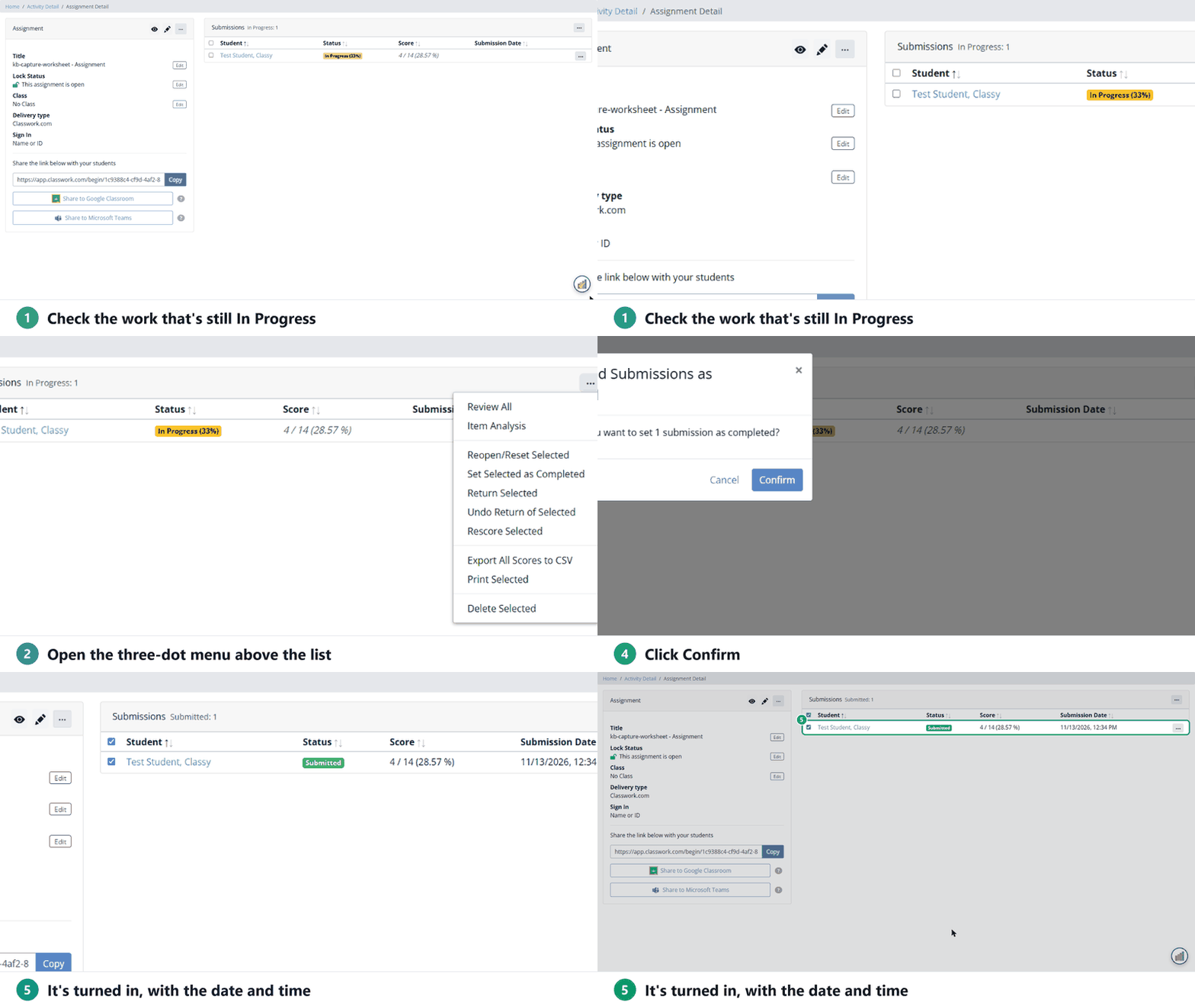
The status changes to Submitted and the submission date and time fill in. The score stays as it was: unanswered questions count as wrong.
Turn in work for one student
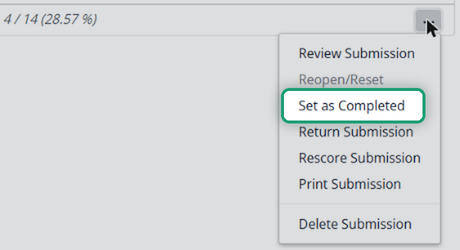
Click the three-dot menu at the end of the student’s row and choose Set as Completed, then confirm.
Changed your mind?
To let the student keep working, use Reopen/Reset from the same menu. See Can Students Make Corrections to Their Work After They’ve Submitted or Redo an Assignment?
Was this article helpful?
That’s Great!
Thank you for your feedback
Sorry! We couldn't be helpful
Thank you for your feedback
Feedback sent
We appreciate your effort and will try to fix the article