|
|
Are there Time Management Features in Classwork.com? |
Are There Time Management Features in Classwork.com?
Yes. You can choose when an Assignment opens and closes, set a due date, and give students a time limit. All four are in the Time Management section on the last step of making an Assignment. You can use any of them alone or together, and change them later with Edit Assignment.
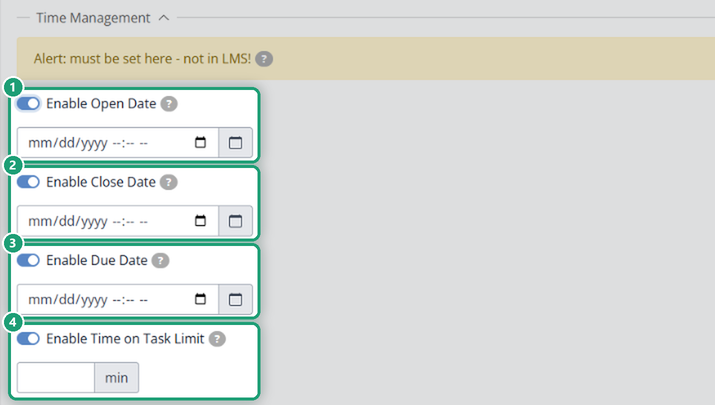
These only work inside Classwork.com. Dates you set in Google Classroom, Canvas or Schoology don’t open, close or time the Assignment, so set them here.
Enable Open Date
Pick when students can start. Students who open it early see when it opens. Handy for scheduling ahead, starting a test on time, or leaving work for a substitute.
Enable Close Date
Pick when the Assignment closes. After that, students can’t open it or keep working. If a student is working when it closes, their work is saved and they see a message.
Enable Due Date
Shows when the work is due and marks work turned in after it as late. It doesn’t stop anyone: students can still open and turn in the work. To stop late work, use a Close Date. See Can I Restrict Students from Submitting Late?
Enable Time on Task Limit
Type the number of minutes each student gets. The timer starts when a student opens the Assignment and keeps running even if they leave the page. It shows at the top of the student’s screen and turns red in the last minute. When time runs out, the work is turned in automatically.
If you reopen or reset a student’s work, their timer starts over.
Was this article helpful?
That’s Great!
Thank you for your feedback
Sorry! We couldn't be helpful
Thank you for your feedback
Feedback sent
We appreciate your effort and will try to fix the article