|
|
Canvas - How Do I Install Classwork.com as an App in Canvas? |
To send Classwork.com assignments to students in Canvas, add Classwork.com as an app in each Canvas course. You do this once per course, and your school may have done it already.
Don’t delete and reinstall the app if something goes wrong. Canvas can lose the link that sends scores back to your course. Fix the settings instead: Canvas: Editing the External Tool installation.
Step 1: Get your setup details from Classwork.com
- Create an assignment as usual and choose Canvas as the delivery method. Click Save.
- On the assignment screen, click setup instructions.
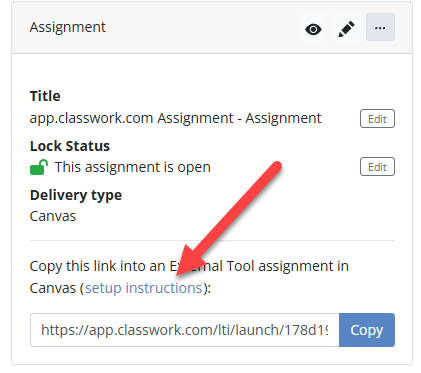
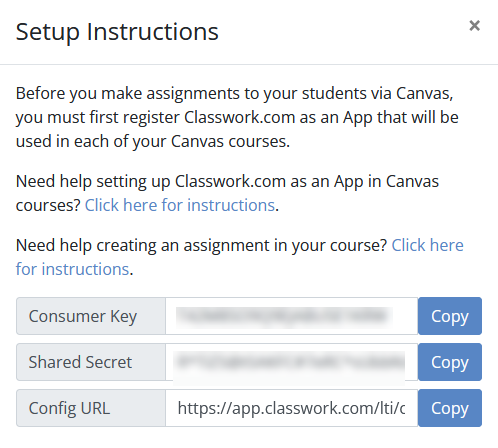
- Leave this window open. You’ll copy the Consumer Key, Shared Secret and Config URL into Canvas.
Step 2: Add the app in Canvas
- In a new tab, sign in to Canvas and open your course.

- Click Settings, then the Apps tab.

- Click View App Configurations.

- Click + App.

- In Configuration Type, choose By URL. This step matters: with Manual Entry, Canvas lets you save, but assignments later fail with “Couldn’t find valid settings for this link.”

- Fill in the fields:
- Name: Classwork.com
- Consumer Key and Shared Secret: copy them from the Classwork.com Setup Instructions.
- Config URL: copy it from the Setup Instructions. If this field says Launch URL instead, go back and choose By URL.
- Click Submit.
Step 3: Set Privacy to Public
Canvas doesn’t send student names unless the app’s privacy is set to Public. Without it, students show up as strings of letters and numbers. Follow the steps in Canvas: Editing the External Tool installation.
Step 4: Check that it works
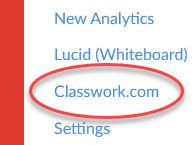
Refresh Canvas. Classwork.com now shows in your course menu. Click it: Classwork.com should open and sign you in.
Repeat these steps once in each Canvas course where you’ll use Classwork.com.
Next: assign work in Canvas
You’re ready to create assignments. See Canvas: How to Assign Student Work Using Canvas.
Was this article helpful?
That’s Great!
Thank you for your feedback
Sorry! We couldn't be helpful
Thank you for your feedback
Feedback sent
We appreciate your effort and will try to fix the article