|
|
Canvas: Editing the External Tool installation |
If Canvas shows “Couldn’t find valid settings for this link,” or Classwork.com assignments won’t open, the Classwork.com app in your course is usually set up wrong. Edit the app’s settings to fix it.
Don’t uninstall and reinstall the app. Canvas treats a reinstalled app as a different one, and scores stop reaching your gradebook.
Open the app settings
- In your Canvas course, click Settings at the bottom of the left menu.
- Click the Apps tab.
- Click View App Configurations.
- Next to Classwork.com, click the gear button and choose Edit.
Check these fields
- Launch URL: https://app.classwork.com/lti/launch (a common mistake is a URL ending in config.xml)
- Domain: app.classwork.com
- Privacy: Public. Otherwise student names show up in Classwork.com as long strings of numbers.
- Consumer Key and Shared Secret: the ones shown in Classwork.com under setup instructions on a Canvas assignment.
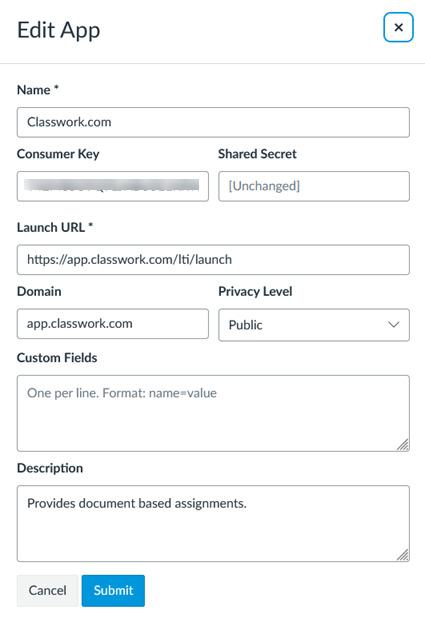
Click Submit.
Test it
Click Classwork.com in your course menu. If it opens and signs you in, the app is fixed and your assignments will work.
Still stuck? See Canvas: How to fix a “Forbidden (403)” Error.
Are you new to Classwork.com? Welcome!
Click here to start your 30 day risk-free PRO trial today.
Was this article helpful?
That’s Great!
Thank you for your feedback
Sorry! We couldn't be helpful
Thank you for your feedback
Feedback sent
We appreciate your effort and will try to fix the article